Creating Compatible Shape Files from SWMM Model
This section provides a short tutorial on how to convert a SWMM model in .inp format into shape files and .csv files compatible with scenarify. The SWMM model file for this tutorial is part of an open dataset and is available for download here.
0. Install QGIS and the plugin "Generate SWMM inp"
Install QGIS from the official website. In QGIS, select Plugins > Manage and Install Plugins... and search for "SWMM". Install the plugin called "Generate SWMM inp".
To allow the plugin to generate .xlsx files (for curves, profiles, etc.), you may need to install the Python package "OpenPyXL". Make sure to install it into the same Python environment used by your QGIS, as multiple Python installations may exist on your system:
- In the Start menu, scroll down to the QGIS entry, expand it, and launch the OSGeo4W Shell
- Type
pip install openpyxland press Enter
1. Run the plugin on the SWMM model file
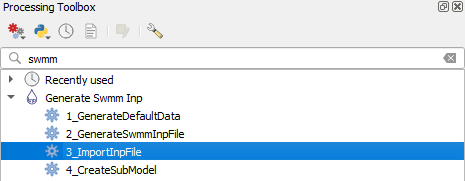
In QGIS, select to Processing > Toolbox. In the panel that appears, search for "SWMM" and launch the tool named "ImportInpFile":
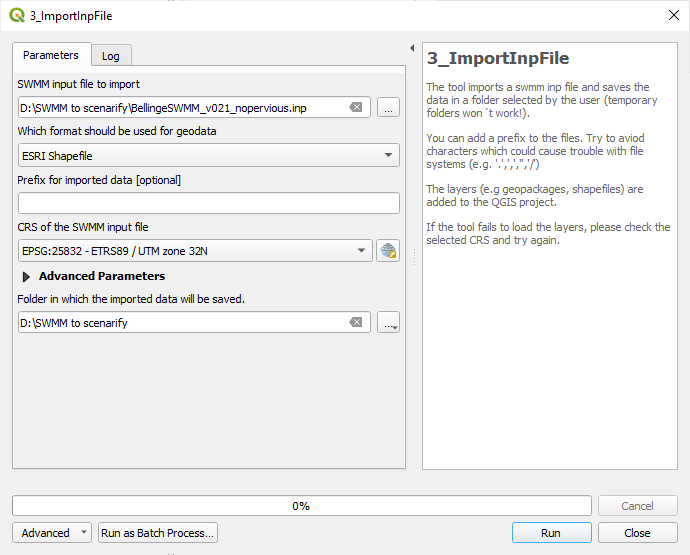
Configure the plugin before running it:
- Specify the path to your
.inpmodel under SWMM input file to import - Make sure that "ESRI Shapefile" is selected under Which format should be used for geodata
- Specify the output directory under Folder in which the imported data will be saved (temporary directory will not work)
- Important: Make sure to correctly set the coordinate system under CRS of the SWMM input file. Since SWMM files do not include any coordinate system metadata, the default value provided by the plugin is merely a guess and may not be accurate
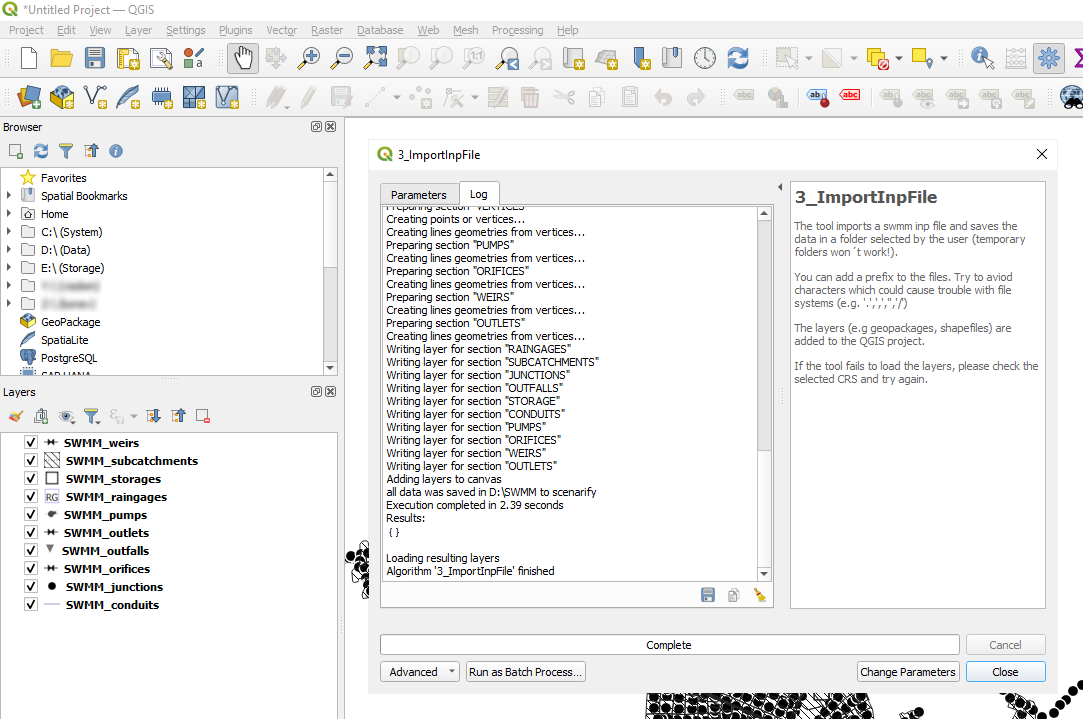
If executed correctly, the plugin should not display any errors in red and should load the resulting .shp files into QGIS:
2. Create missing attribute fields
The generated shape files usually lack some of the attributes required by scenarify or represent them differently. As a general rule, check the relevant attribute table in scenarify to identify any missing attributes in the shape file. You can then add these attributes manually using the QGIS’s built-in Field Calculator.
2.1 Junctions
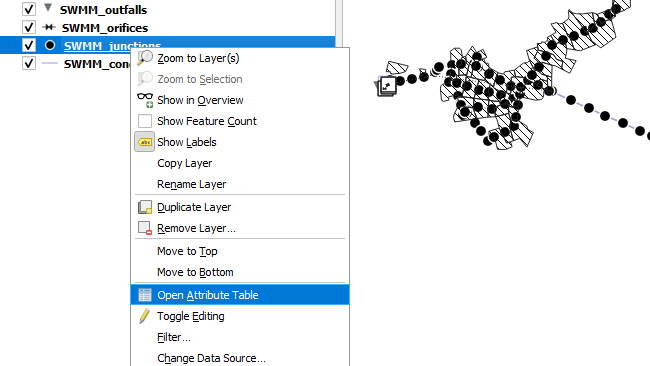
For junctions, open the corresponding scenarify settings category under Simulation Settings Panel > Sewer Nodes: Junctions or All. In QGIS, right-click on the junctions layer and select "Open Attribute Table":
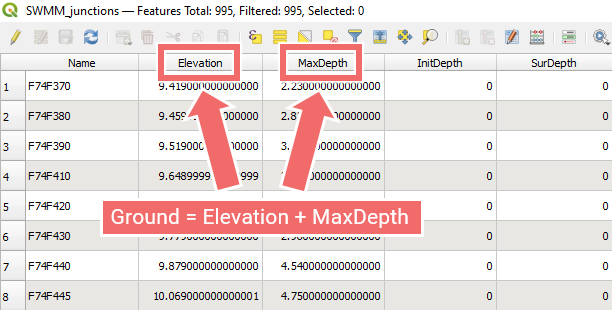
In our example, you will see that the junction ground levels (required under "EndLevels") are missing in the shape file. However, they can be computed in QGIS using the Field Calculator by adding the "Elevation" and "MaxDepth" fields from the shape file, which represent the junction invert elevation and maximum depth, respectively:
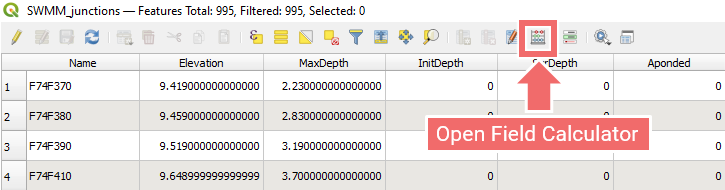
From the attribute table, open the Field Calculator:
In the Field Calculator window, ensure that Create a new field is selected. Set Output field name to the desired name and Output field type to "Decimal number (real)", choose appropriate values for field length and precision. In the Expression field, enter:
"Elevation" + "MaxDepth"
This calculates a new attribute field called "Ground" by summing the invert elevation and maximum depth:
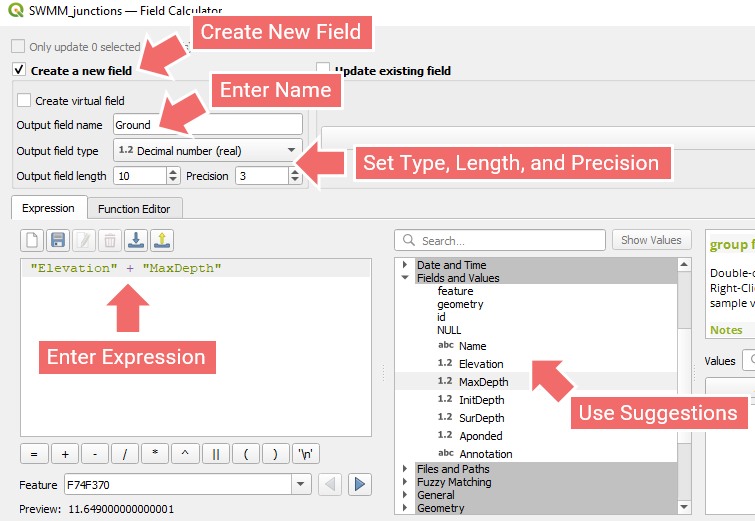
Hint: The central menu provides categorized suggestions for available operations, functions, and attribute fields. If you're unsure how to compute a value, use the search bar to look for relevant functions—chances are you will find something that fits your needs.
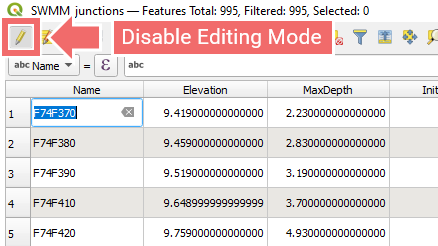
After pressing OK, the new attribute field will appear in the table. QGIS automatically enables editing mode for the layer—make sure to toggle the editing button again to exit editing mode and save your changes; otherwise, the new field won't be stored:
2.2 Outfalls
If you compare the outfalls shape file with the requirements under Simulation Settings Panel > Sewer Nodes: Outfalls in scenarify, you will notice that scenarify expects outfall types to be specified in an integer field in the "ShapeTypes" row. However, the shape file only includes a textual "Type" field. You need to create a new integer field that maps each text value in "Type" to the corresponding integer code expected by scenarify.
This can be done in the Field Calculator as well. This time, choose "Integer (64 bit)" under Output field type. In the Expression field, write a script similar to the following:
if ("Type" = 'FREE', 0,
    if ("Type" = 'NORMAL', 1,
        if ("Type" = 'FIXED', 2,
            if ("Type" = 'TIDAL', 3,
                if ("Type" = 'TIMESERIES', 4, -1) ) ) ) )
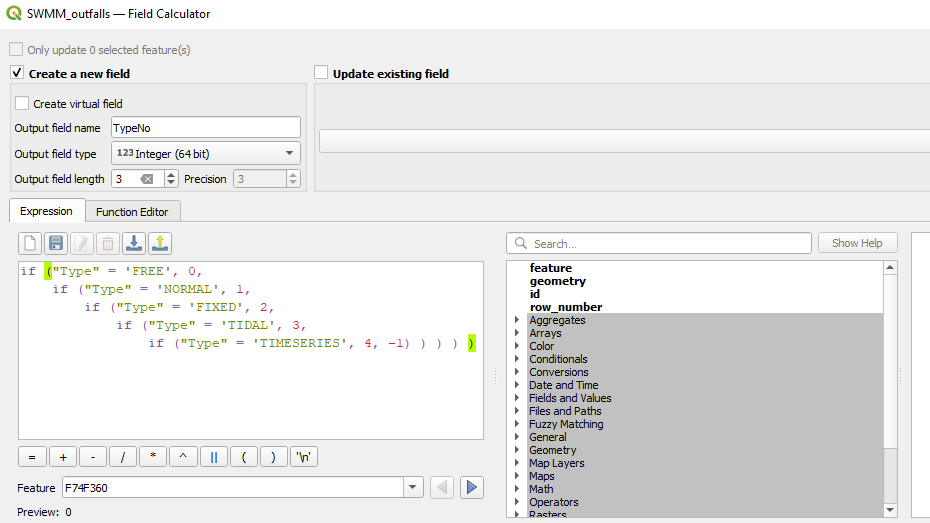
This should produce an integer field which you can then use under "ShapeTypes" in scenarify. Again, remember to exit the editing mode in order to save your changes to the layer.
2.3 Storages
For storage units, you will need to create an attribute field for ground levels, exactly as you did for junctions. Optionally, you may also create a field for initial water levels to use under "Levels" in Simulation Settings Panel > Sewer Nodes: Storages. This can be done using a script like:
"Elevation" + "InitDepth"
However, in this example, the "InitDepth" values are all zero, so creating this field does not add any meaningful information.
2.4 Conduits
In order to represent conduit profile types under "ShapeTypes" in Simulation Settings Panel > Sewer Links: Conduits, you will need to create an integer attribute field named "TypeNo", based on the existing "XsectShape" field. Use a script similar to the following in the QGIS Field Calculator:
if ("XsectShape" = 'CIRCULAR', 1,
    if ("XsectShape" = 'CUSTOM', 2,
        if ("XsectShape" = 'RECT_CLOSED', 3, -1) ) )
2.5 Weirs
For weirs, derive the integer attribute "AngleNo" to use under "Angles" in Simulation Settings Panel > Sewer Links: Weirs from the existing "Type" attribute:
if ("Type" = 'SIDEFLOW', 0,
    if ("Type" = 'TRANSVERSE', 90, -1) )
Hint: The fallback value
-1will be assigned if a weir is neither SIDEFLOW nor TRANSVERSE. In scenarify, this will trigger an error message indicating an unsupported weir type, which is the expected and intended behavior.
2.6 Pumps
For pumps, you need to create the integer attribute "PumpTypeNo" to be used under "CurveTypes" in Simulation Settings Panel > Sewer Links: Pumps. Unfortunately, the pumps shape file does not contain any direct information from which this attribute can be derived.
However, each pump has a "PumpCurve" attribute that specifies the name of its associated pump curve. The file gisswmm_curves.xlsx, generated by the plugin, includes all curves from the model, organized into separate sheets based on curve type. It contains sheets named "Pump1", "Pump2", "Pump3", "Pump4", and "Pump5". These types follow the classification from page 54 of the SWMM User’s Manual. For each pump, take the curve name from the "CurveTypes" attribute and determine which sheet in the gisswmm_curves.xlsx file contains it. This reveals the SWMM pump curve type:
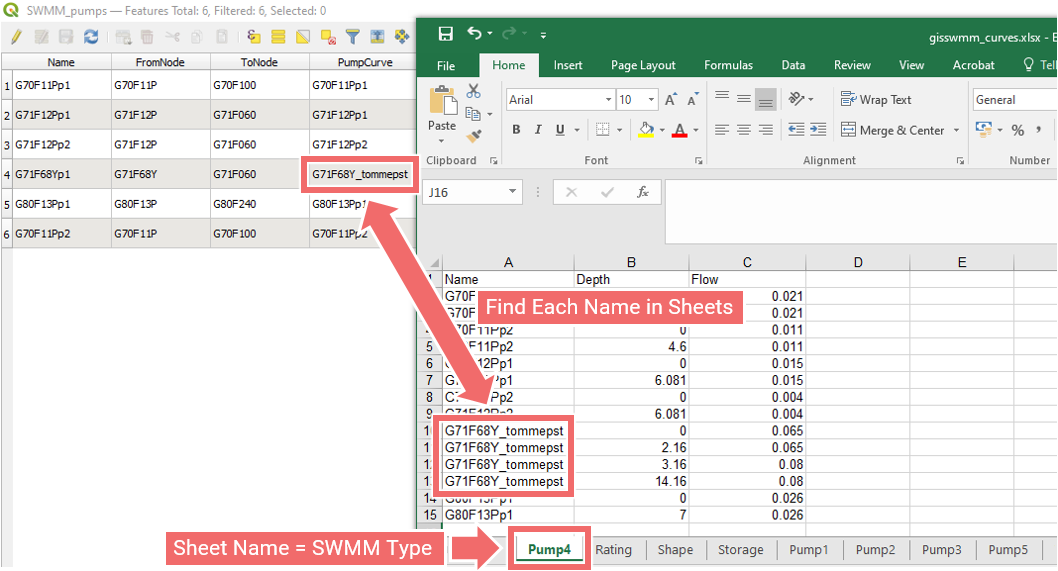
The SWMM pump curve types can then be converted to the corresponding scenarify codes according the table below:
| SWMM type | scenarify code |
|---|---|
| Pump1 | 0 |
| Pump2 | 1 |
| Pump3 | 2 |
| Pump4 | 3 |
| Pump5 | 4 |
In our example, all curve names appear in the "Pump4" sheet, which, according to the table above, corresponds to pump curve type 3 in scenarify. Therefore, create the integer attribute "PumpTypeNo" and assign the value 3 to each pump.
2.7 Orifices
For orifices, two integer attributes "FlapNo" and "XsectNo" will have to be created from the existing attributes "FlapGate" and "XsectShape". They will be used in Simulation Settings Panel > Sewer Links: Orifices under "FlapGates" and "CrossSectionTypes", respectively. The corresponding Field Calculator scripts could look as follows:
if ("FlapGate" = 'NO', 0,
    if ("FlapGate" = 'YES', 1, -1) )
and
if ("XsectShape" = 'CIRCULAR', 1,
    if ("XsectShape" = 'RECT_CLOSED', 3, -1) )
2.8 Discharge controllers
For discharge controllers, provided in the shape file SWMM_outlets.shp, an integer attribute field "FlapNo" must be created based on the existing "FlapGate" attribute. In the Field Calculator, you can use the same script as the one used for orifices.
3. Create .csv files
At this final step, you need to create .csv files for storage profiles, conduit profiles, pump curves, and discharge controller curves.
Hint: Make sure each
.csvfile strictly follows the example format provided in the corresponding inline helper tooltips—for instance, in Simulation Settings Panel > Sewer Nodes: Storages under CSV File Path for storage units.
The file gisswmm_curves.xlsx, generated by the plugin, contains all curves from the model, organized into separate sheets by curve type. The sheets labeled "Storage", "Shape", "Pump1" through "Pump4", and "Rating" are typically relevant, as they include all the necessary curve data. In each of these sheets, the "Name" column refers to the curve ID, not the sewer structure ID. However, scenarify requires that curves be identified by the corresponding sewer structure IDs. Therefore, you must extract the appropriate curves from each relevant sheet, transfer them into the corresponding .csv file, adjust the formatting (headers, delimiters, etc.), and replace the curve IDs with the matching sewer structure IDs.
3.1 Storage profiles
Extract the curves from the "Storage" sheet of gisswmm_curves.xlsx:
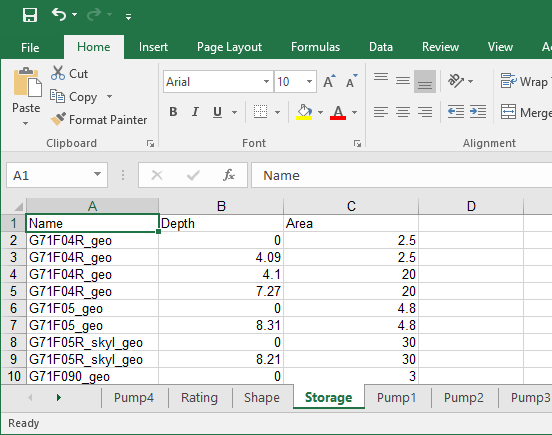
Copy the curves into a newly created file named storage_profiles.csv. Add the header and adjust the delimiters exactly as shown in the inline helper tooltip in Simulation Settings Panel > Sewer Nodes: Storages under Storage Profiles > CSV File Path. Carefully replace the curve IDs with the IDs of the corresponding shapes. Ensure that all storages requiring a tabular profile curve definition (see Tutorial 1) have an associated curve specified.
3.2 Conduit profiles
Extract the curves from the "Shape" sheet of gisswmm_curves.xlsx and copy them into a newly created file named conduit_profiles.csv. Add the header and adjust the delimiters exactly as shown in the inline helper tooltip in Simulation Settings Panel > Sewer Links: Storages under Custom Cross-Section Profiles > CSV File Path.
Hint: Custom conduit profiles do not require replacing curve IDs with shape IDs, as the attribute table in Simulation Settings Panel > Sewer Links: Storages uses a separate attribute for profile curve IDs ("CrossSectionTypes").
3.3 Pump curves
The pump curves can be found in the sheets "Pump1" through "Pump4" of gisswmm_curves.xlsx. In our example, the sheet "Pump4" contains all the pump curves. Copy them into a newly created file named pump_curves.csv, adjust the format as required, and replace the curve IDs with the corresponding pump IDs.
3.4 Discharge controller curves
The discharge controller rating curves can be found in the sheet "Rating" of gisswmm_curves.xlsx. Copy these curves into a new file named outlet_curves.csv, format the file as required, and replace the curve IDs with the IDs of the corresponding discharge controllers.
Hint: After importing the curves into scenarify, review any warnings carefully, as they may indicate missing curves.