River Modeling
To model rivers and streams, it is best to specify inflows with associated discharge and water level data and outflows with associated water level data. However, this is only possible in very specific cases such as when reconstructing a historic event or when gauges are available at locations surrounding the region of interest. Most of the time the information is incomplete. If information is scarce, one can still model a river by only specifying an inflow with a discharge function. We will go through the different options, from the bare minimum required for river modeling, i.e. a constant discharge inflow, to more involved setups requiring additional data.
If you want to do some hands-on action in scenarify you can use the model from the Fast Setups with the Setup Wizard example, where you can learn how to setup terrain, land use and buildings. This model including its data is freely available for usage and it was also used to produce the screenshots shown below.
Drawing an Inflow
Draw an inflow in a river by selecting the Inflow action.
Hint: If you need help on drawing (inflow) actions, please read the Drawing Actions page.
After the inflow is drawn, the inflow line and a direction arrow shows up. The inflow is directed towards the left-hand side of the lines. The flow direction can also be inverted in the Action Settings Panel in the Geometry category. The direction arrow shows the water flow direction:
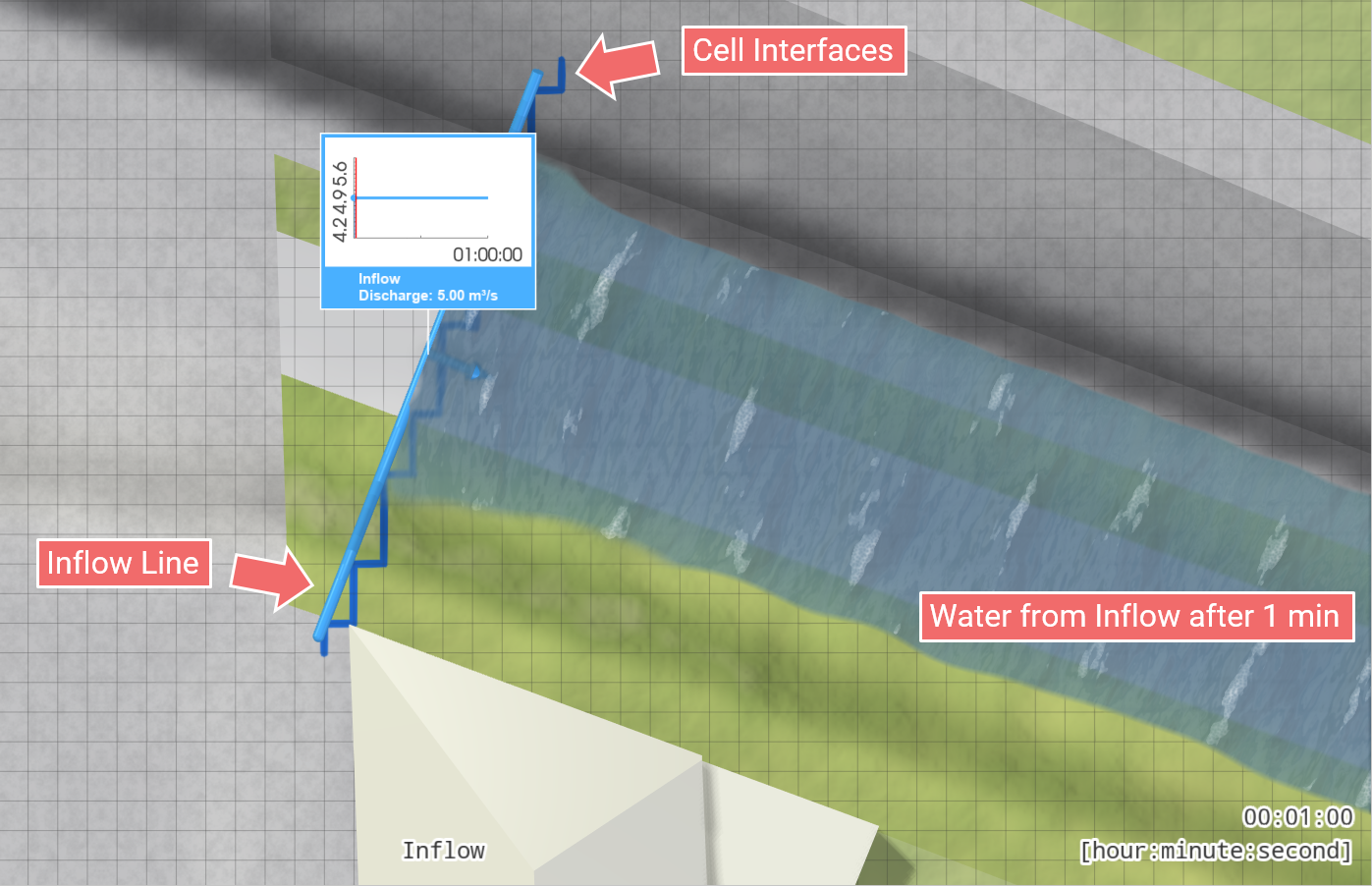
The inflow provides numerical boundary conditions for the simulation at the rasterized cell interfaces, so-called Inflow and Outflow Boundary Conditions. The discharge can of course be adjusted. This simple setup is often enough to model flow in small streams from upstream catchments when combining it with an heavy rain event in the simulation domain.
To generate a flood wave, we select the Enter Design Wave mode and increase the peak discharge to 80 m³/s:
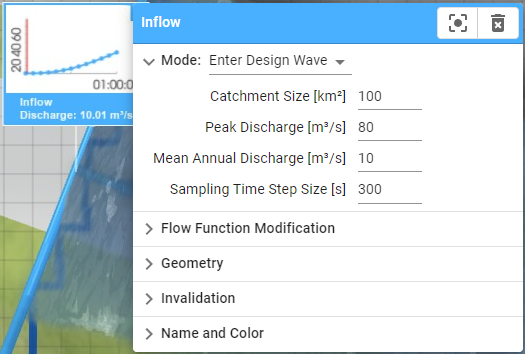
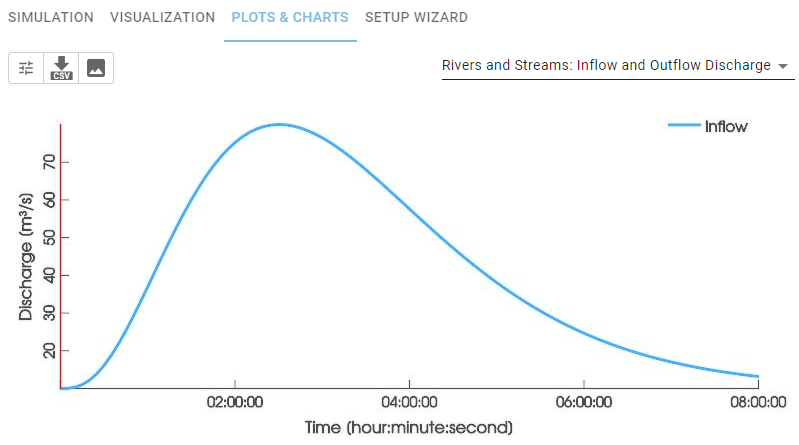
This generates a flood wave through increasing discharges until the peak time is reached. For the current parameters, the peak time is beyond the current scenario end time of one hour as visible in the Inflow action label. Thus, for time-varying discharge and water level data make sure that the flood wave is contained within the scenario. If the peak is not reached within the specified scenario duration, extend it, e.g., increase the scenario end time in the Scenario Management Panel until the peak and a large enough portion of the flood wave's tail is simulated.
This can also be checked in the Plots & Charts panel in Rivers and Streams: Outflow and Inflow Water Level and Rivers and Streams: Inflow and Outflow Discharge:
Drawing an Outflow
To increase the simulation accuracy at the simulation border where the river leaves, an outflow must be set. The basic option is to specify a constant water level by selecting the Enter Water Level mode and activating the Use Max. Water Level Extension setting which is found under Geometry category in the Action Settings Panel:
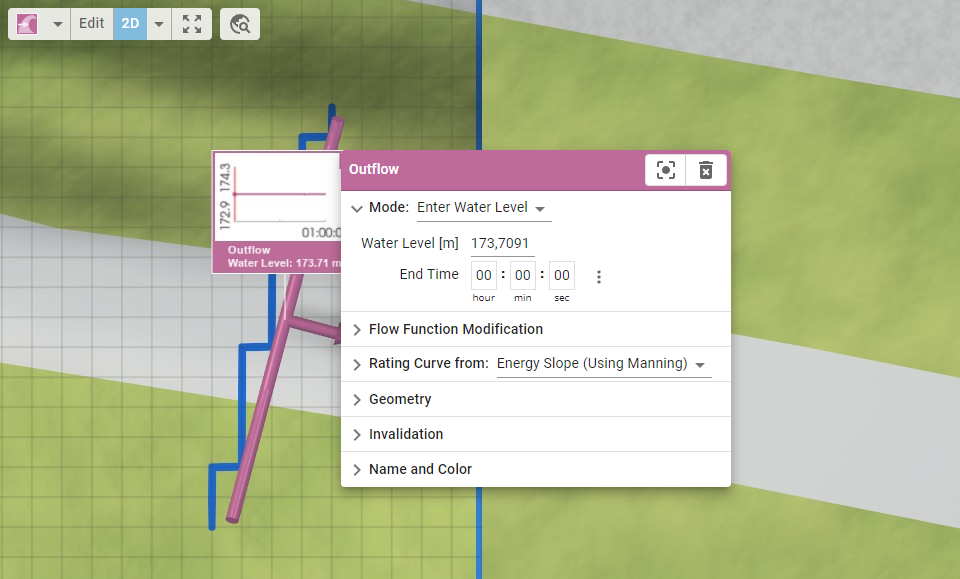
By increasing the water level to 176 m in the above example, we can see that the outflow line is automatically extended according to the peak water level and the terrain profile:
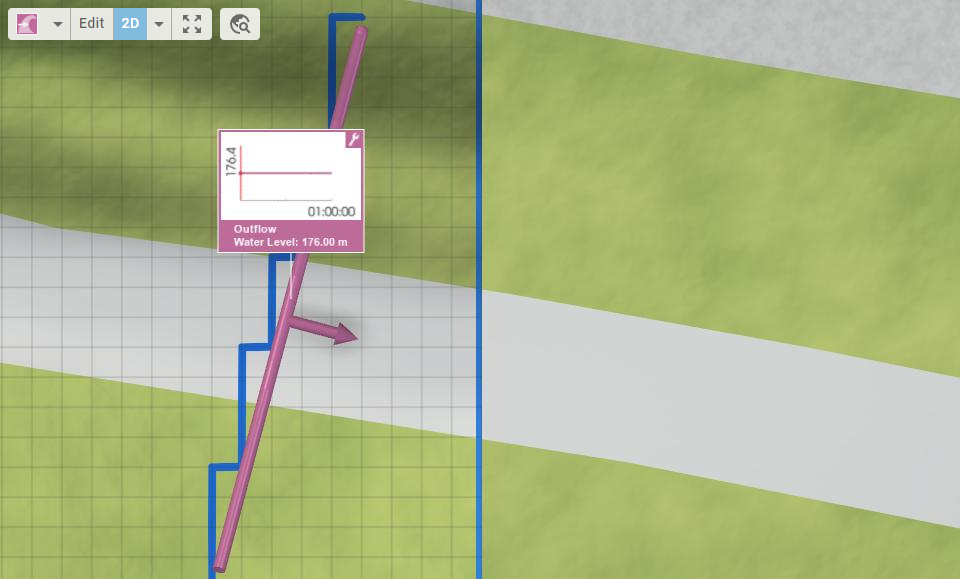
When the Use Max. Water Level Extension setting is not enabled, you should ensure that your outflow extends at least to the top of the bank. If dikes or protection walls are present nearby, the outflow should be extended to them. The length of an outflow can be modified in several ways:
- For manually drawn outflows, switch to edit mode and move the control points.
- When manual editing is not possible, use the settings in the Geometry category of the Action Settings Panel to set either a fixed length, an extension factor, or an additional extension.
If scenarify can estimate peak water levels, both inflow and outflow lines are automatically extended by their respective maximum water level.
Profile Inspection
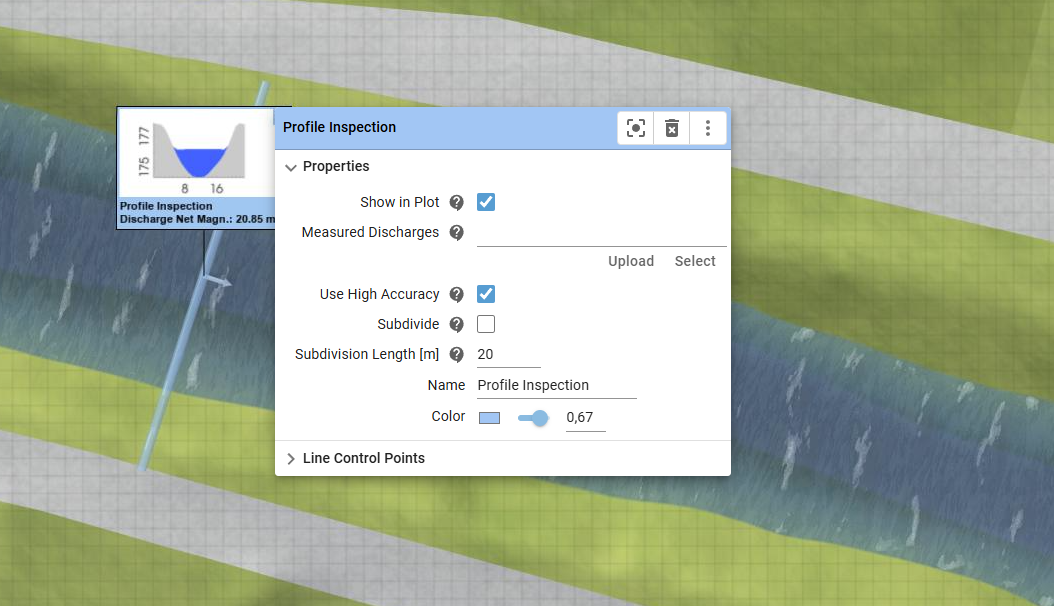
The profile inspection action can be used to verify simulated discharges. If time series data are available, e.g., at a gauge location, they can be directly compared to the simulated values. By default, a low accuracy mode is activated to preserve the current simulation state. To perform verification, always enable the Use High Accuracy setting in the Action Settings Panel on. But keep in mind that, after switching to Use High Accuracy mode, the scenario must be re-simulated to apply the higher-precision computations.
Simulating Historical River Floods between Gauges
The classical way to perform validation simulations for gauged rivers is to define an inflow at the upstream gauge and an outflow at a gauge further downstream. At the inflow and outflow, discharge and water level time series from historical events are then used as boundary conditions.
For this, an inflow must be drawn at the upstream gauge. The inflow mode must be set to Load from Files to be able to set the historical time series. The same goes for the outflow. The outflow must be drawn at the downstream gauge and the historic water level time series are again set by selecting Load from Files. The time series need to be provided as CSV Files with the following columns: Time, Water Level and Discharge, which is optional. Here is an example:
Time<time>[];Discharge<float>[m³/s];Water Level<float>[cm]
10.05.2013 23:00;2520;394
10.05.2013 23:05;2520;394
10.05.2013 23:10;2520;394
...
Exploiting River Lines and Bank Polygons
In order to facilitate a flexible domain setup with an accurate placement of inflows and outflows, we recommend using river axis lines and bank polygons. Bank polygons are used for automatically deriving the length of inflow and outflow lines by intersection. River lines alone already greatly improve the modeling experience. They are used for
- automatically updating inflow and outflow lines based on the current simulation domain,
- deriving the initial state from inflows and outflows, and
- estimating the energy slope from the river line to compute rating curves for outflows.
There are two main options for setting up river axis lines and bank polygons:
- Load the river lines and bank polygons from shape files, or
- Manually sketch river axis lines and river banks with the River Line and River Bank action.
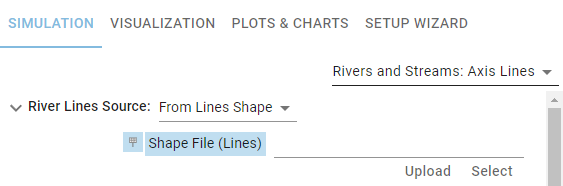
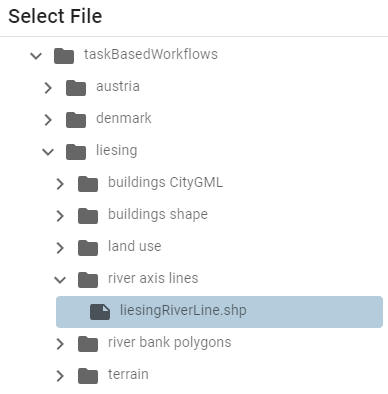
Again, we use our example model to get hands-on practice. We start with the first option and specify the river lines shape file in the Rivers and Streams: Axis Lines category:
Hint: Use the Settings Search Widget on the right side of the Application Bar to quickly access settings, e.g. search for Rivers Axis Lines.
In the Rivers and Streams: Bank Polygons category, we select From Polygons Shape and specify the bank polygons shape file:
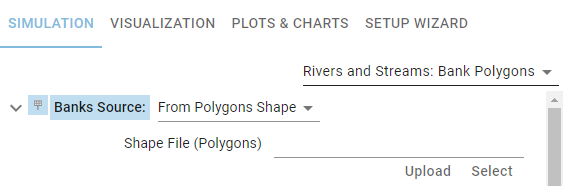
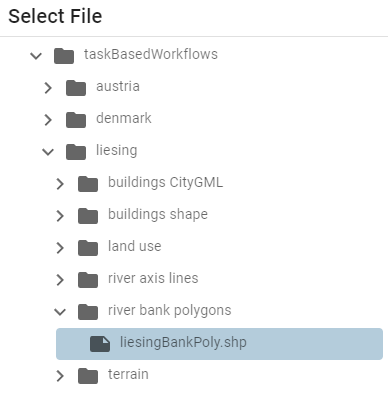
Alternatively, if no data is available, we need to go with the latter option of drawing river lines and banks. For this, select the River Line action and draw an axis line along the thalweg of the river. Then, select the River Bank action and draw a closed polygon to mark out the river banks.
Remark: If you provide a river bank polygon, it has to contain the associated river line.
After having set up river axis lines, it is best practice to assign the Inflow action to the river line by using Assign to Line instead of drawing the line on the terrain. This way the inflow is linked to the river line, which provides useful for setting up an initial state or when replacing the simulation domain.
The same goes for the outflow, please assign the Outflow action to the river line. By default, an outflow assigned to a river line automatically derives the rating curve from the terrain slope along the river line, see also Specifying Outflows at Ungauged Rivers.
By selecting Inflow and Outflow for the initial state, you should see both inflow and outflow, as well as initial water along the river:
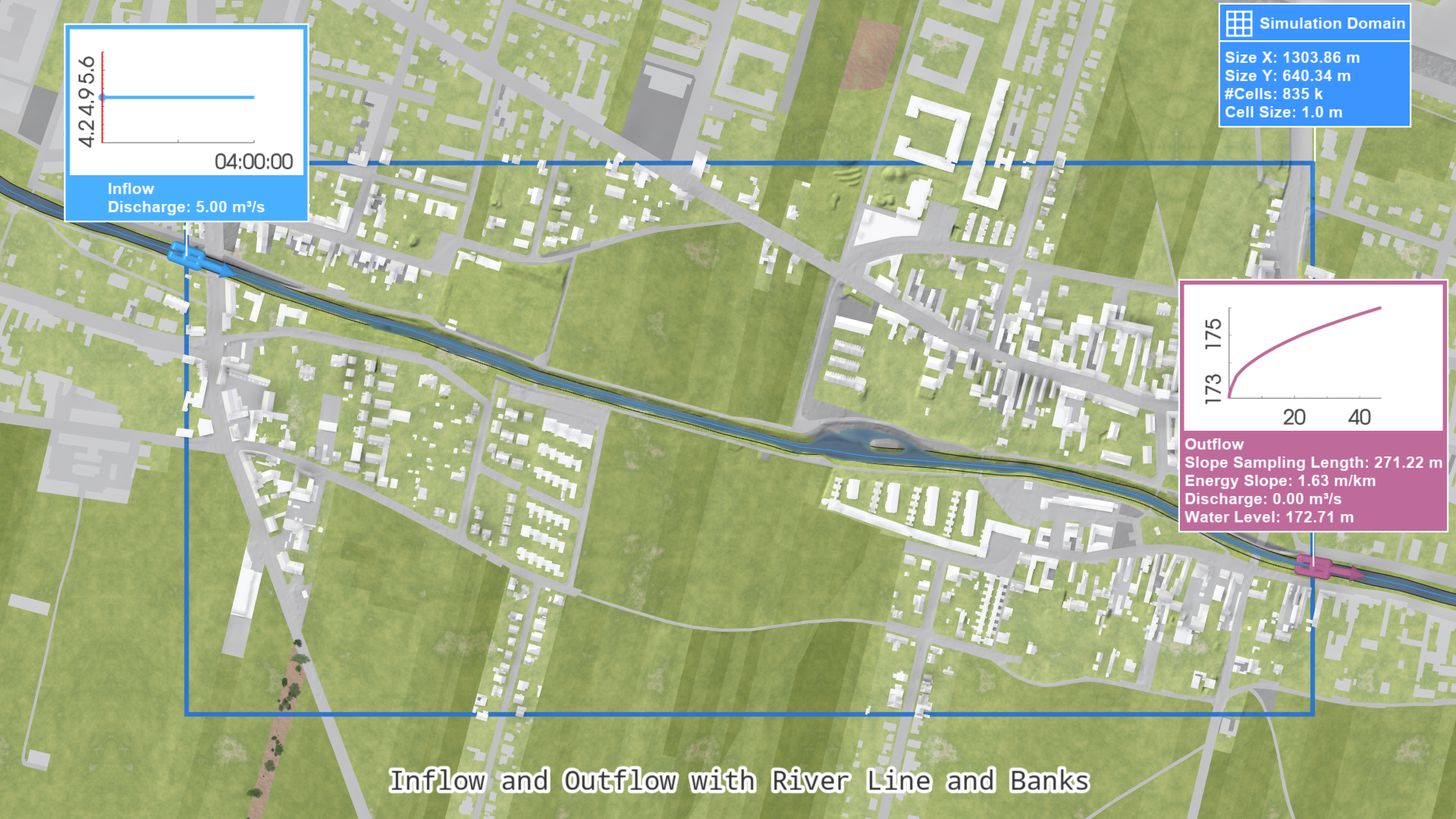
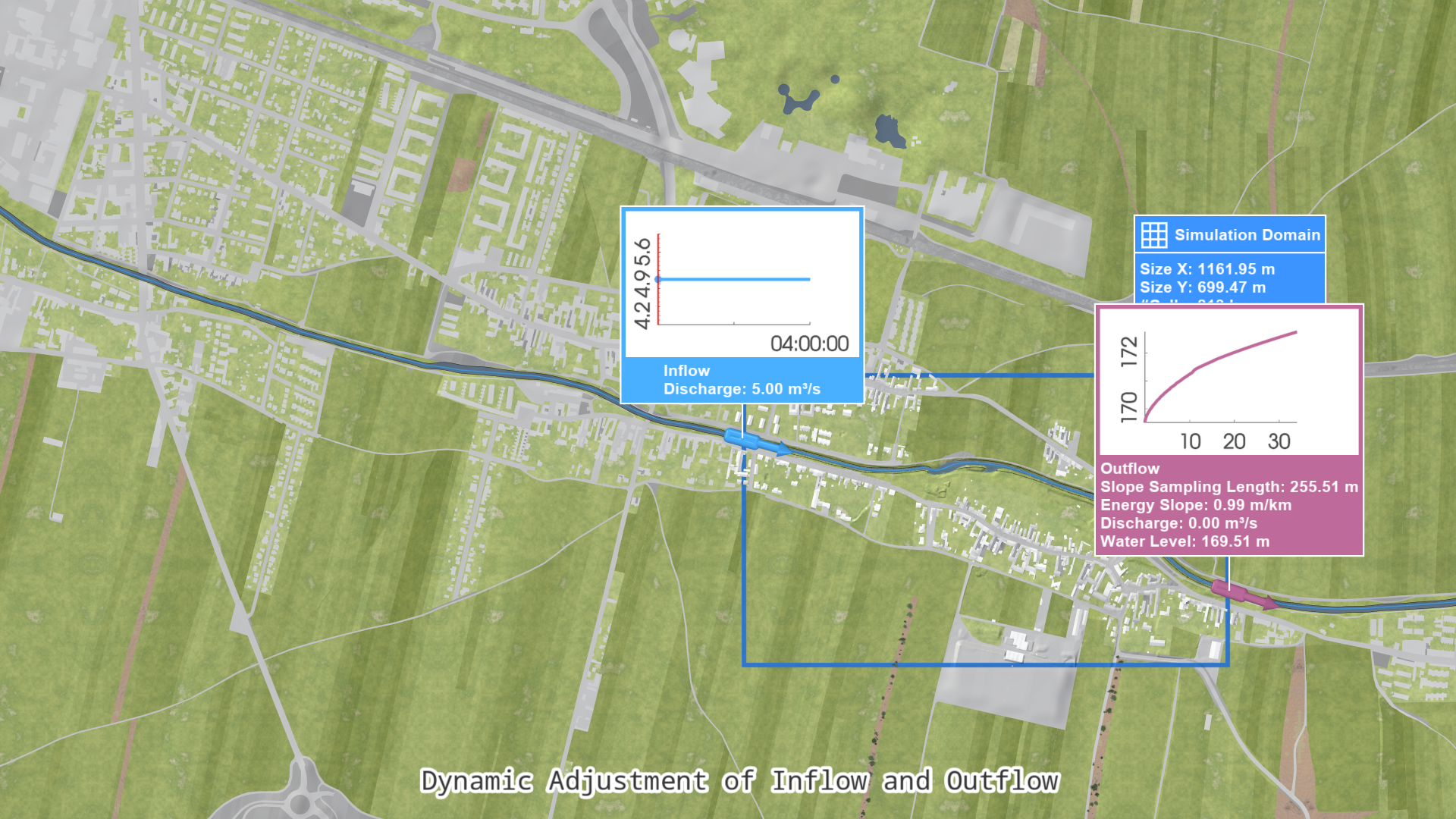
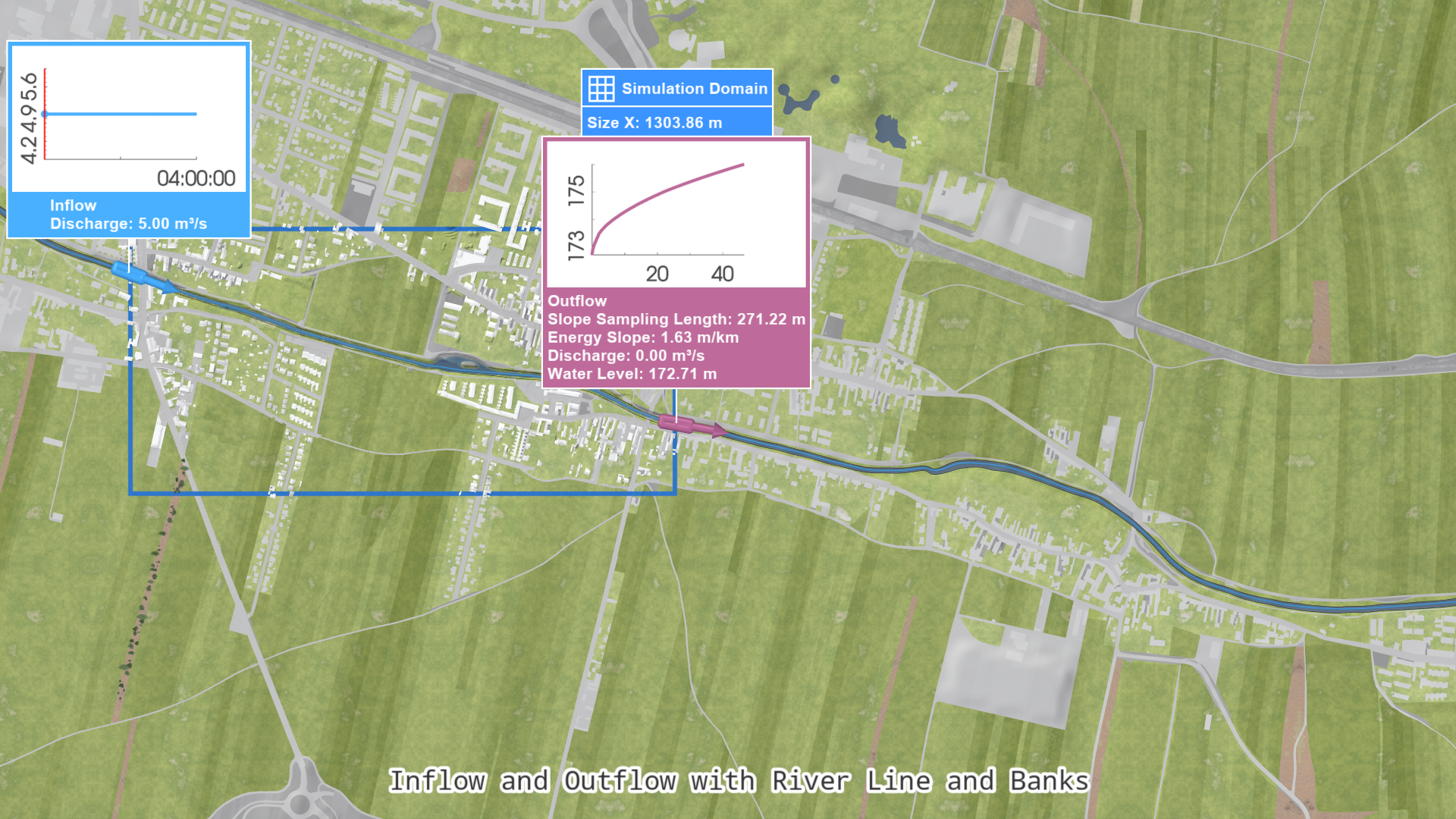
A compelling features of this setup is that inflows and outflows are now dynamically adjusted to the simulation domain. This means, that when we create a smaller or larger domain, inflow and outflow are placed automatically at the simulation domain borders and the corresponding boundary conditions are automatically updated:
Setting up an Initial State
We recommend the provision of an initial state to ensure faster initialization of river flow and better handling of inflow and outflow boundary conditions. For details on how these initial state options work, see the model description page Initial State. The initial state is set in the Simulation Settings Panel under Surface: Initial State.
Hint: Use the Settings Search Widget on the right side of the Application Bar to quickly access settings, e.g. search for Initial State.
One option is to set the initial state from the initial water levels of the inflow and outflow. This method requires the provision of river axis lines. In general, initial states derived from inflows and outflows are most effective for larger rivers or rivers with low to moderate bed slopes.
There is also the option to set the initial state from a GeoTIFF raster file. To ensure a realistic and detailed initial state for riverine flooding, use the exported water level GeoTIFF raster file of an initialization simulation run.
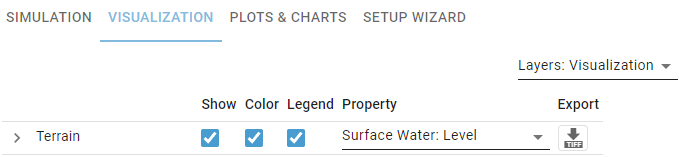
Let us practice this trick with a hands-on exercise. We start from a scenario with a constant discharge inflow of, for example, 5 m³/s and simulate until the scenario end time of one hour, where we export the water levels. The water level GeoTIFF is exported in the Visualization Settings Panel by choosing to visualize water levels on the terrain and clicking the Download icon right next to it:
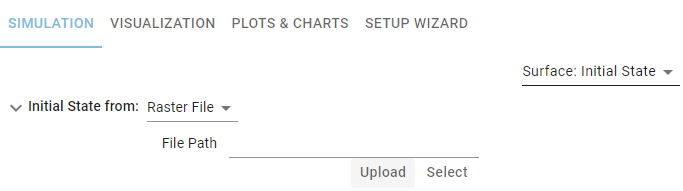
Rename the downloaded file, for example to InitialWaterLevel.tif. We switch to the beginning of a scenario where we want this initial state. Now, set the exported water level GeoTIFF as initial state by specifying Initial State from Raster File and clicking the Upload button:
The initial state has now been set for the current scenario, which concludes this hands-on part.
Introducing Rating Curves for Outflows
Often, it is interesting to perform what-if simulations for possible (imaginary) flood events or at ungauged locations, where there is a priori no water level data available for the outflow. In such cases, outflows should operate in Automatic mode. This option uses a rating curve to dynamically prescribe water levels at the outflow. A rating curve defines the relationship between stage (water level) and discharge. The rating curves for the outflows in the current scenario can be displayed in the Outflow label plots and in the Rivers and Streams: Outflow Rating Curves plot:
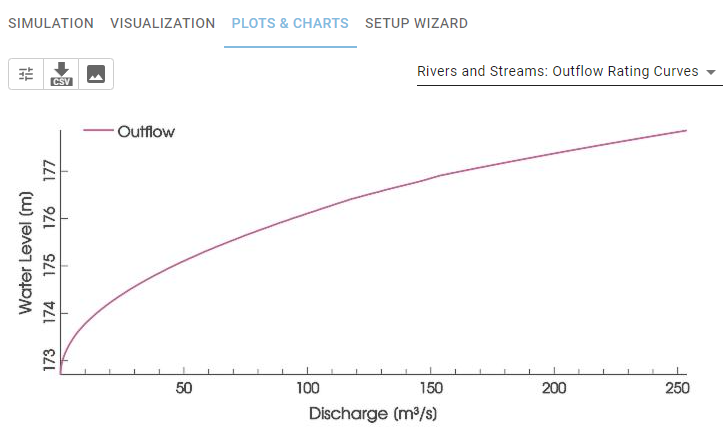
This rating curve is then used to prescribe water levels at the outflow based on the recorded simulated discharge leaving through the outflow at every simulation time step. In other words, the water discharge that is leaving the domain at the outflow cell interfaces in the simulation is converted via the specified rating curve to a water level, which is used as a boundary condition driving the simulation.
Specifying Outflows at Gauges
First, we will treat the case of hypothetical flood events at gauged rivers. This means a gauge is available at the outflow of a river leaving the simulation domain. In this case, it is best to select the Automatic mode and specify the measured rating curve of the gauge in the Outflow action by selecting Rating Curve from CSV File. Then, choose the CSV file with the discharges and water levels. It must be formatted like the example below:
Discharge[m³/s];Water Level[m]
0.0;172.7
0.2;172.8
0.35;172.9
...
Specifying Outflows at Ungauged Rivers
For river flood simulations of ungauged rivers, the best option is to select Automatic mode and use rating curves. If you don't have the rating curve from measurements since there is no gauge at the outflow, but knowledge about the energy slope of the river, use this option to manually enter the energy slope. If you also don't know the energy slope at the outflow, scenarify offers the option to approximate the energy slope in the Manning-Strickler formula by a carefully estimated terrain slope. To use the rating curve derivation from the terrain slope, river lines must be provided. The terrain along the river line is sampled using a least-squares approach to compute an average slope. The slope sampling length is derived from the width of the outflow line and multiplied by a factor of 10. The values of energy slope and slope sampling length can be verified in the label of the outflow. The river segment used for sampling the terrain can be visualized via the action tool panel:
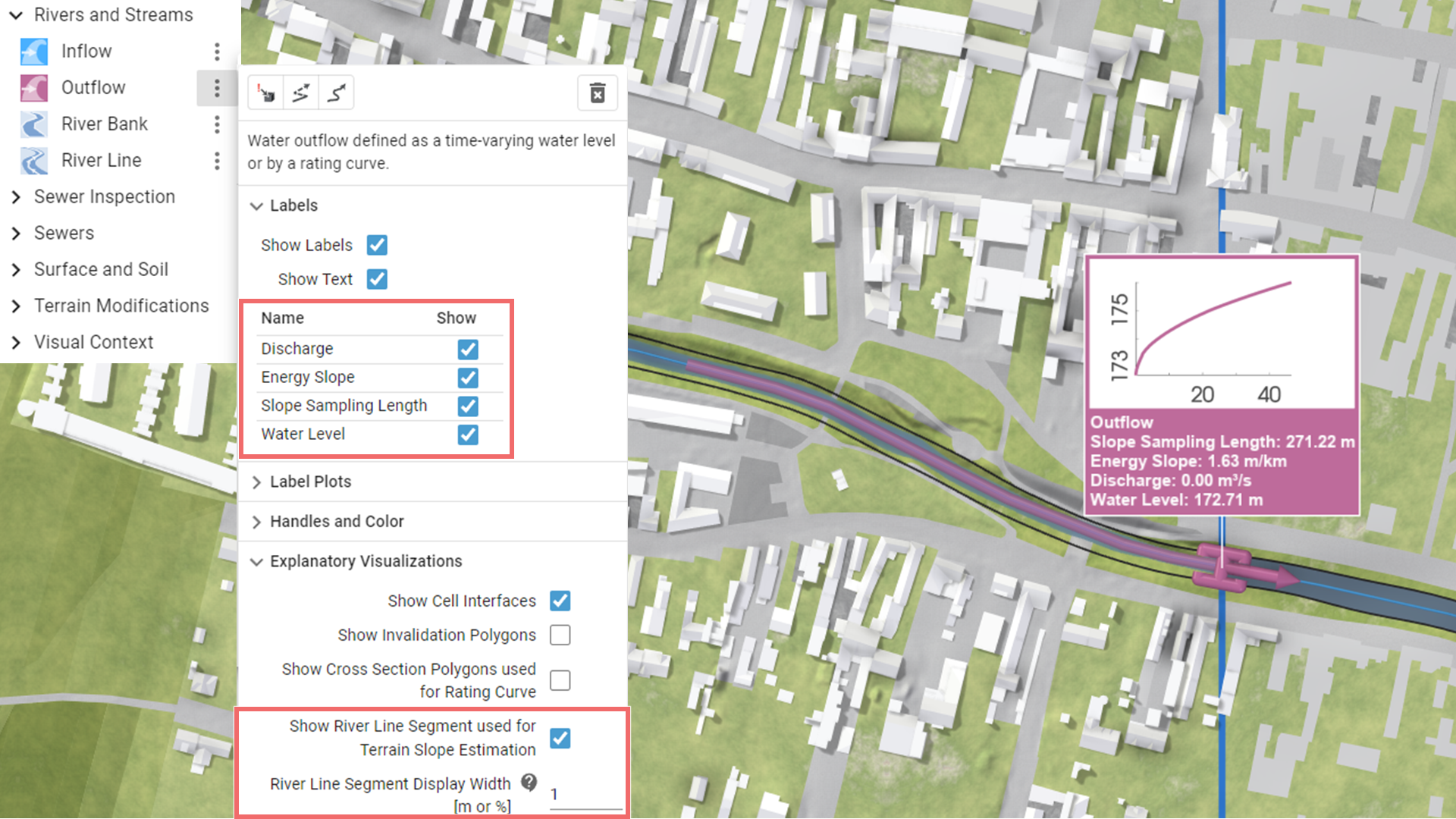
The rating curve for the cross section at the outflow line is computed with the Manning-Strickler formula, for details see the model description on Rivers and Streams.
For Automatic mode, we recommend deactivating the Use Max. Water Level Extension option, located under the Geometry category in the Action Settings Panel. This is because the rating curve is calculated only for the original, unextended portion of the line. You should ensure that your outflow extends at least to the top of the bank. If dikes or protection walls are present nearby, the outflow should be extended to them. To adjust the outflow length, use the settings in the Geometry category of the Action Settings Panel to set either a fixed length, an extension factor, or an additional extension.
Estimating the energy slope for outflows produces the most reliable results for rivers with approximately uniform flow conditions.
Providing Initial and Peak Water Levels for Automatic Outflows
When outflows operate in Automatic mode, there are a priori no water levels available to estimate initial and peak water levels during the simulation. To effectively use the automatic extension feature of the outflow line, it is necessary to estimate the peak water level in advance. Additionally, to obtain an initial state from inflows and outflows through propagation, a river line and an estimate for the initial water level is necessary. The initial and peak water level can be estimated from:
-
Water Levels: Enter the initial and peak water level.
-
Discharges: Enter the initial and peak discharge. The corresponding water levels are then calculated using the rating curve.
-
Linked Inflow: The system automatically takes the initial and peak discharge from the correlated inflow and derives the corresponding water levels based on the rating curve.
In general, the outflow should be linked to an inflow by using a river line. However, if only one inflow and one outflow is present, the system automatically links them and the automatic extension feature prolongs the outflow line (even if there is no river line supplied).
Positioning the Simulation Domain
To achieve accurate and realistic river dynamics simulations, follow these guidelines when drawing the simulation domain:
- Center the Region of Interest: Position your area of interest in the center of the simulation domain to avoid inaccuracies that may occur near the domain's borders.
- Set the Inflow Boundary: Place the inflow boundary at least two times the river's width upstream of the region of interest. This buffer ensures a smooth flow entering the region of interest.
- Set the Outflow Boundary: Position the outflow boundary approximately five times the river's width downstream of the region of interest for optimal results.
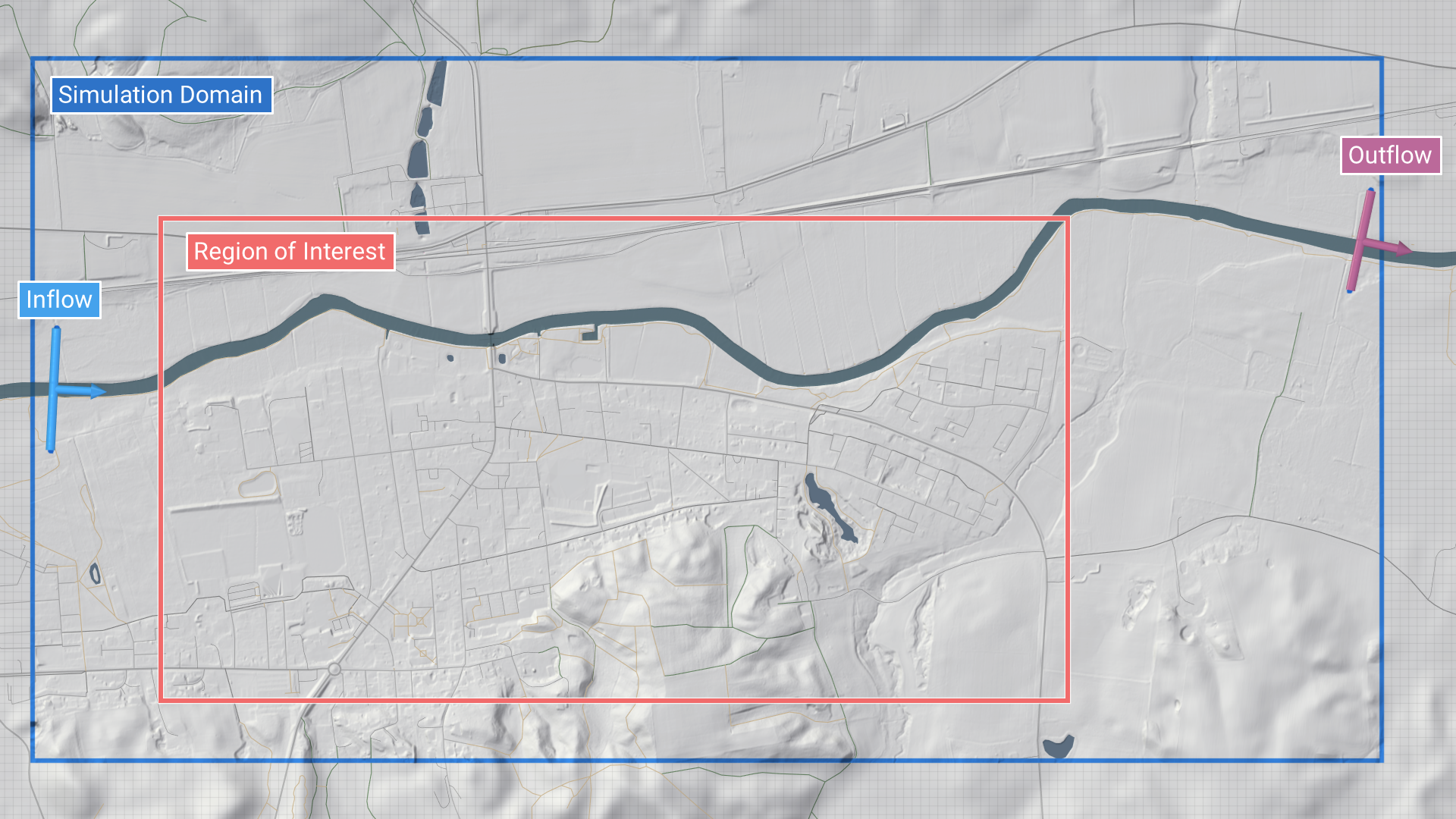
When river lines are present, ensure that neither the inflow nor the outflow river lines are tangent to the simulation domain borders, as this can cause artifacts in the simulation.
Once the domain is correctly positioned, click "Run" to validate the setup and start the simulation.
Ensuring Proper Inflow Conditions
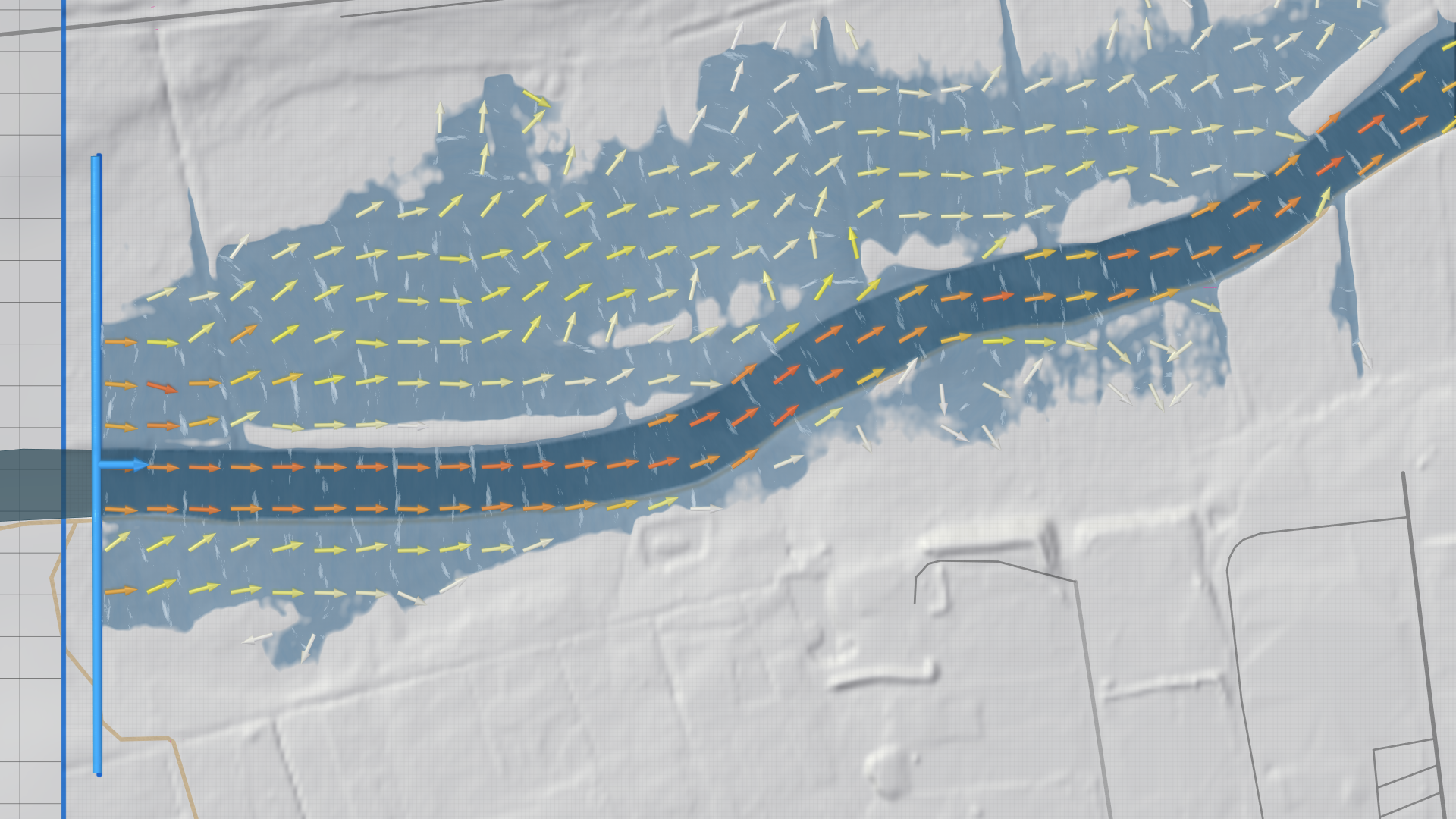
If the inflow line is too short, water may flow around it and exit the domain upstream, causing unrealistic results (e.g., water flowing upstream during peak flows):
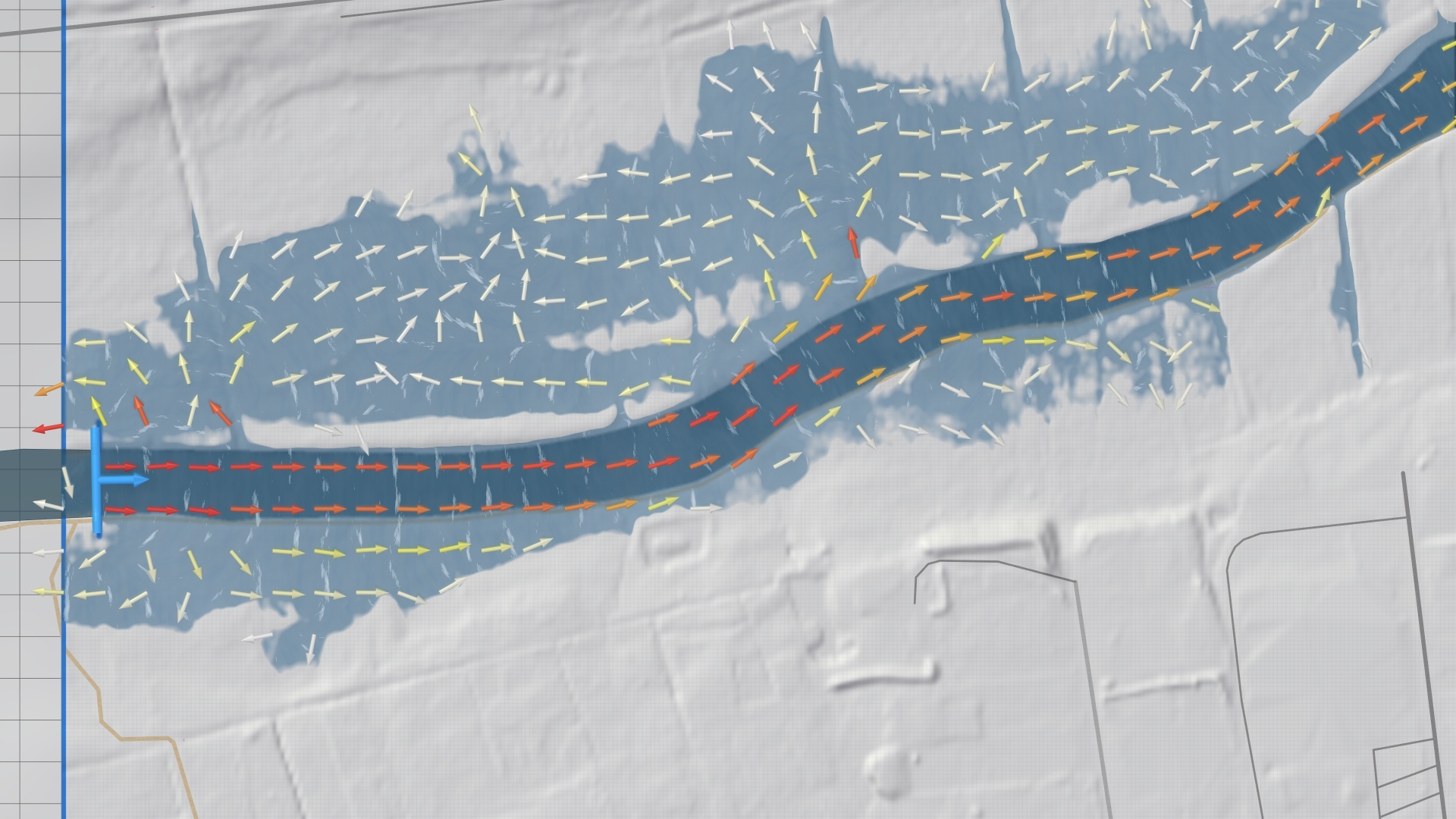
This also results in missing some of the prescribed discharge downstream. To prevent this issue, ensure the inflow line extends to higher terrain or to protective structures, such as walls or dikes. For manually drawn inflows, you can extend the line by moving the control points at its ends in Edit Mode. The length of automatically generated inflow lines can be modified through the Action Settings Panel, where you can either set a fixed length or choose an extension factor. If neither option is feasible, a final workaround is to extend the inflow line by drawing additional wall lines to prevent water from leaving the domain in upstream direction.
Choosing the Right Outflow Boundary
In this section, different options for defining outflow boundaries depending on the simulation scenario are discussed. One common case is the simulation of a tributary near a confluence. One approach is to define an outflow boundary shortly upstream of the confluence and set it to constant water level mode. This effectively represents the influence of the receiving water body, without explicitly including it in the simulation. For rivers discharging into a lake or the sea, this is typically the most efficient approach. If tidal effects are relevant, a periodic outflow condition can be applied to reproduce the tide. Alternatively, the receiving water body itself can be explicitly included in the simulation domain. This option requires a larger computational area but allows for a more realistic representation of hydrodynamic interactions near the confluence. The two approaches are illustrated below for a tributary of the River Rhine:
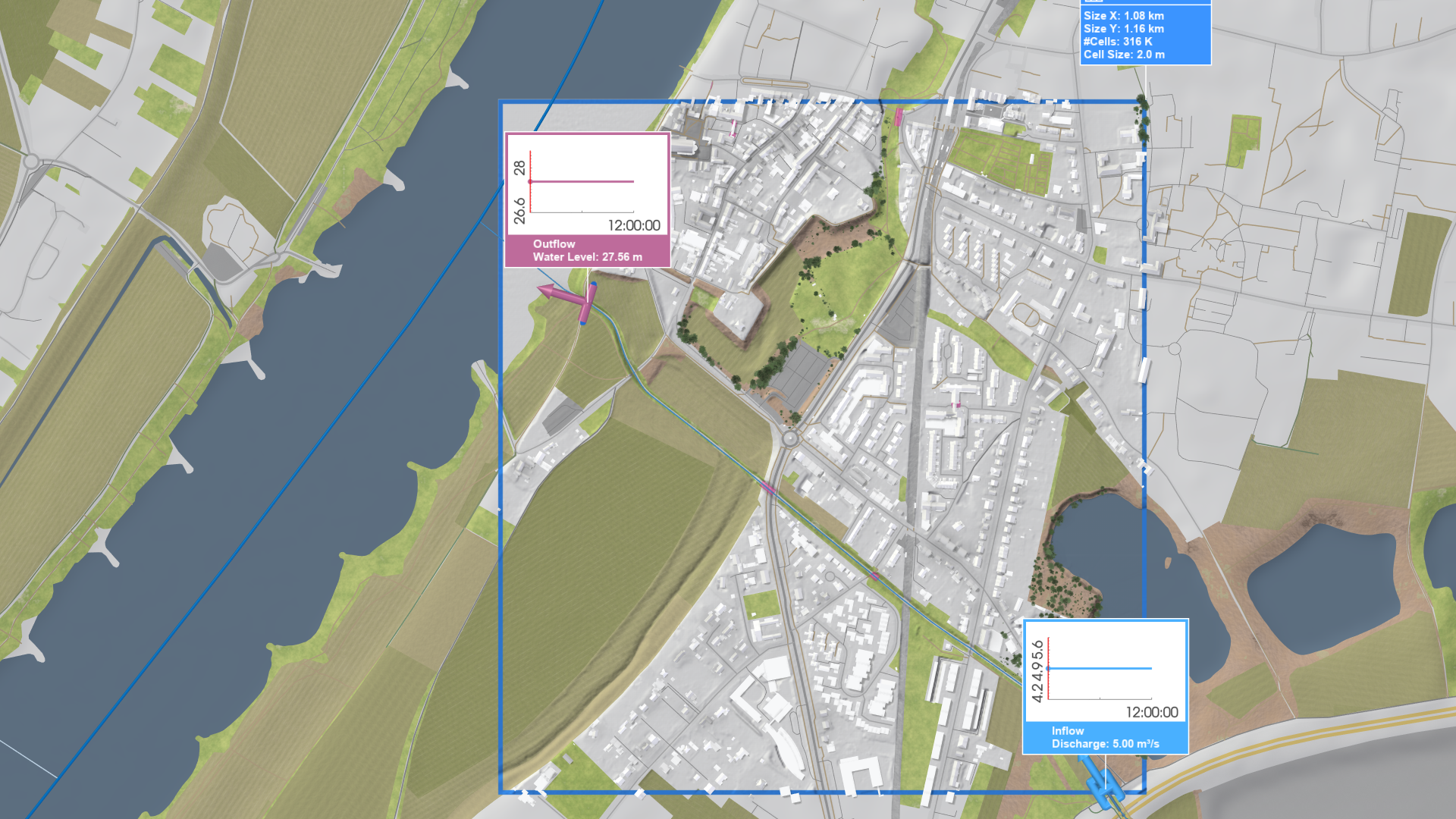
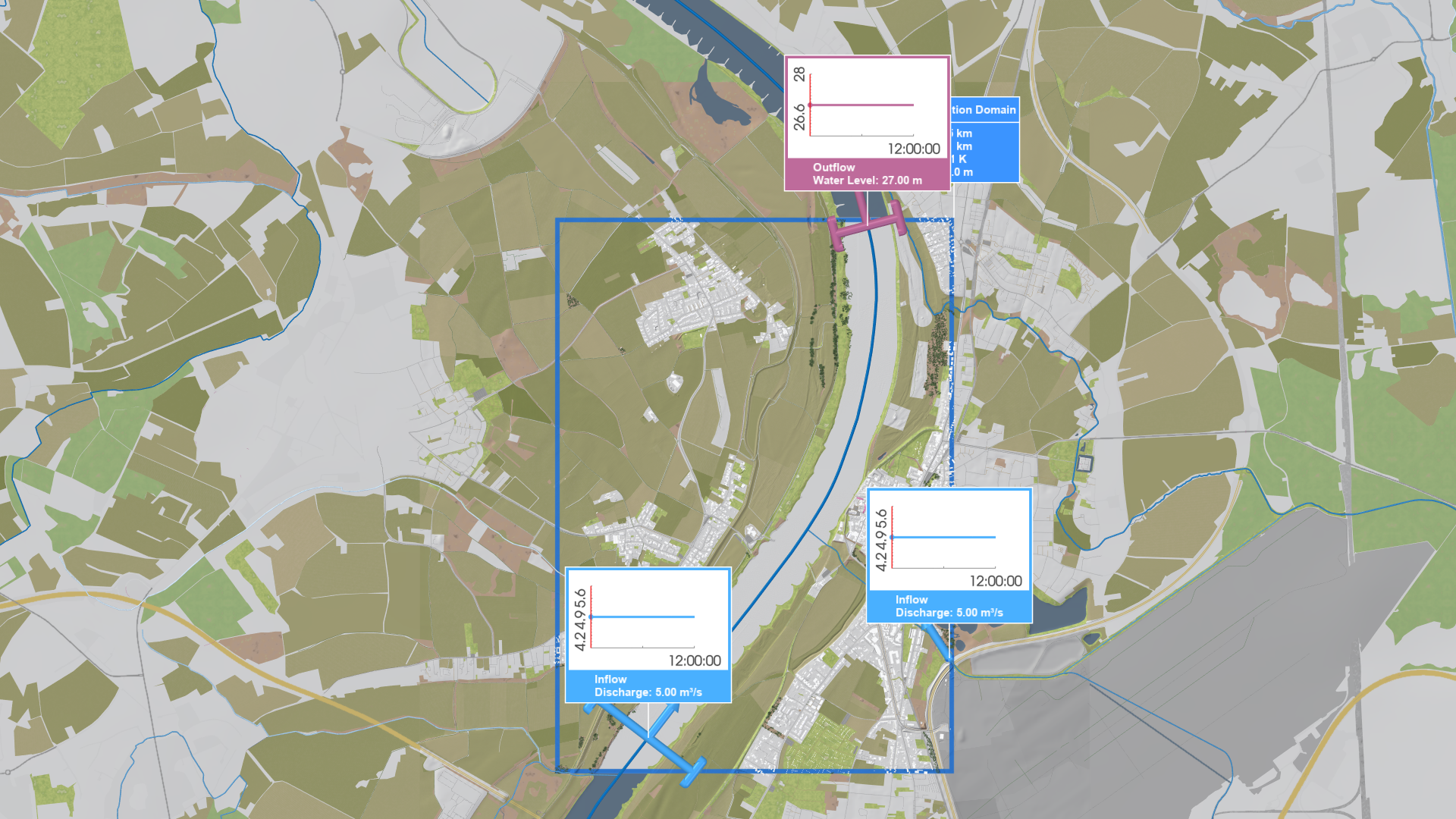
In some scenarios, a free outflow condition (i. e., no explicitly defined outflow) is sufficient. This applies, for example, to rivers that flow into invalidated regions. A free outflow condition is also suitable for small rivers in rainfall-runoff simulations, where the upstream inflow is defined in constant water level mode to represent the initial hydraulic state. In both cases, the simplified boundary treatment is sufficient to simulate proper flow dynamics without the need for explicit outflow definitions.
Simulation Accuracy
Two accuracy modes are available for simulations in scenarify. You can switch between them in the Surface: Simulation Model category within the Global Simulation Settings. The Interactive Accuracy (high for heavy rain) is useful for scenario setup. It enables faster simulations, which can be used to check and adjust your boundary conditions and other parameters, ensuring that water flow behaves as intended. In general, water level and flow deviations are larger in interactive mode, which makes it ideal for setting up and adjusting your scenario. Once the conditions are correctly configured and water behaves as intended in interactive mode, the same setup can be confidently used in High Accuracy for River Flood mode for the final simulation, see also the task-based workflow on Choosing the Right Accuracy.
Lateral Inflows
Use Lateral Inflow actions with discharge time series to specify the amount of water added to or removed from the main river at confluences or where smaller tributaries join. In river flood hazard mapping, lateral inflows can also help ensure consistent return periods (e.g., a 100-year flood) along the main river. For more details, see the model description on Lateral Inflows.