Creating Visualizations of the Sewer Network
There are two ways to obtain a sewer network in scenarify. Either you set up a sewer network with your own data as described in Sewer Network Setups, or you access a sewer network through one of the Base Models with sewers already set up, such as the base models of Cologne and Hamburg. The resulting sewer networks can be visualized according to your focus and personal preferences.
Hint: To modify parameters of individual sewer structures, you can apply actions of the Sewers category. Actions of the Sewer Inspection category can be deployed to analyze the parameters of sewer structures.
Visual Presets
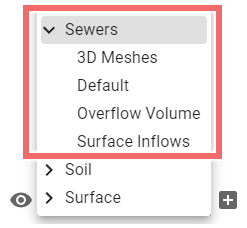
There are four Visual Presets available in the Sewers category with different focus for the display of the sewer network and its properties.
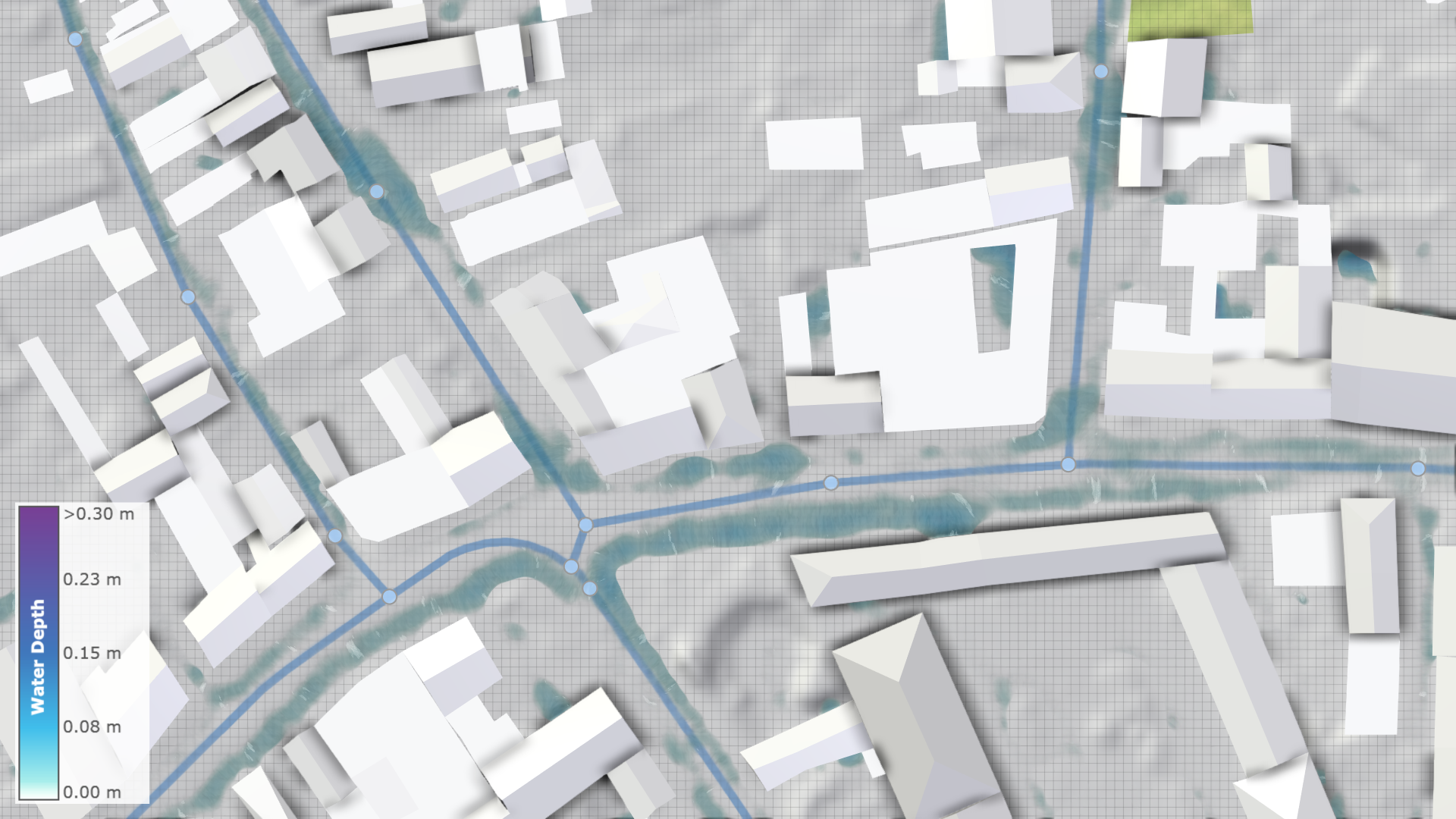
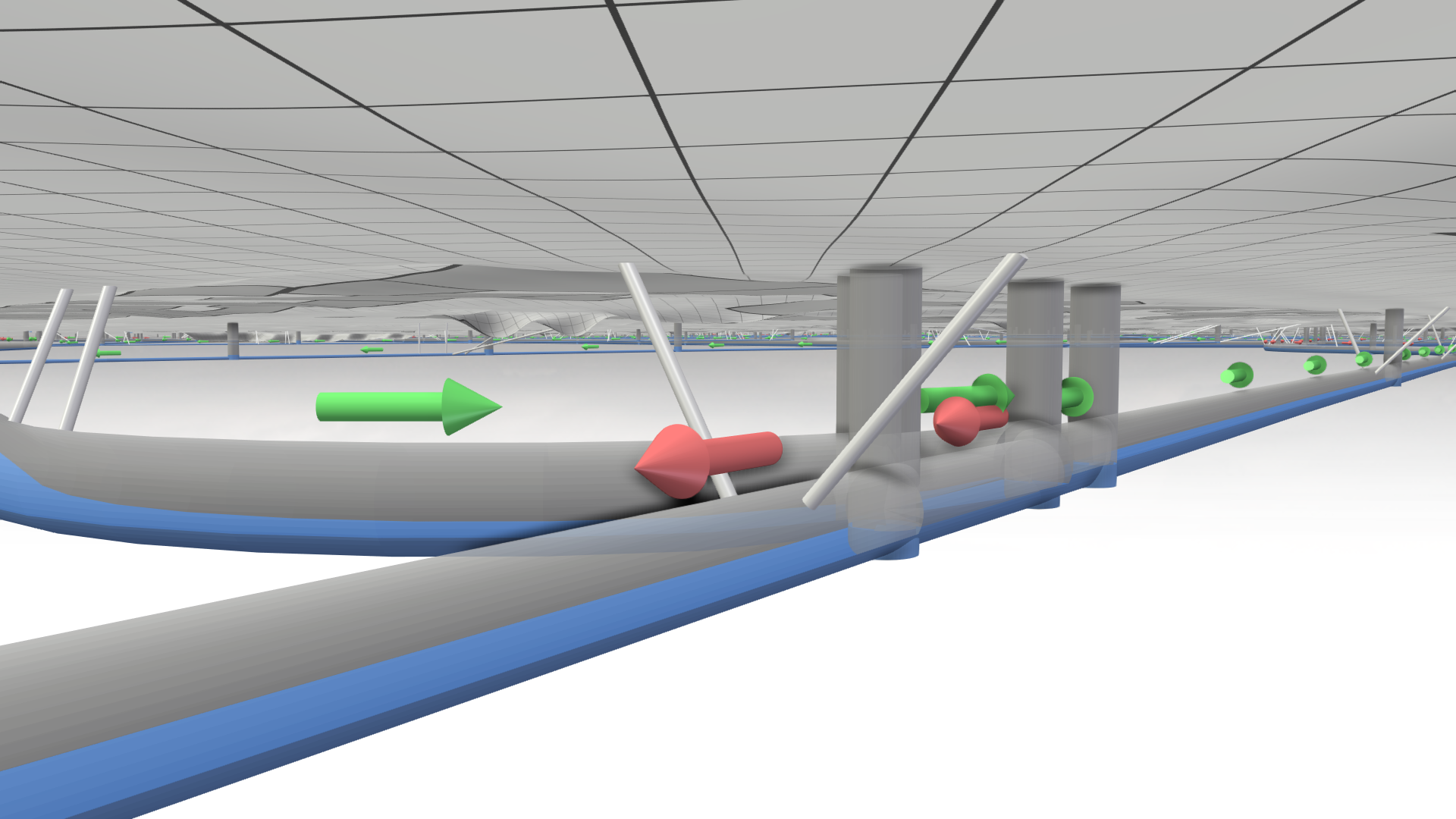
This preset shows all sewer structures as 3D objects (meshes) and allows you to navigate under the terrain to get a clear view of the network. The water in sewer nodes and conduits is displayed according to their fill level at the active time step.
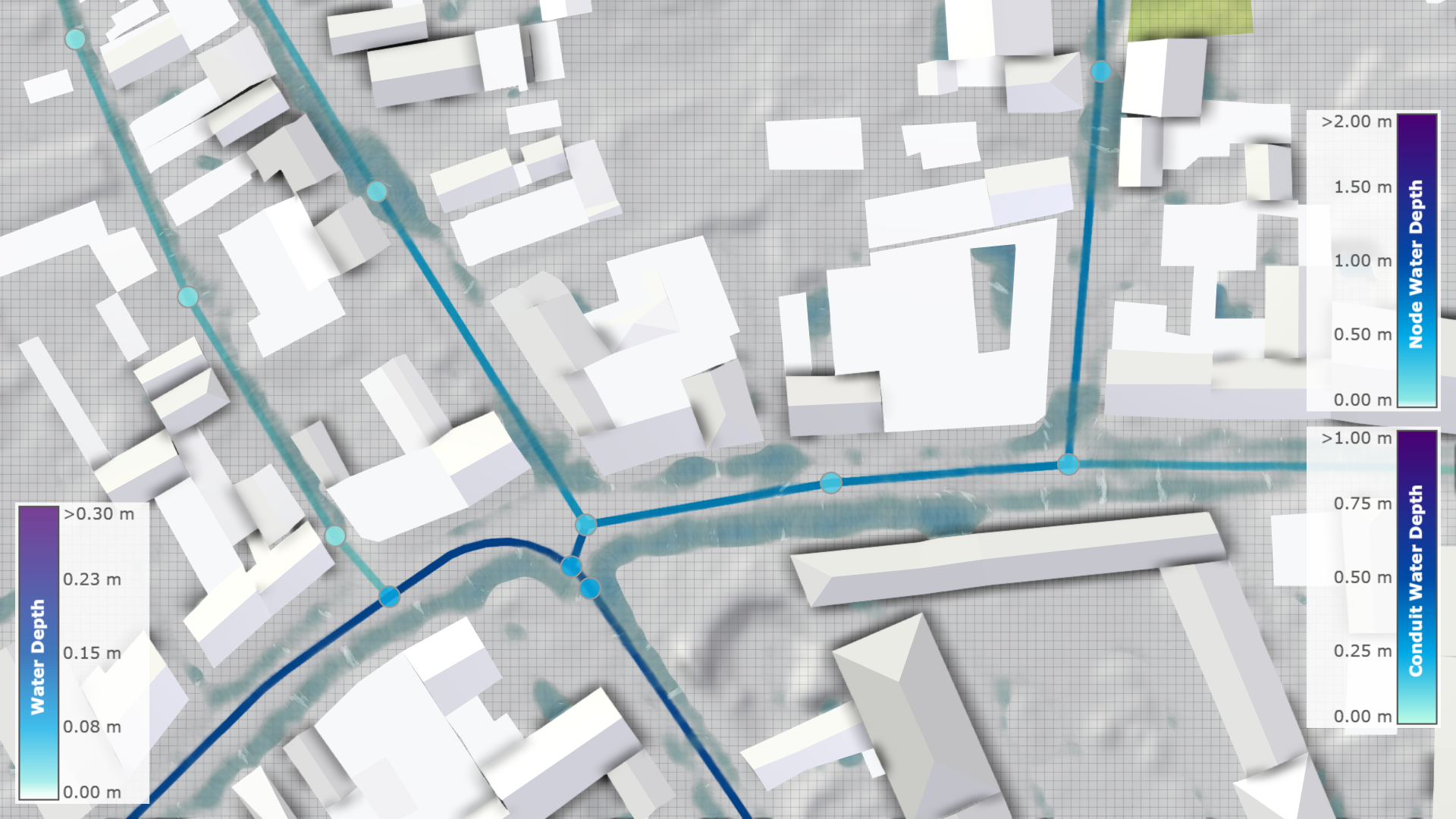
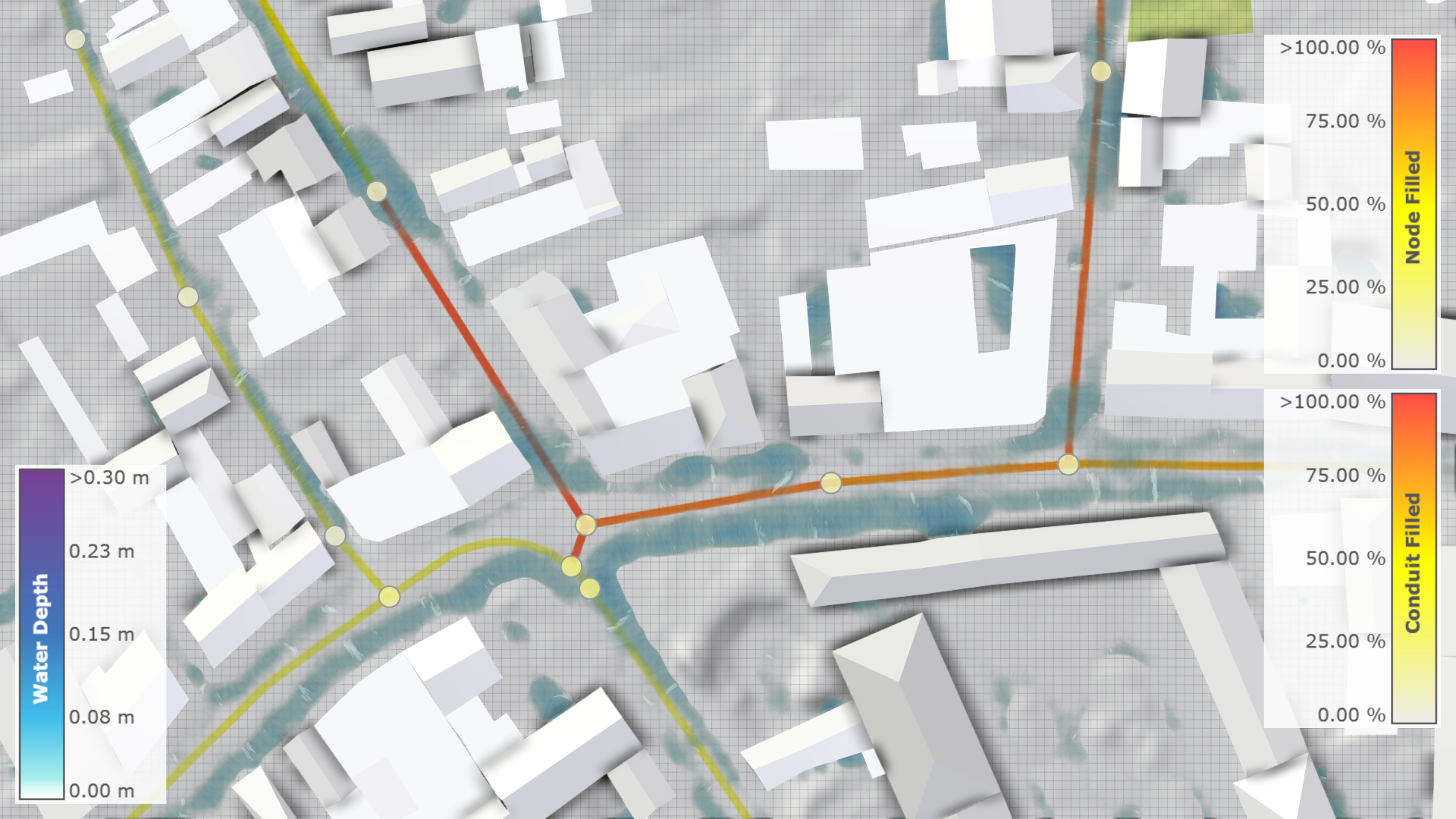
This preset shows the main sewer structures, nodes and conduits, as 2D projections on the terrain. It provides their visibility above the terrain and gives an overview of their fill levels, indicated by color.
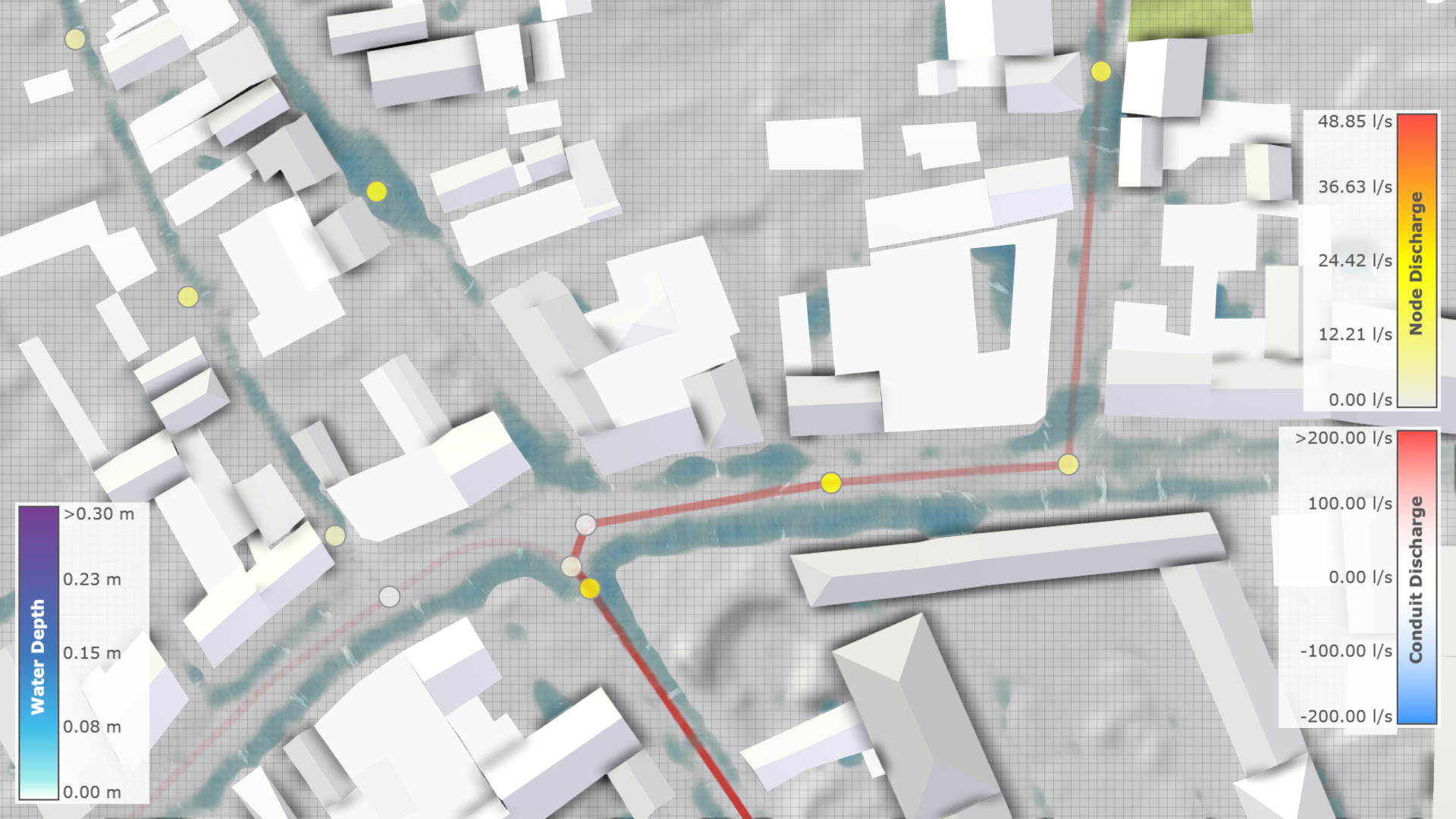
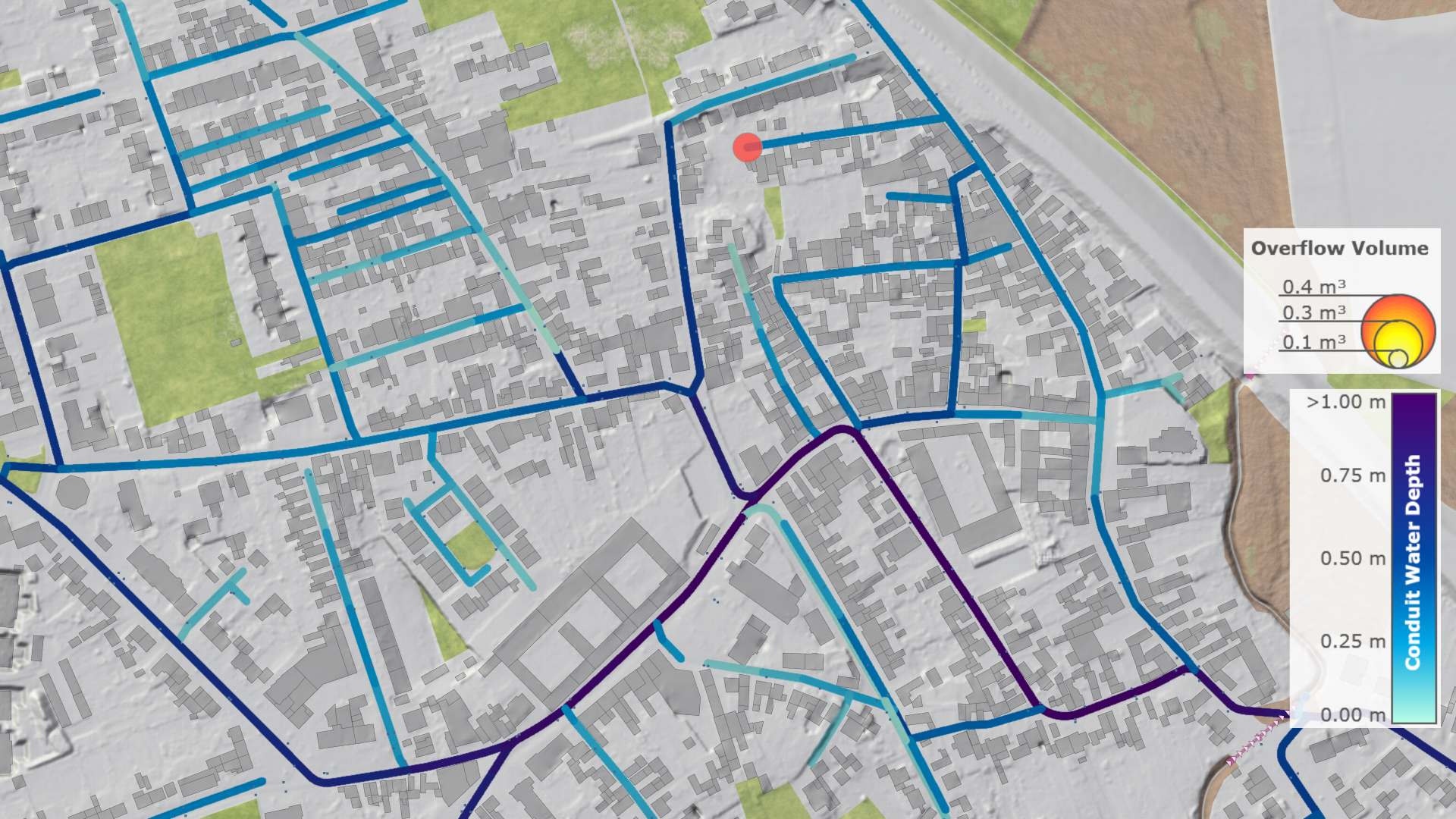
This preset shows all sewer structures as 2D projections on the terrain. It provides their visibility above the terrain and highlights overflow volumes at sewer nodes and water depths at conduits by color.
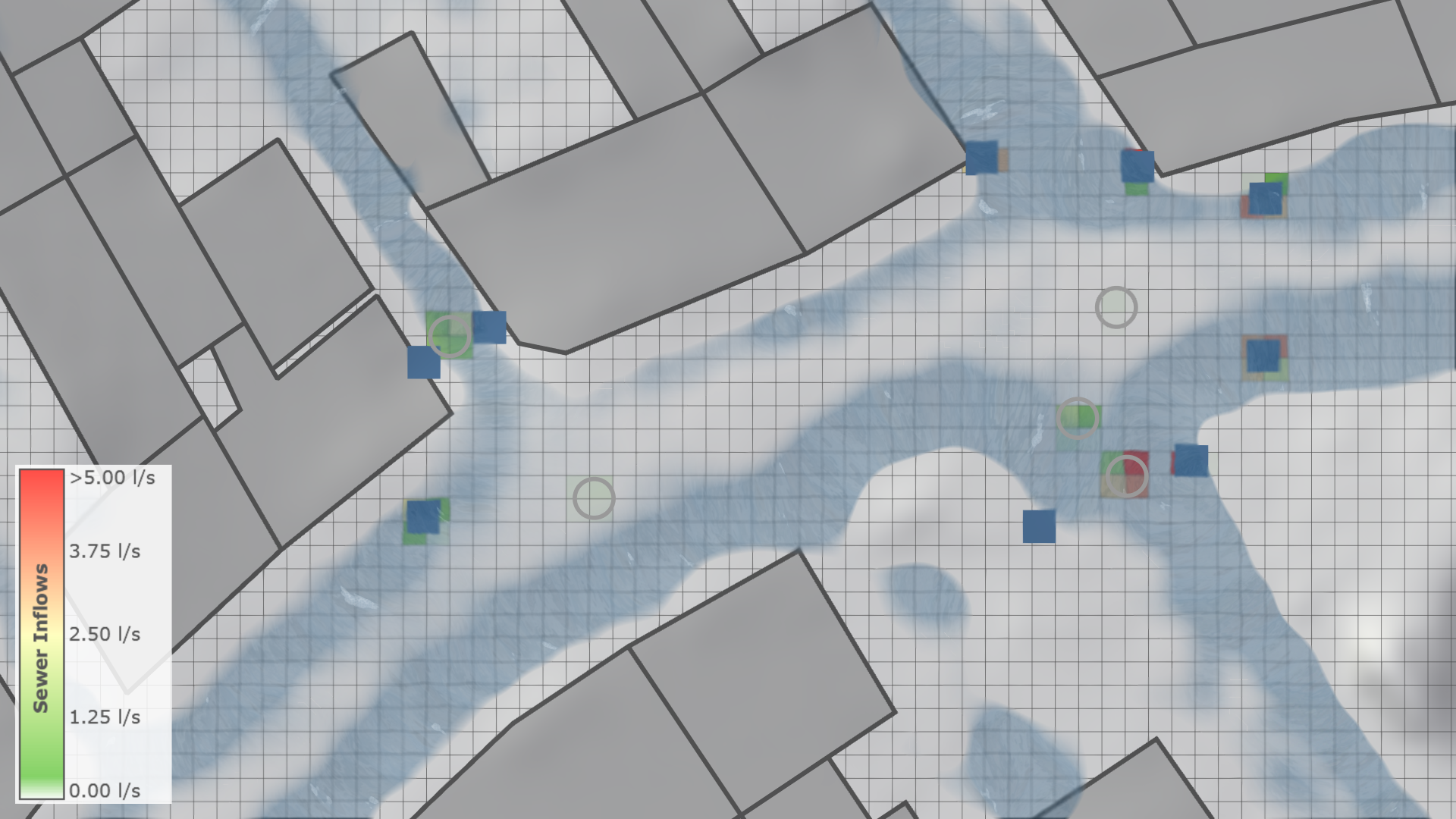
This preset shows all sewer structures as 2D projections on the terrain, except for conduits because water does not flow directly into them. Water inflows to sewer nodes (gray circles) and storm drains (blue squares) are highlighted by color on the terrain.
Individual Visualization Settings
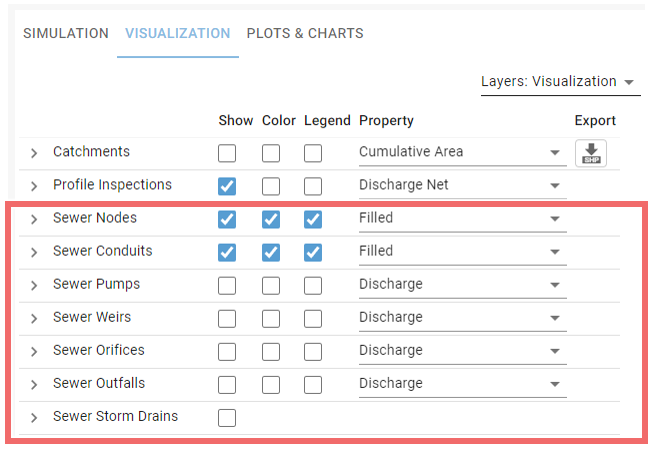
The display of sewer structures can be customized in the Visualization Settings Panel under Layers: Visualization in the corresponding row. With the setting Show you can toggle the display of 2D projections of the sewer structures. For the display of 3D structures, the setting Show Meshes in the submenu has to be enabled. In the drop-down menu you can select the property to be mapped to the color.