Present and Publish with Storytelling
scenarify offers a set of tools to share and present your work to different audiences. To share a project with a colleague or customer, you can use the project sharing feature. If you need to communicate results to stakeholders or publish findings for a broader audience, storytelling is an effective approach. By setting bookmarks for specific user models, you can control which parts of a story are visible to different users. Once created, the story can be shared and explored interactively using simple playback controls, as shown in our Wetlands Story.
Overview of the Story Interface
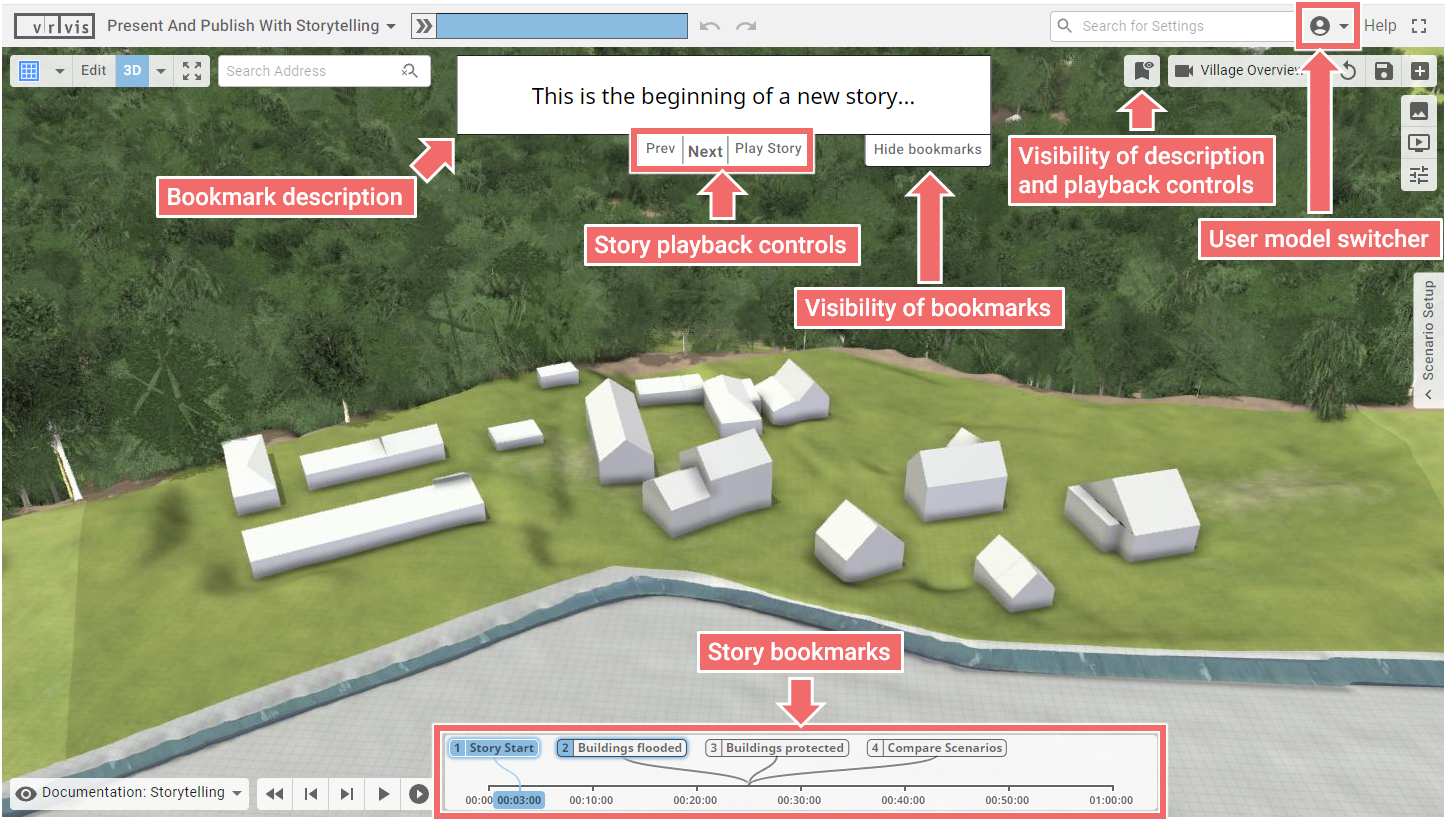
- Story playback controls: Enable users to navigate between story bookmarks. Use the Next button to jump to the nex bookmark or Prev for the previous one. Play Story initiates automatic playback of all bookmarks.
- Story bookmarks: All numbered bookmarks of a story are placed along a timeline for direct selection.
Bookmarks
Bookmarks allow you to save the current state of the simulation and visualization, making it easy to return to that point later. Click a bookmark to restore its saved state.
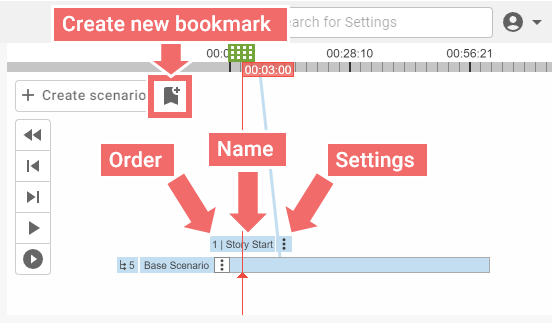
Use the following steps to create a new bookmark:
- Navigate to the scenario and time step for the bookmark.
- Select a camera preset and a visual preset to include in the bookmark.
- Click on the bookmark button to create it. The bookmark will appear as a labeled box showing its order and name.
In the bookmark settings, you can rename the bookmark and add a description, which is displayed during story navigation. By default, bookmarks are linked to the active scenario and time step, but these parameters can be adjusted in the settings. Camera and visual presets can also be modified there.
Comparison Bookmarks
These bookmarks are designed for comparing scenarios. For detailed instructions on how to compare multiple scenarios, see the task-based workflow for Comparing and Combining Scenarios. Clicking a comparison bookmark will activate the comparison mode and restore the saved state.
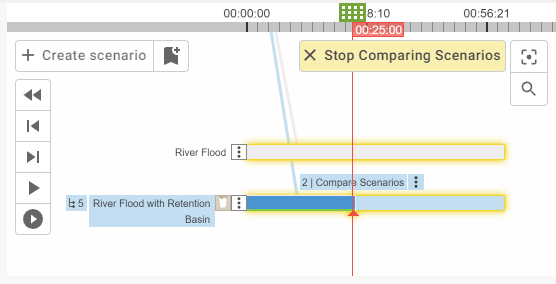
Comparison bookmarks are created with the following steps:
- Navigate to the time step at which you want to compare the scenarios.
- Select a camera preset and a visual preset (e.g. Compare Scenarios: Max. Water Depth) to save with the bookmark.
- Select two scenarios you want to compare and choose Comparing Scenarios from the Multi-Scenario Operations Menu that appears in yellow (for more than two scenarios select Combining Scenarios).
- Create the bookmark using the dedicated button.
Story Bookmarks
Bookmarks can be used to navigate between different simulation and visualization states by clicking on them. To make a bookmark part of a story and visible in the story bookmarks section, it has to be added manually. Enable Publish in the bookmark setting and select the User Model that should have access. A checkmark next to the bookmark indicates that it is added to the story.
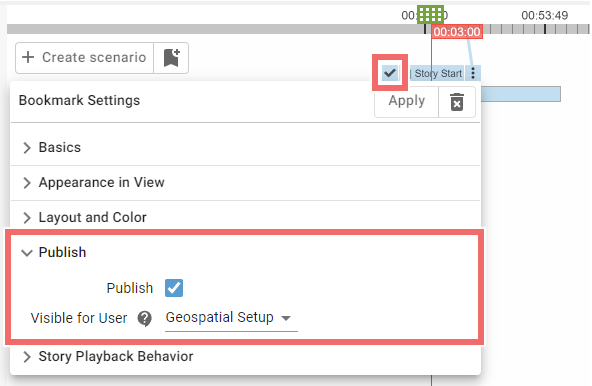
The playback behavior of a story bookmark can be customized in the bookmark settings.
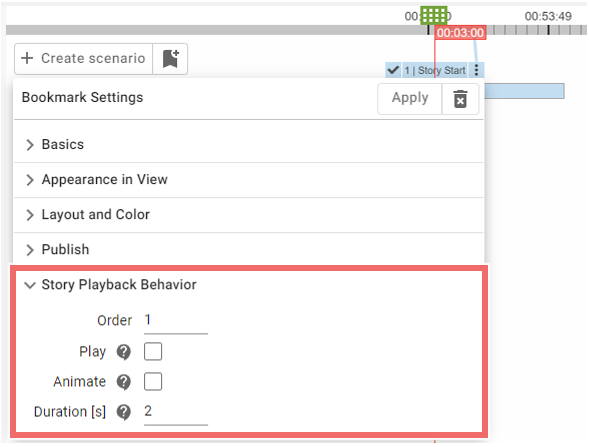
- Order: Defines the display order of bookmarks during story playback.
- Play: If enabled, plays the scenario until the next bookmark in the same scenario.
- Animate: If enabled, animates the flow velocity during the display of the bookmark.
- Duration: Sets how long a bookmark is displayed during automatic playback when using the Play Story button.
Hint: Once the story has been created, it is advisable to disable auto-saving to ensure that the story consistently begins in the same initial state.