Overview
-
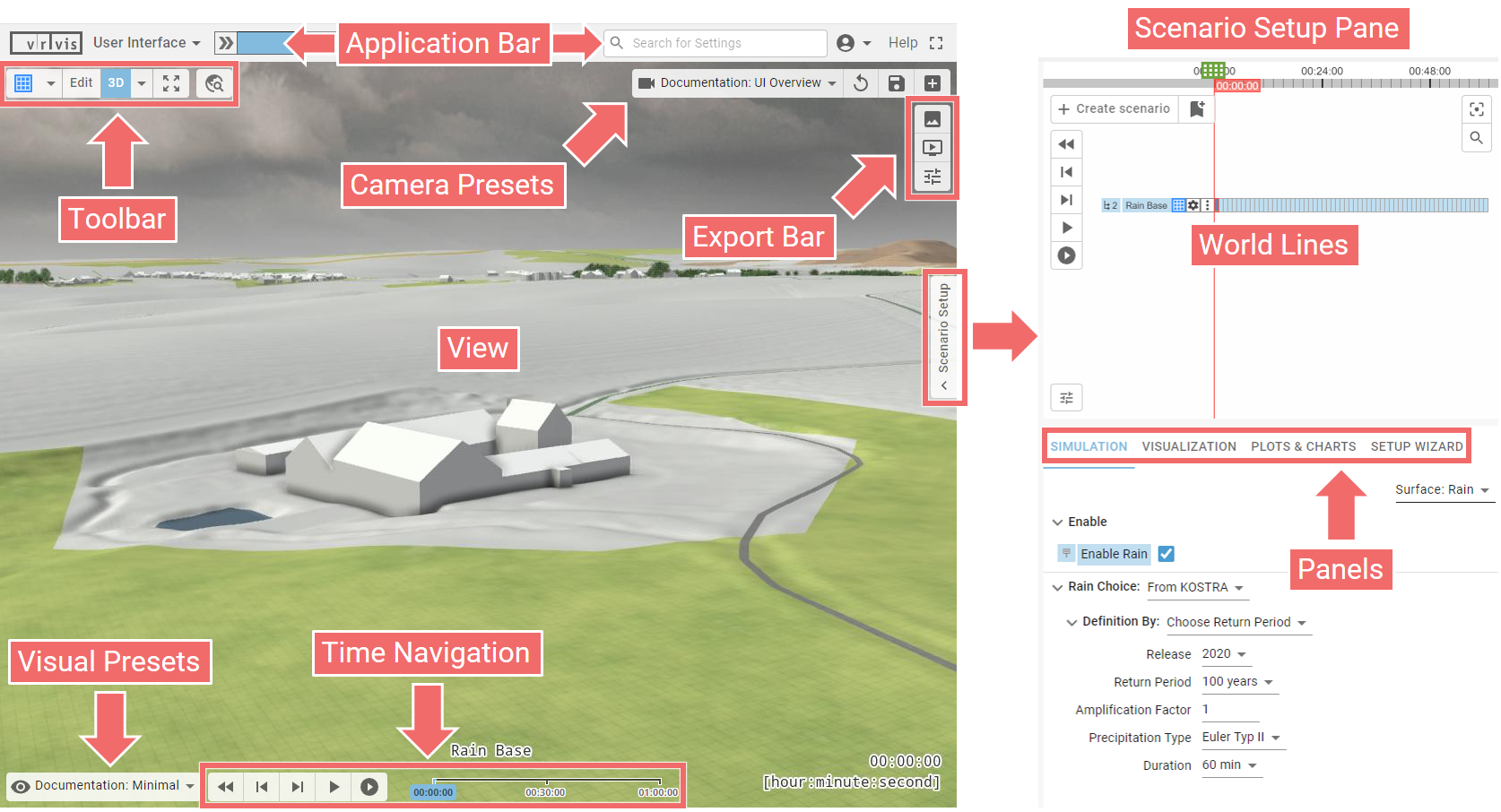
View: Displays the 3D scene. Supports 3D navigation and other forms of user interaction such as drawing, picking, or dragging (see the Quick Start section).
-
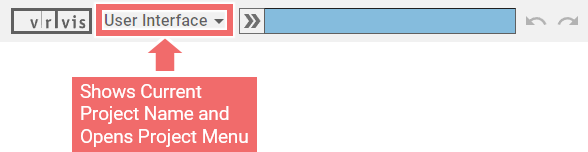
Application Bar: Contains a drop-down Project Menu for project management. Also features the Progress Bar, Undo/Redo buttons, and the Settings Search Widget.
-
Toolbar: Provides quick access to spatial navigation and action drawing tools.
-
Camera Presets: Allow the user to save their favourite camera perspectives for further re-use.
-
Export Bar: Enables the user to export images and videos.
-
World Lines: A visual interface for scenario management.
-
Simulation Settings Panel: Contains simulation settings valid for the entire model area.
-
Visualization Settings Panel: Contains visualization settings controlling the visual appearance of the model in the View.
-
Plots & Charts Panel: Displays plots, charts, and diagrams.
-
Setup Wizard Panel: Provides a selection of the most essential settings for fast model setups from scratch.
-
Visual Presets: Allow the user to select a pre-defined visual appearance of the scene in the View.