
Spatial Inspection
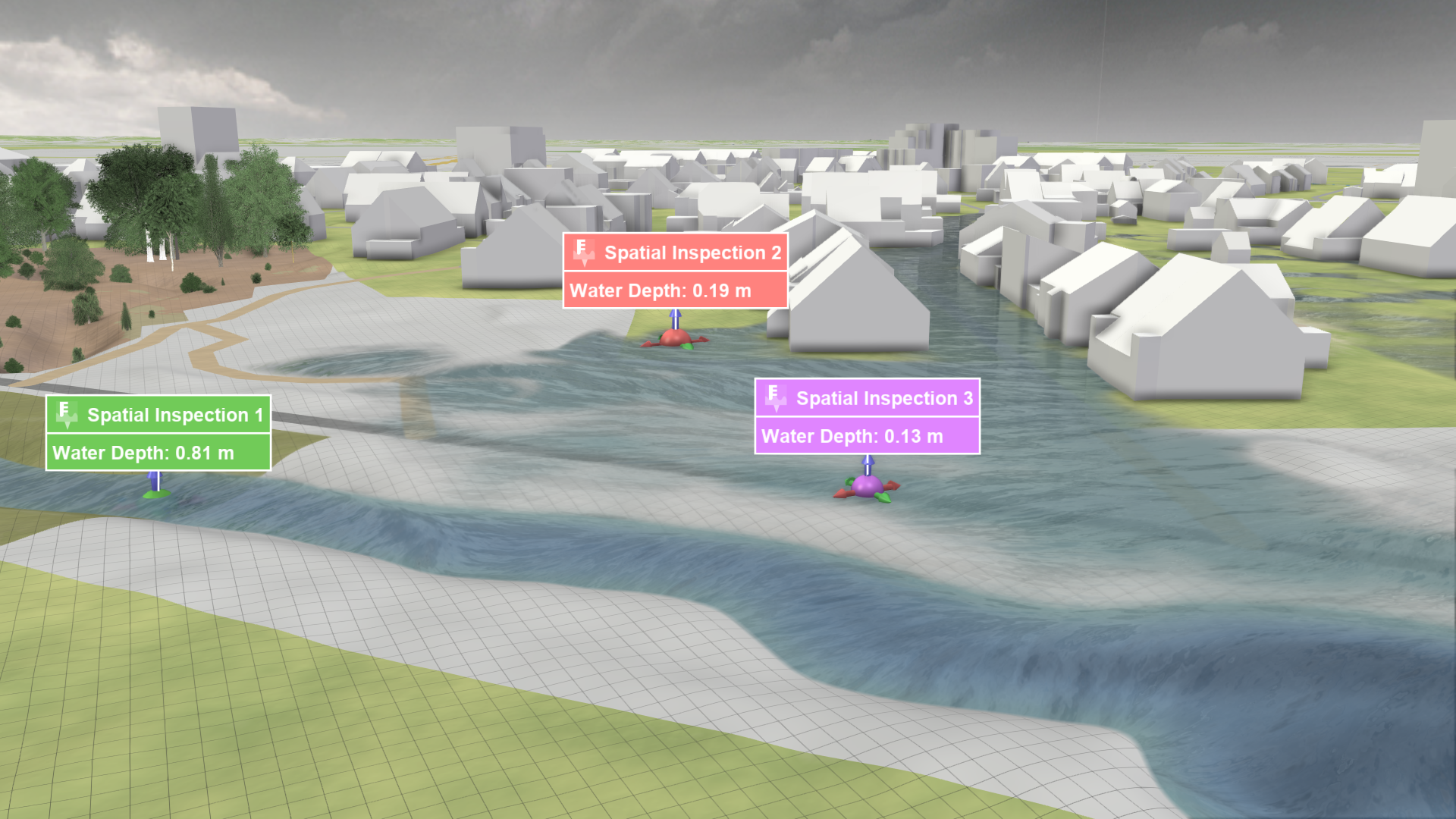
Creation Mode: Select Point on Terrain
Purpose and Effect: This action extracts local information, including simulation results, such as water depth and water level, and static parameters, such as terrain elevation and roughness. The Action Tool Panel contains a table that lists all available display options.
Hint: You can move an existing Spatial Inspection to a known position by opening the Action Settings Panel (right-click on the visual handle) and entering the coordinates manually. To provide a known position given in a different coordinate system than the local one, click "Other CS …". See Entering Positions Manually for more information.
Action Storage
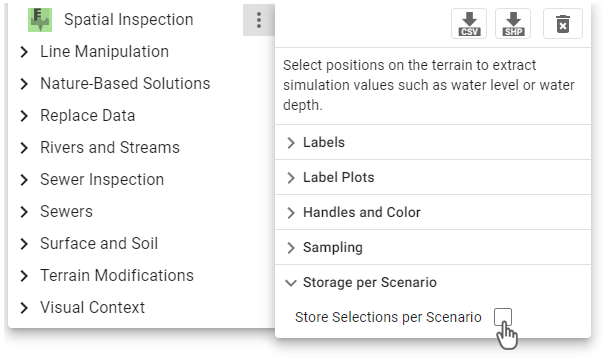
The Spatial Inspection action is one of the few actions that is not stored per scenario. This allows you to compare information of the same location over different scenarios. To change this behavior and store further inspections per scenario, enable the dedicated setting in the Action Tool Panel, as shown on the right. More information about storing actions across scenarios can be found in the Action Storage description.
Inspection Label
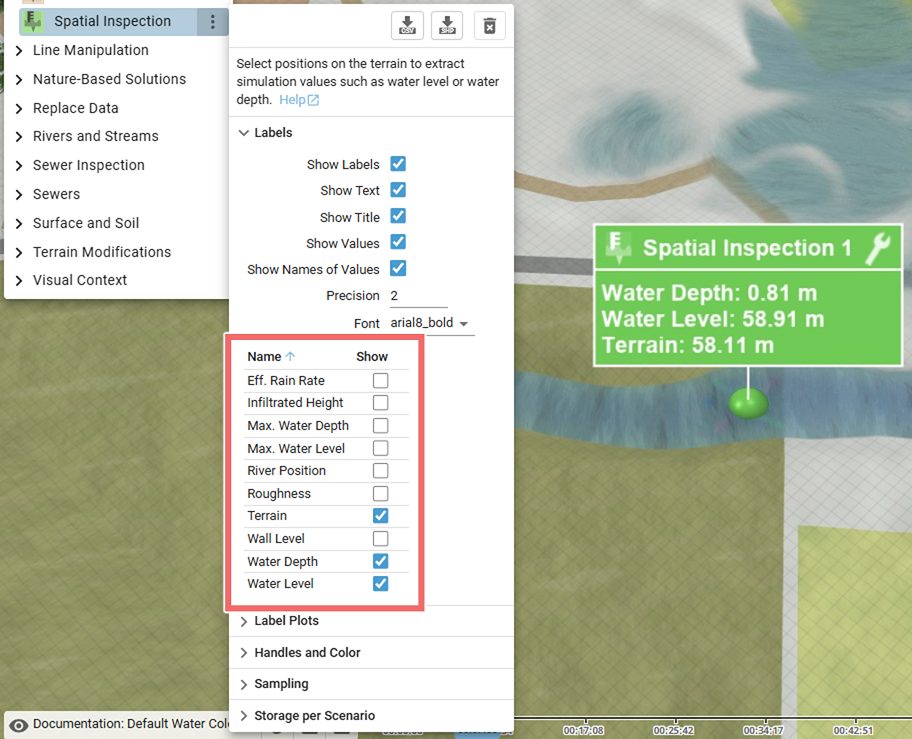
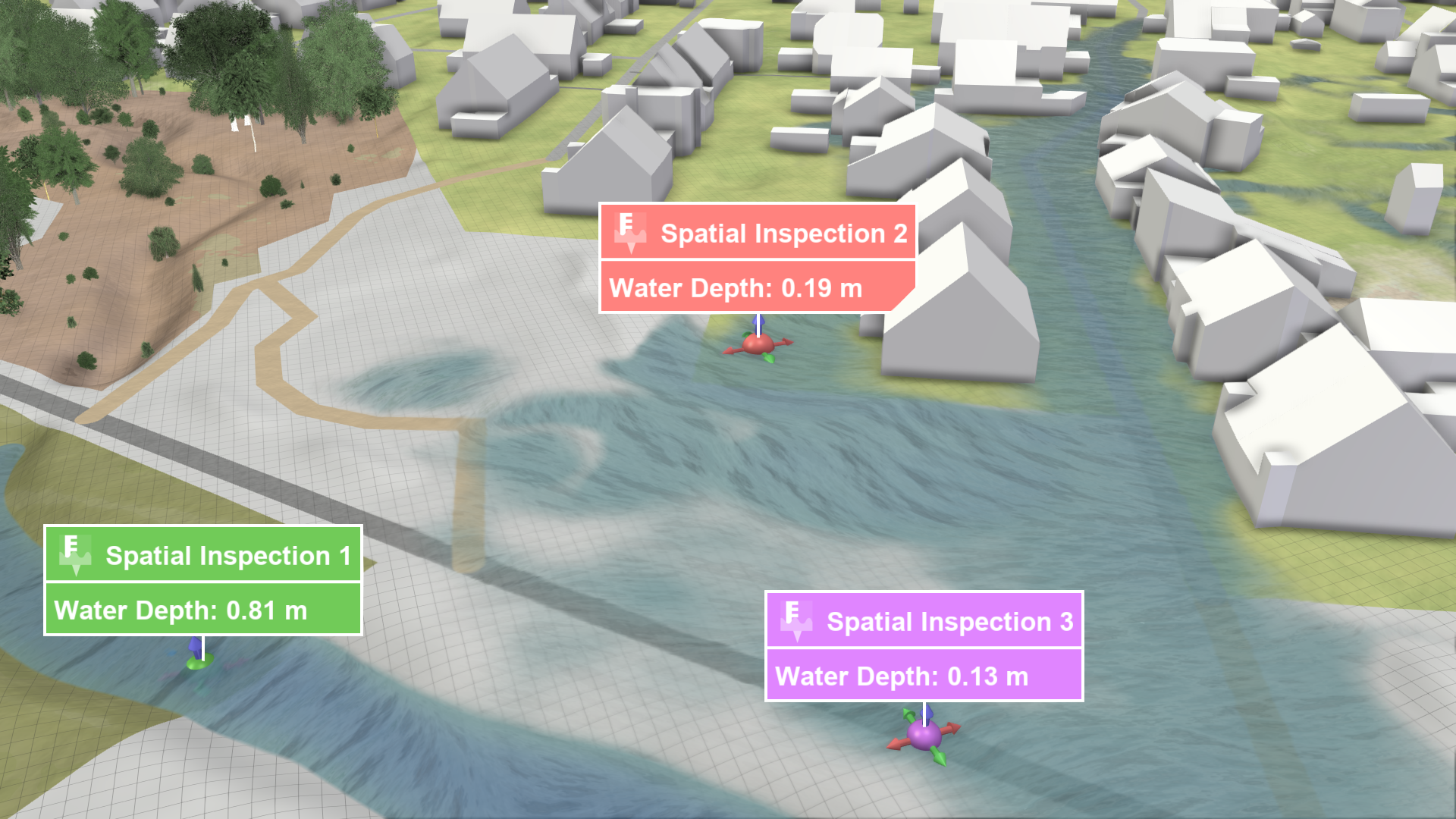
A label displaying the inspected data values at a given spatial position can be shown. The data to inspect can be selected in the Labels section of the Action Tool Panel.
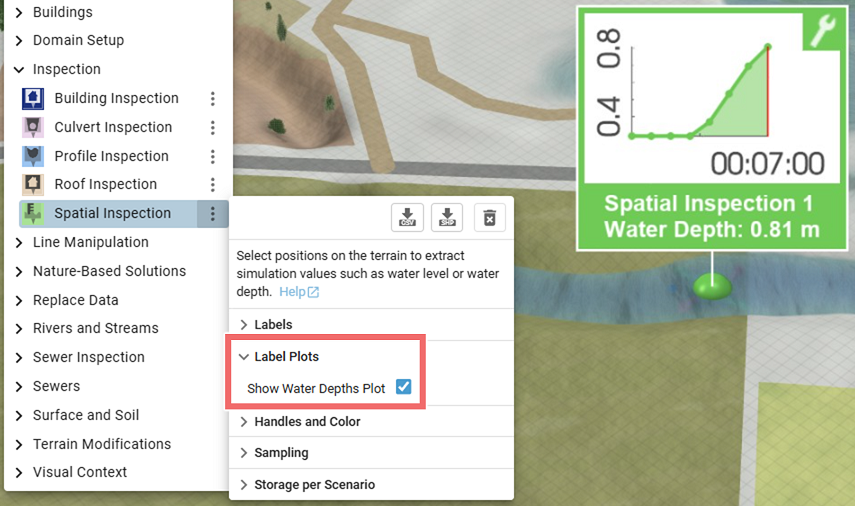
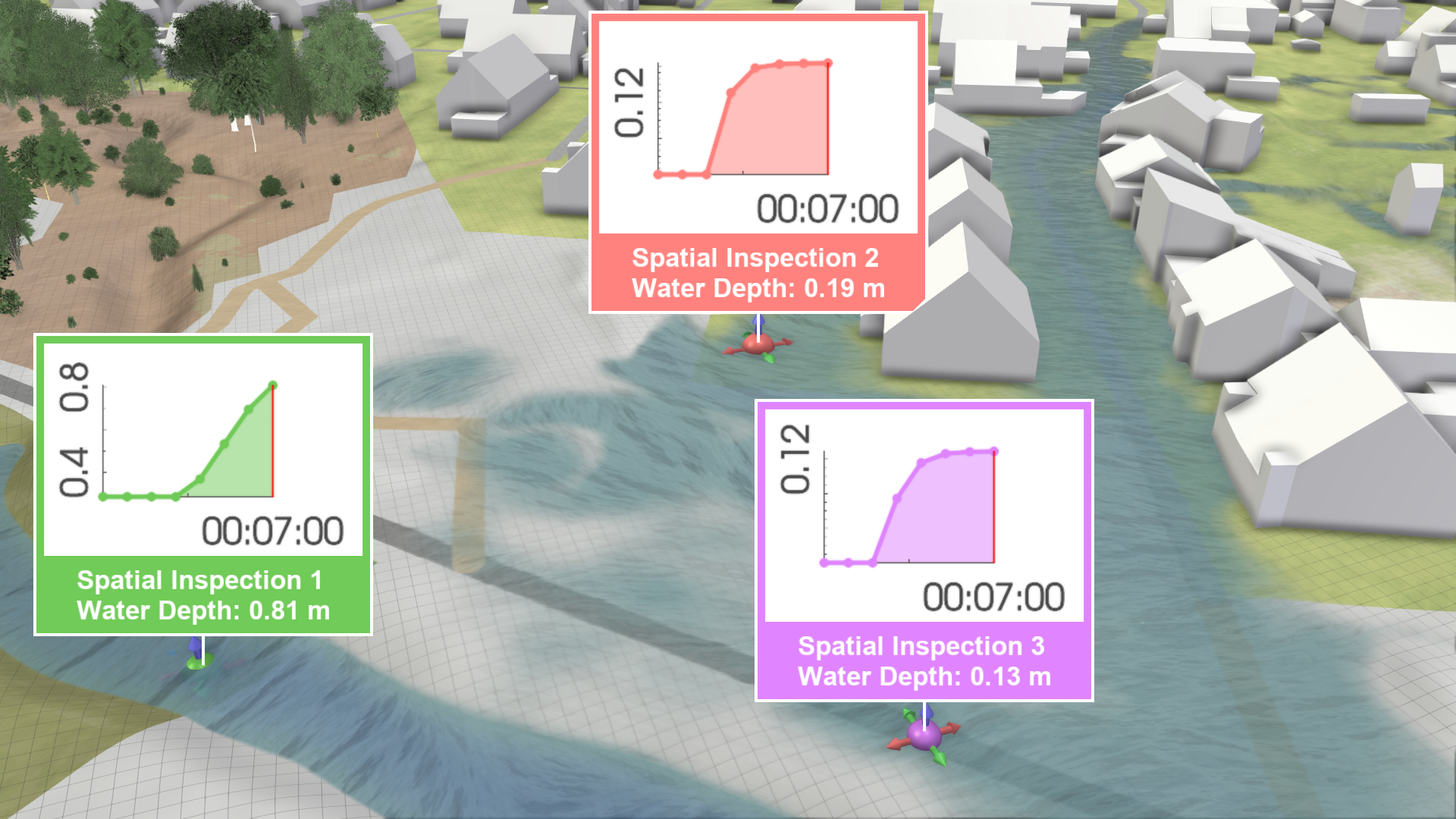
An embedded time series plot of the inspected water depth can be enabled in the Label Plots section of the Action Tool Panel.
Comparison of Local Water Depths/Levels
Spatial inspections are automatically assigned different colors to make them easier to distinguish. A task-based workflow for Comparing and Combining Scenarios is available, explaining how inspections can be compared and combined over multiple scenarios. There are two ways to visualize water depths at selected locations over time, one shows individual plots per action label and the other shows a plot combining all selected locations:
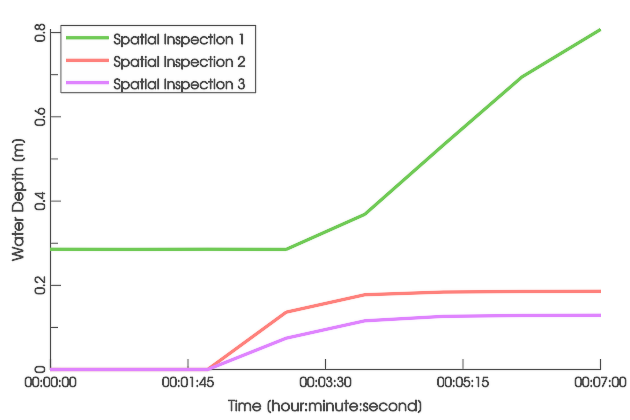
A plot showing water depths from different sources is available in the Plots & Charts Panel under Inspection: Water Depth. The displayed water depths may come from selections made by Spatial Inspection and Building Inspection actions. There is also a combined plot for water levels under Inspection: Water Level.
.png)
Water depth plots per action label can be enabled in the Action Tool Panel. They show the water depths at the selected positions.
Hint: The display in the combined plots can be toggled for each inspection in its action settings.
Import Measured Water Levels
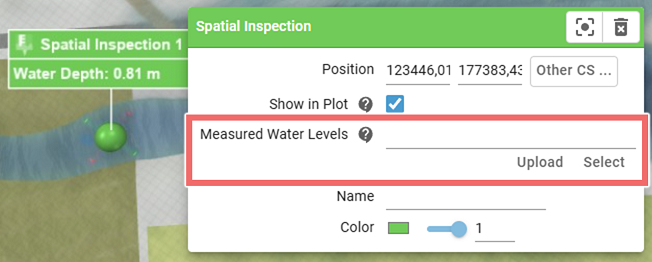
If measured water levels are available, you can import them using the highlighted setting in the Action Settings Panel. Specify the path to the CSV file containing the water level data as time series. The formatting requirements are explained in Using Your Own Data. The imported data can be compared with simulated data, as described in Comparison and Calibration with Measurements.
Export of Action Data
It is possible to export data from spatial selections through the Plots & Charts Panel and the Action Tool Panel, as described in Exporting Actions.
| Export interface | Data description |
|---|---|
Plots & Charts Panel > Inspection: Water Depth/Level .png) |
|
Action Tool Panel .png) |
|
Hint: The export of inspected values from the Action Tool Panel only exports values selected for display in the inspection label.