Comparing and Combining Scenarios
When working with multiple alternative scenarios, such as the current and a planned state of a region of interest, a quick and efficient comparison between them is necessary. While it is possible to visually compare scenarios by manually switching between them, scenarify offers the functionality to directly compare or combine the simulation results of different scenarios.
Comparing Two Scenarios
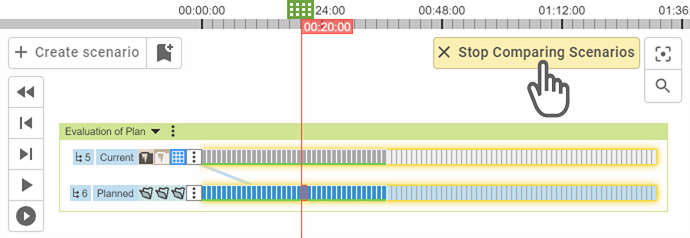
To directly compare the simulation results of two scenarios, simply select both scenarios using the mouse in the World Lines Interface.
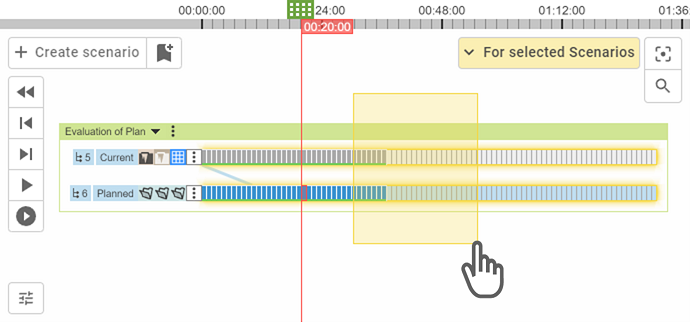
Then, open the Multi-Scenario Operations Menu for the two scenarios selected and highlighted in yellow. From the menu, choose the option Comparing Scenarios, which becomes available only when two scenarios are selected.
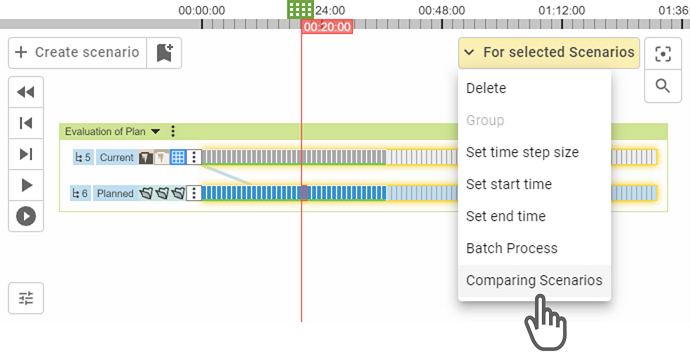
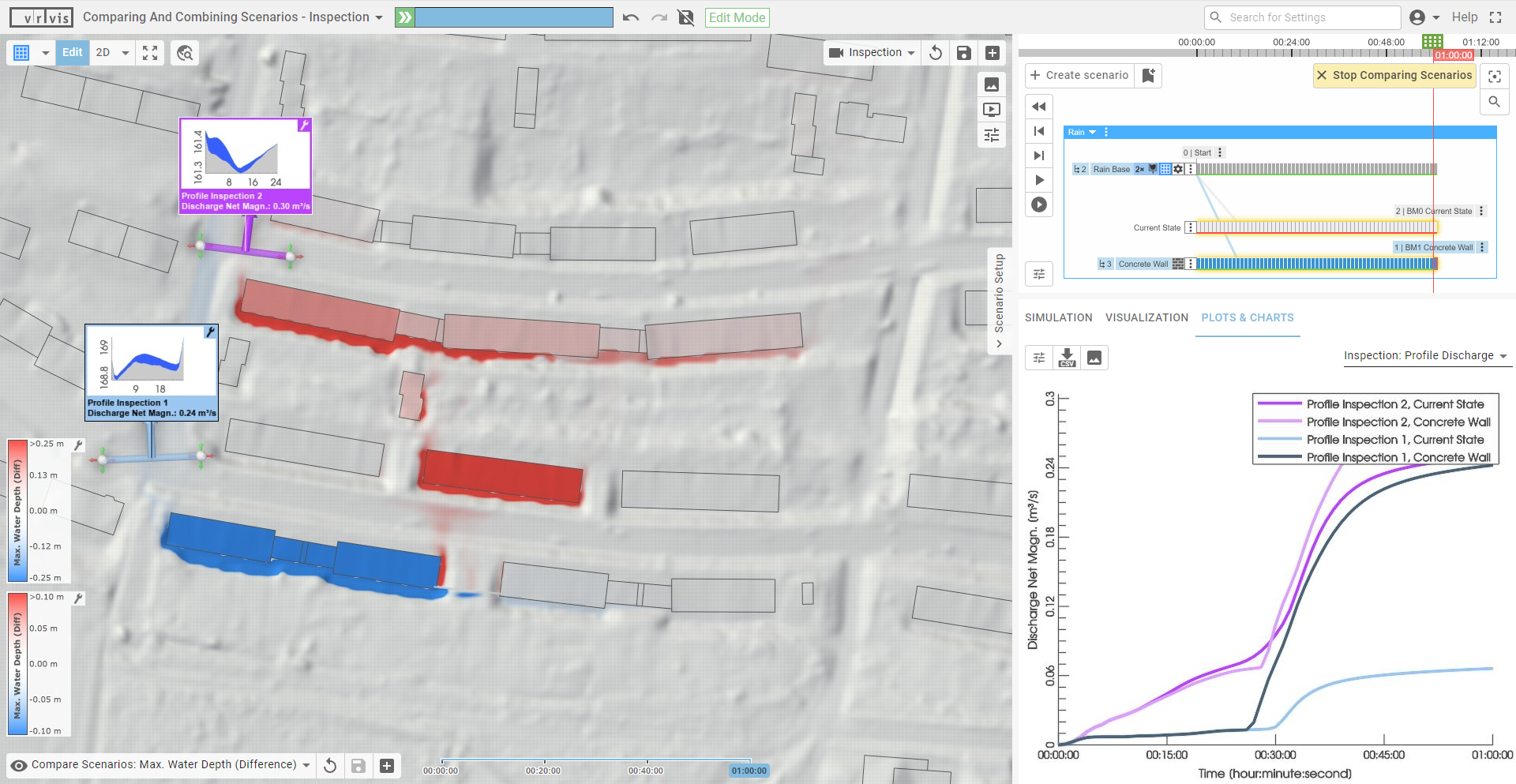
This enables the comparison mode which allows users to work with the point-wise difference between the simulation results of the two selected scenarios, rather than viewing their individual results. In this mode, the Visual Preset Compare Scenarios: Max. Water Depth (Difference) can be used to inspect the point-wise differences in maximum water depth.
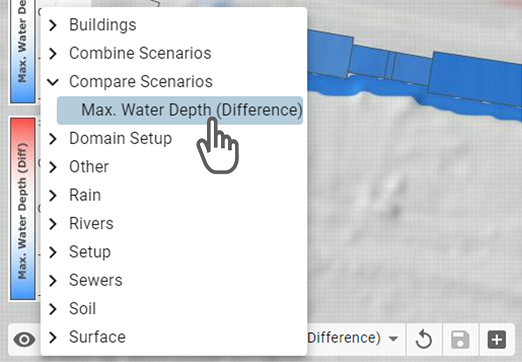
In the example below, two scenarios are compared to visualize the difference between a current state and a planned state with a concrete wall in place.
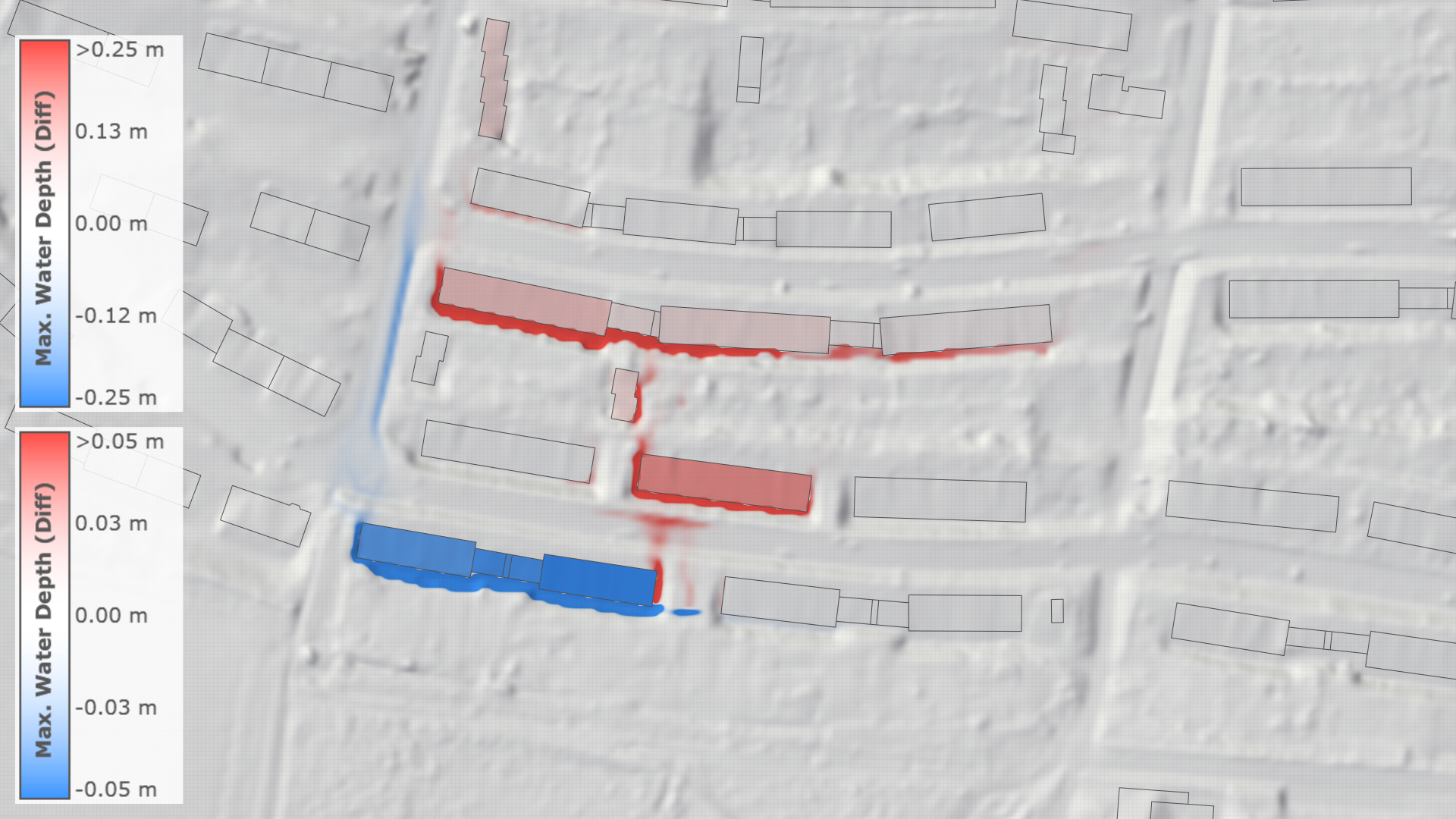
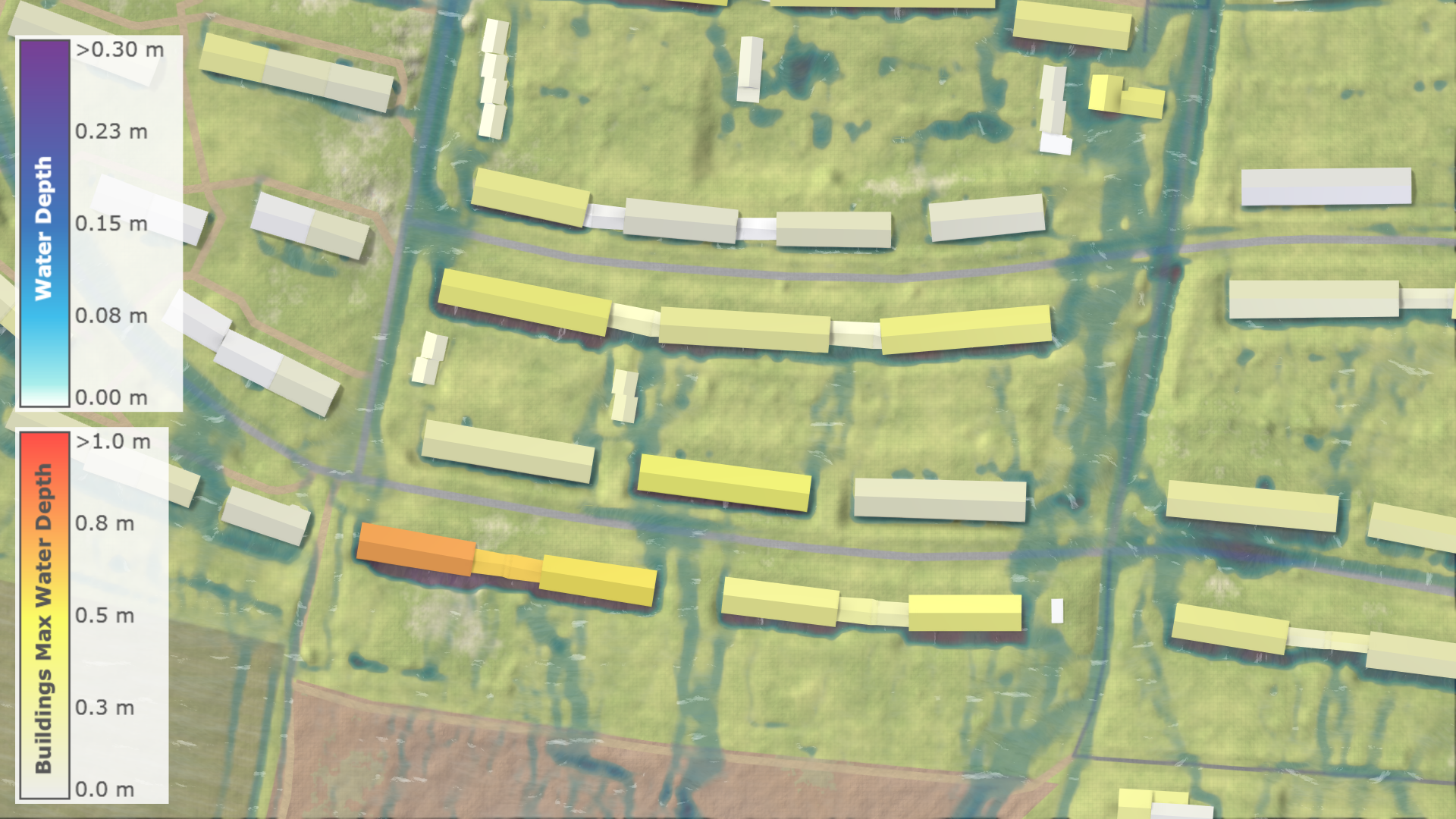
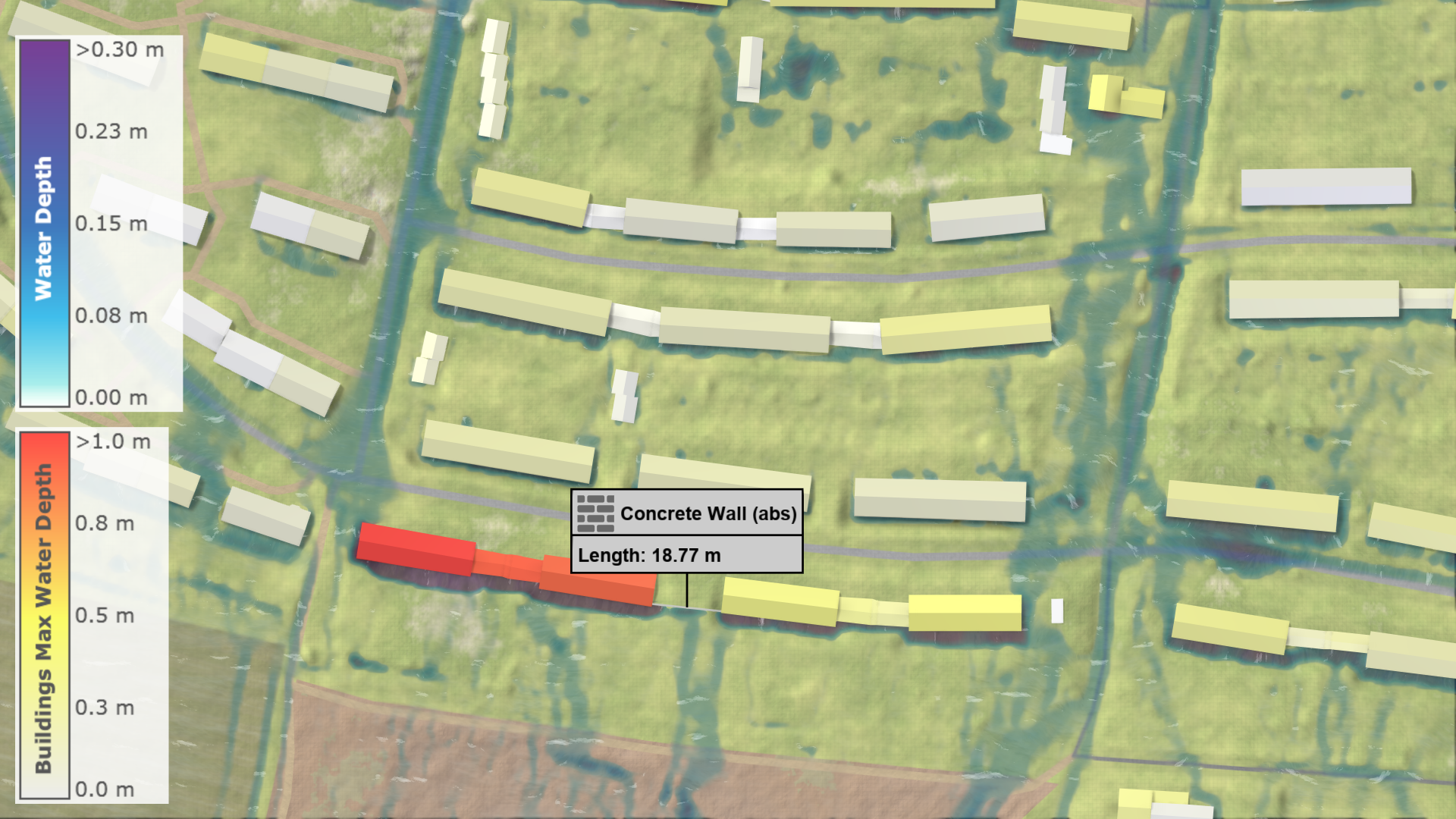
The system will stay in comparison mode until you manually disable it by clicking the Stop Comparing Scenarios button in the World Lines Interface.
Combining Multiple Scenarios
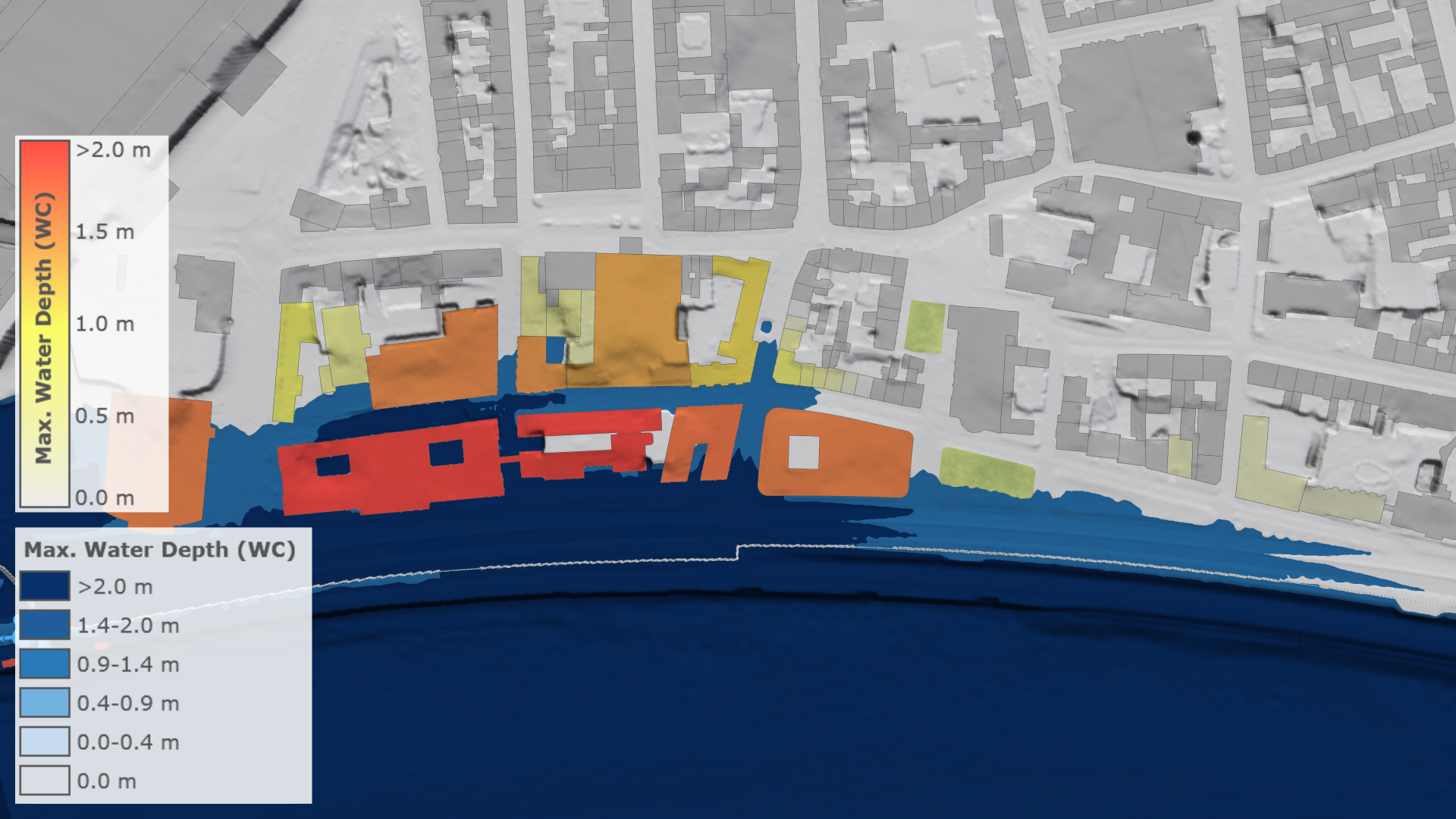
Direct visualization of differences is only available for two selected scenarios. More than two scenarios can be investigated together by combining their simulation outcomes into a point-wise maximum aggregation of the individual maximum water depths. This functionality is particularly useful for examining the worst-case outcome across a range of similar alternative scenarios.
To enable the combination mode, the user has to select three or more scenarios in the World Lines Interface, and then click Combining Scenarios in the Multi-Scenario Operations Menu.
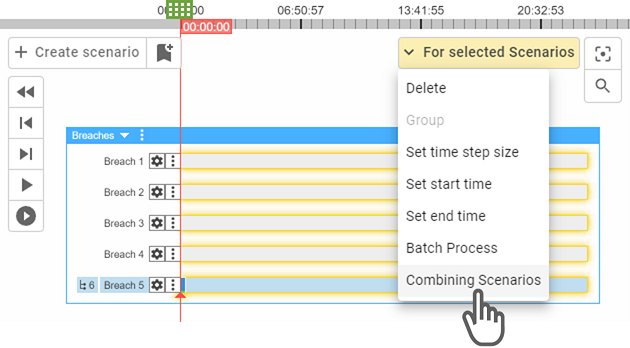
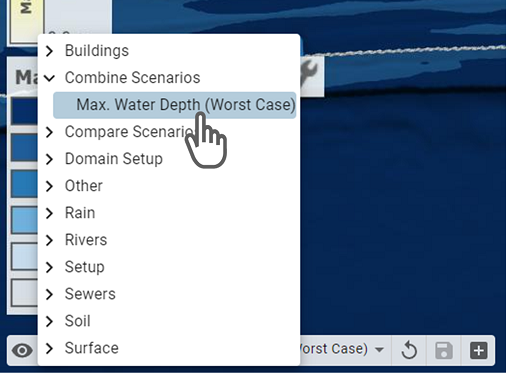
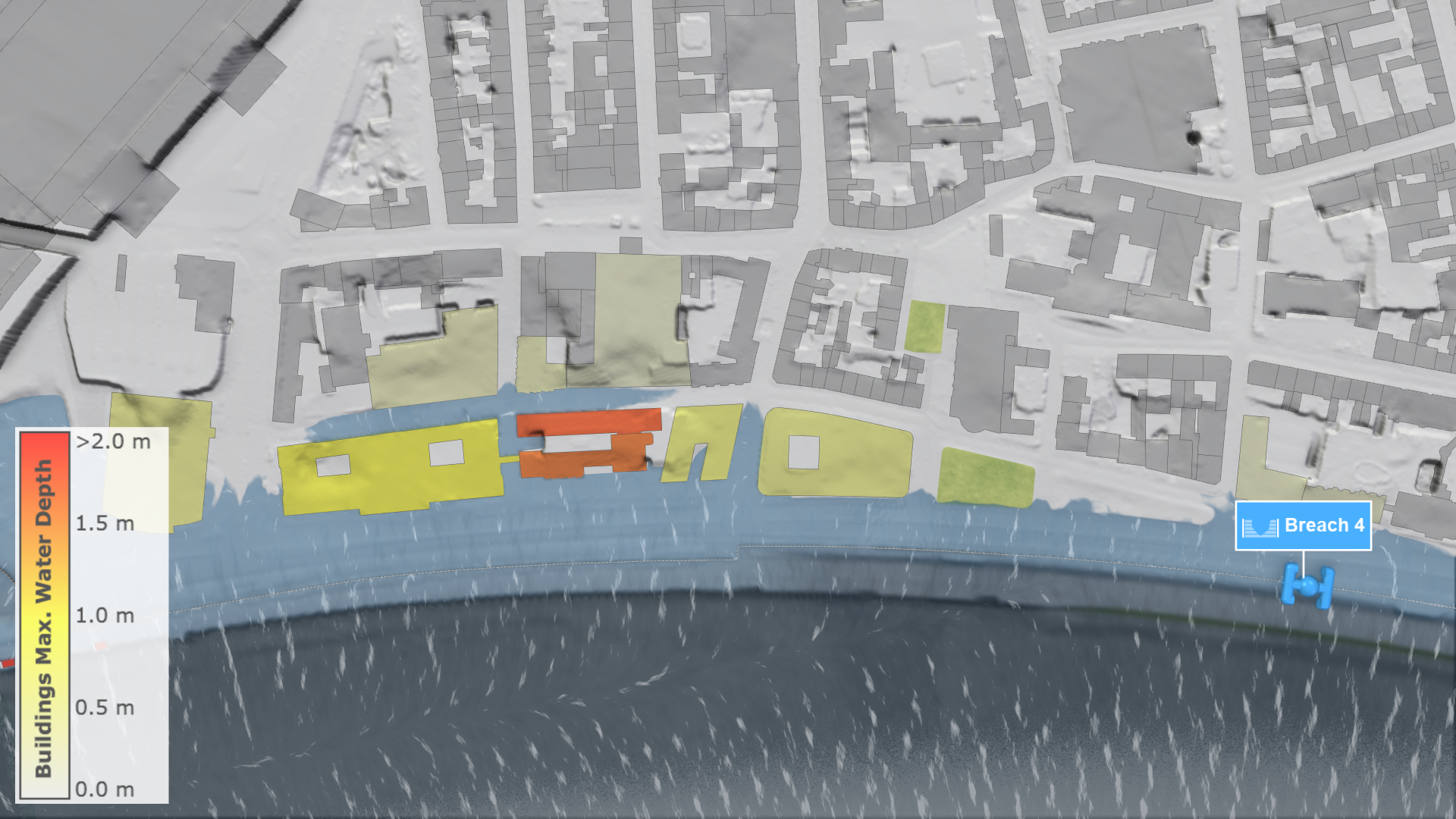
In this mode, users can use the Visual Preset Combine Scenarios: Max. Water Depth (Worst Case) to examine the point-wise maximum water depth across all selected scenarios.
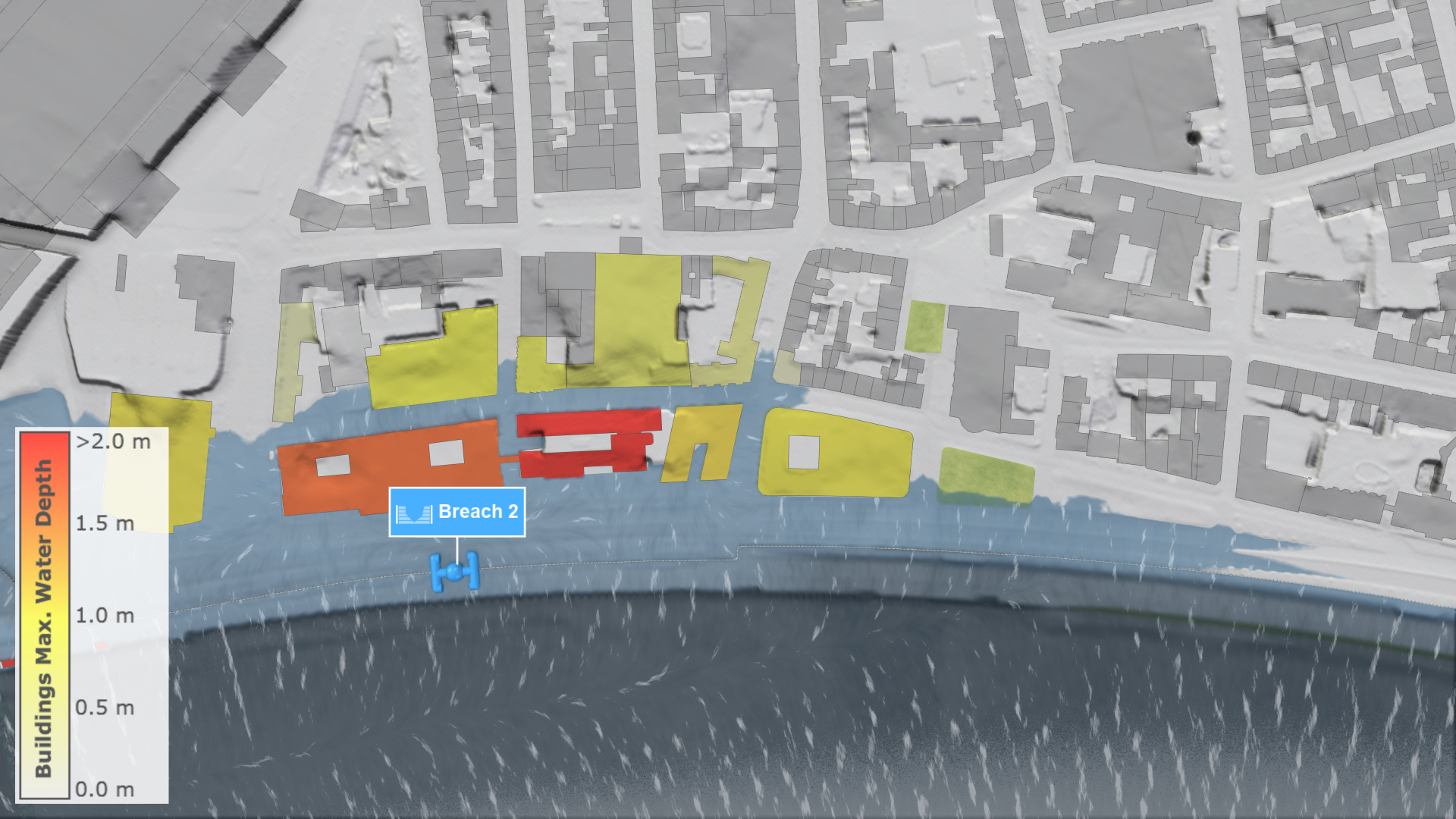
In the example below, this functionality is used to visualize the worst-case outcome across five floodwall breach scenarios along a river.
Combining Inspection Plots
Actions for the inspection of simulation results at a point of interest, such as Spatial Inspection, Building Inspection, and Profile Inspection, enable the plotting of measurements over time in the Plots & Charts Panel. When combining multiple scenarios, their plots are also merged within a single chart for easy comparison.
Hint: The plots of a Profile Inspection can only be merged if the action is defined on a scenario that is a parent of all combined scenarios.
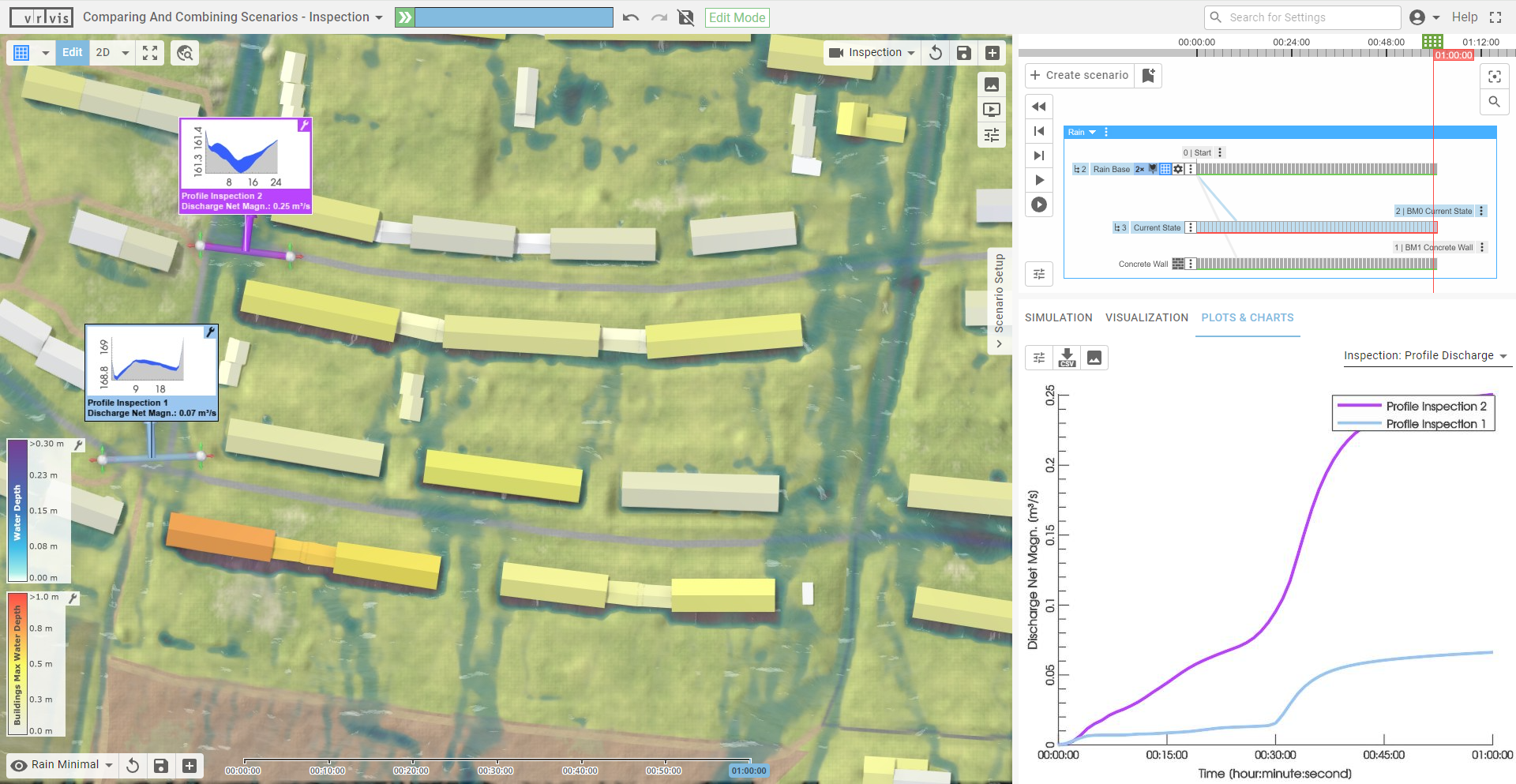
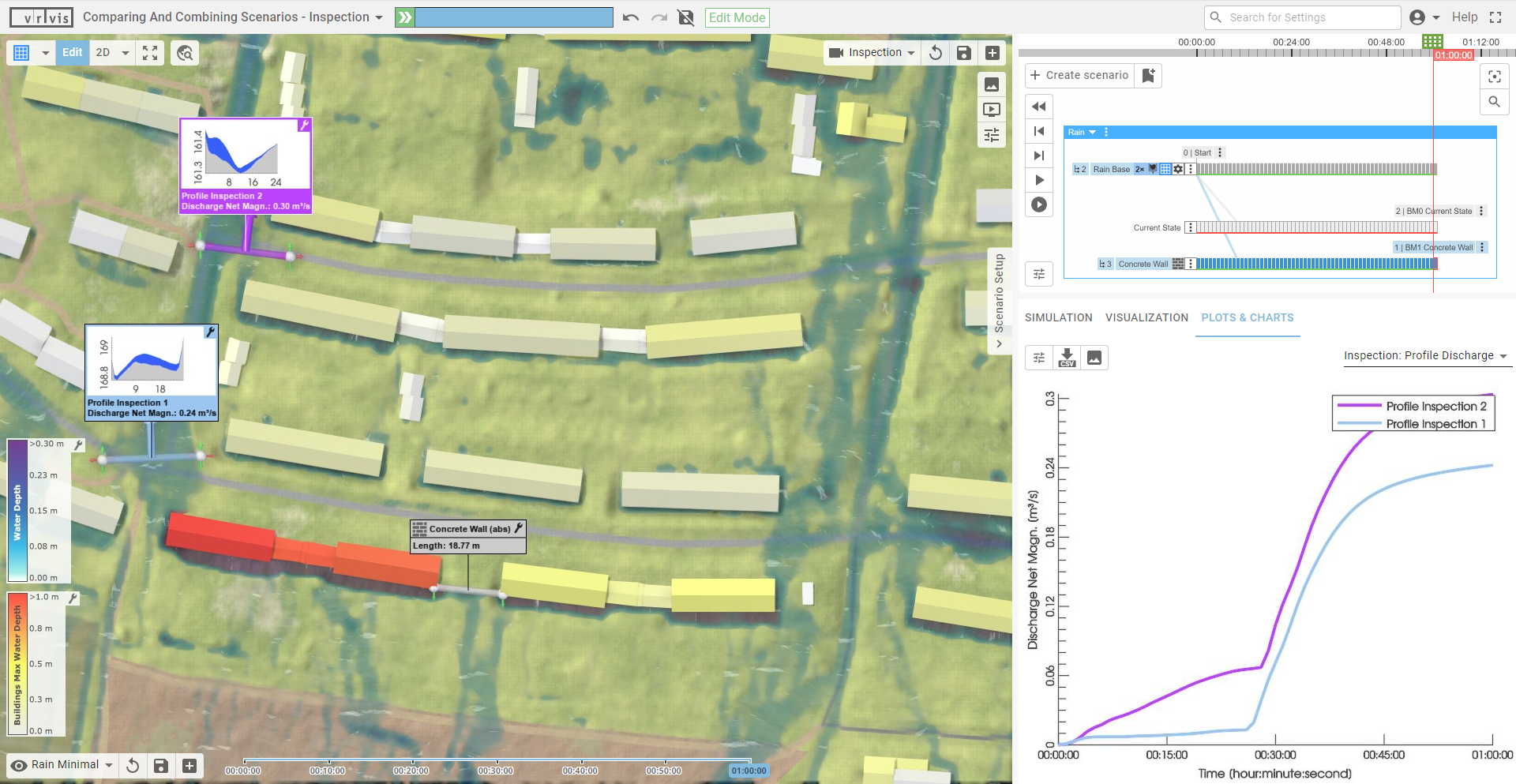
In the example below, the results of two profile inspections are plotted in the Plots & Charts Panel in the bottom right for two combined scenarios, resulting in four different plots displayed in the same chart.
Combining Scenarios in Bookmarks
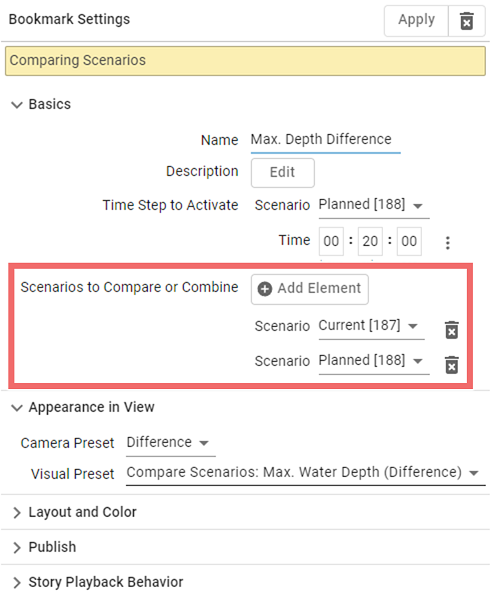
The comparison and combination of scenarios can also be managed through Bookmarks. In the settings of a bookmark, the user can specify Scenarios to Compare or Combine. Switching to this bookmark then automatically activates comparison mode (for two scenarios) or combination mode (for three or more scenarios), which remains enabled until it is manually disabled or another bookmark is selected.