User Models
scenarify can be employed for many different use cases and users with diverse levels of expertise. To manage user interface complexity and information access, the user interface is simplified depending on the user model specified for each user. In particular when publishing a story or sharing a project, setting user models allows for fine-grained control over which components of a project are visible.
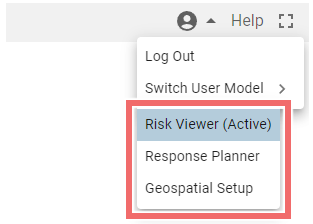
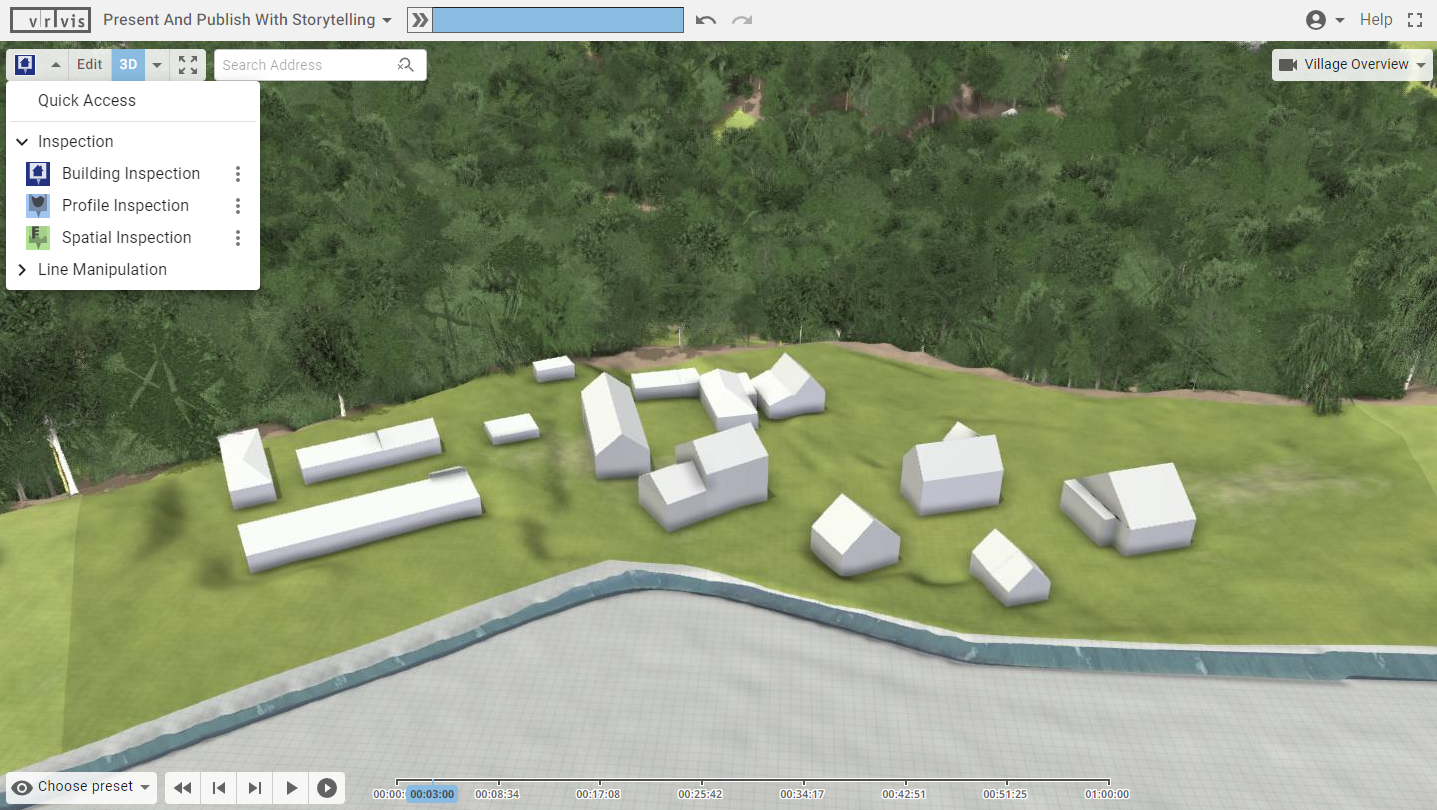
There are three user models representing different uses cases which determine the interface complexity and control what a user can see and edit. The current user model can be reduced in the top-right corner of the user interface to test what each more simplified model can view. The actual user model is set by the scenarify client and cannot be changed by the user.
- Target group: Engineers
- User interface: Access to the most comprehensive features with all actions and advanced simulation settings
- Intended tasks: Setting up new models and refining existing ones, e.g. integrating a sewer network
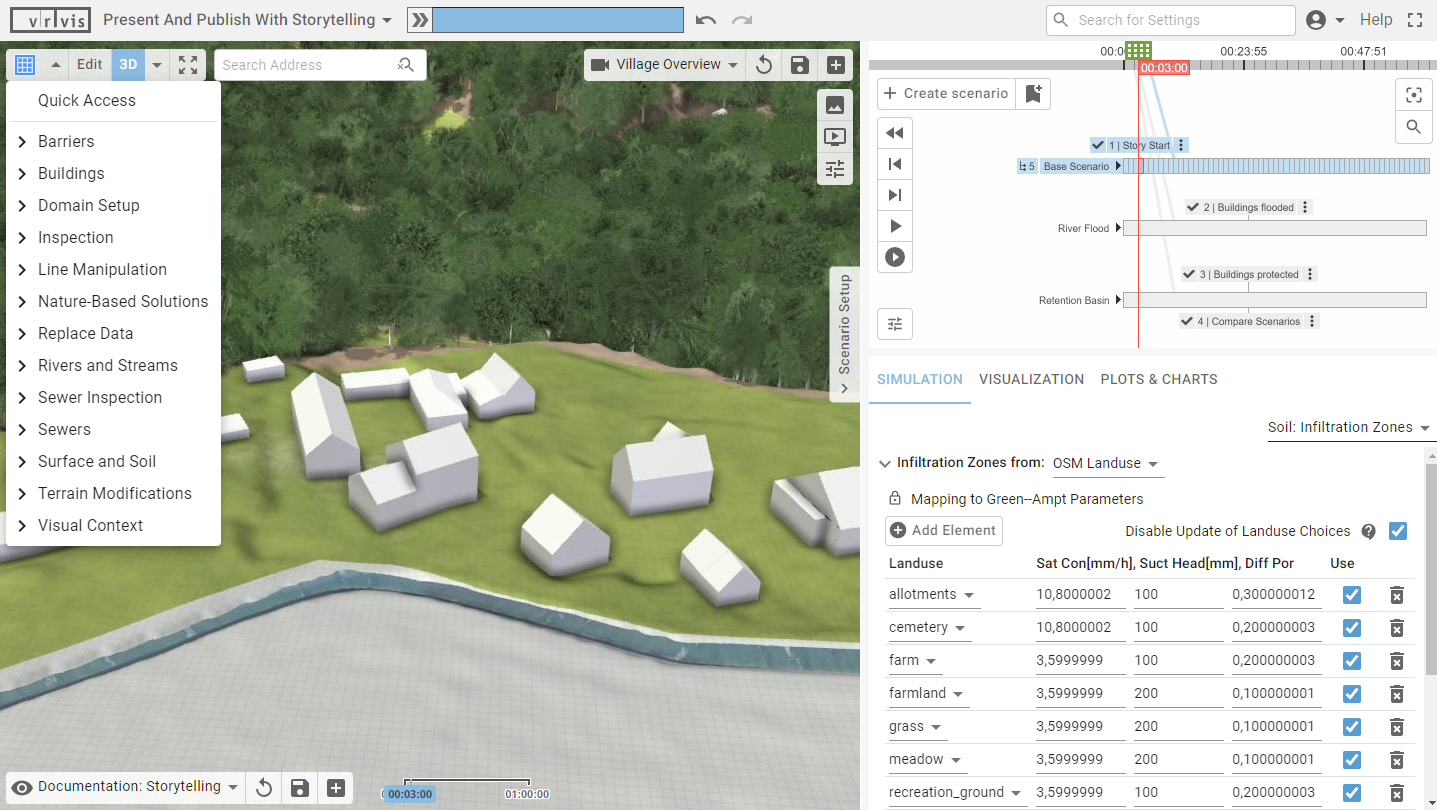
- Target group: Response and emergency personnel
- User interface: Simplified interface with fewer actions and hiding of detailed simulation settings
- Intended tasks: Planning protection measures, conducting risk analysis using pre-simulated scenarios
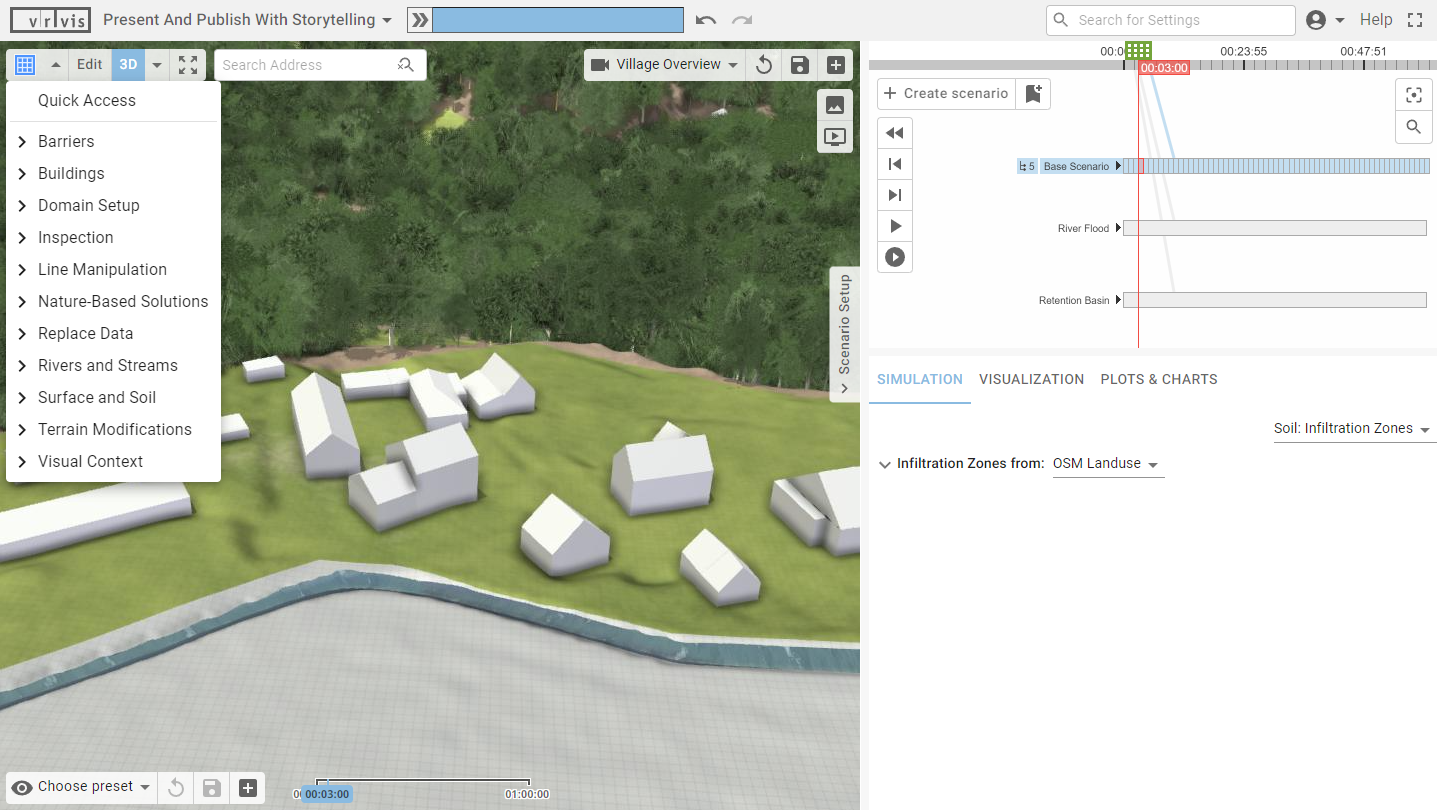
- Target group: General public
- User interface: Minimal interface without scenario setup and a limited set of actions
- Intended tasks: Viewing and analyzing pre-created scenarios with Inspection actions
Setting the User Model
When setting up a project, the user can explicitly set the required user model for certain project components to limit their visibility, for example to hide visual presets used for data verification from the customer. Setting the required user model for a component means only users belonging to this user model or a model above can see and interact with it.
Scenarios
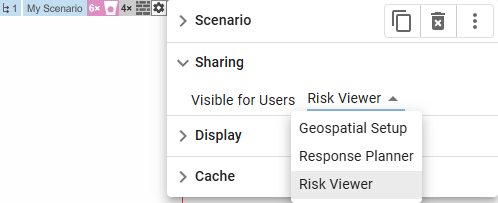
Individual scenarios can be hidden from users with a lower user model in a shared project by setting the visibility to the desired user model in the Scenario Management Panel under "Sharing".
Bookmarks
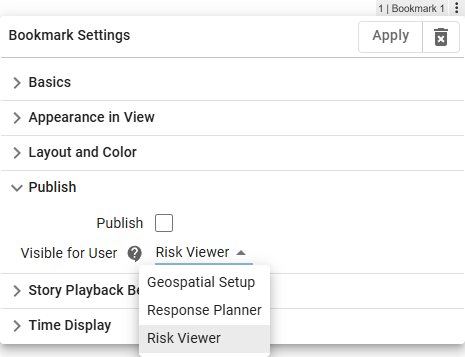
The visibility of Bookmarks for different user models is set in the Bookmark Settings Panel under "Publish". If the bookmark is published as a Story Bookmark, it will also not be included in the story for users with a lower user model.
Visual Presets
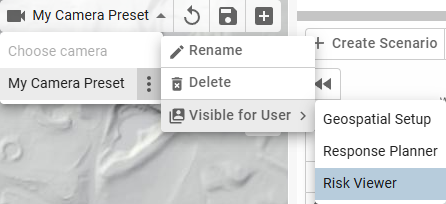
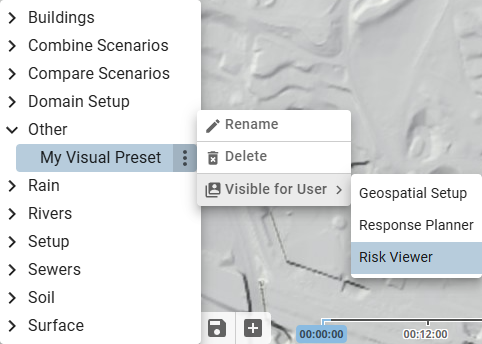
Visual Presets that are not part of the base model and are not intended for users with a lower user model, such as presets related to the input data setup or data validation, can be hidden by setting their required user model after clicking the three-dot button next to the preset name:
Camera Presets
Camera Presets can be hidden from users with a lower user model after clicking the three-dot button next to the preset name: