
Building Inspection
Creation Mode: Assign to Building (not allowed on scenarios with start time > 0)
Purpose and Effect: This action allows you to extract different information about a building to assess its damage and vulnerability. The Action Tool Panel contains a table that lists all available display options. This includes the maximum water depth around a building, which is shown by default.
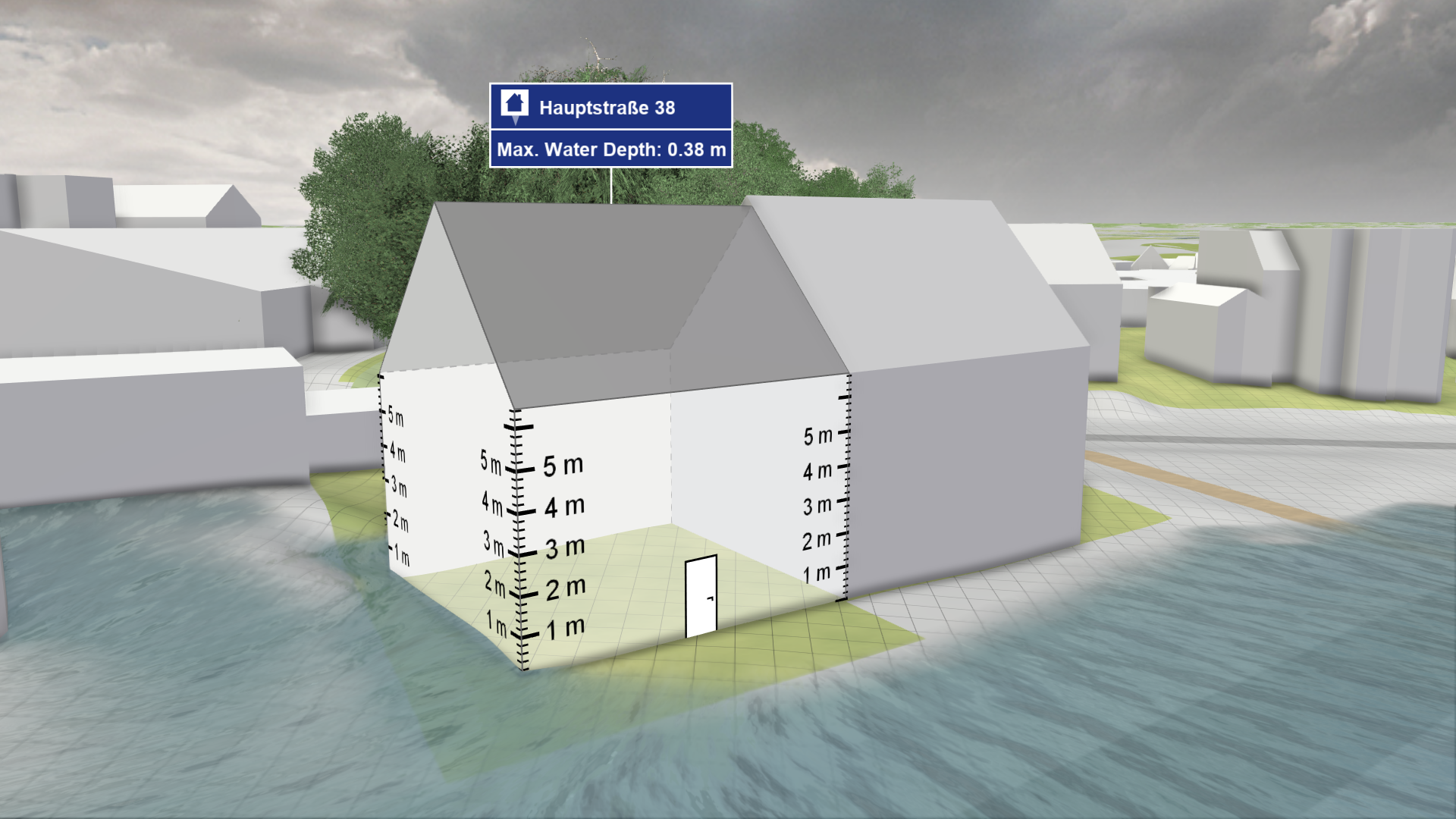
Hint: See Building Water Depth Calculation for details on how the water depth values at buildings are calculated. The Action Tool Panel provides a visualization that explains the sampling lines used for this depth calculation.
Action Storage
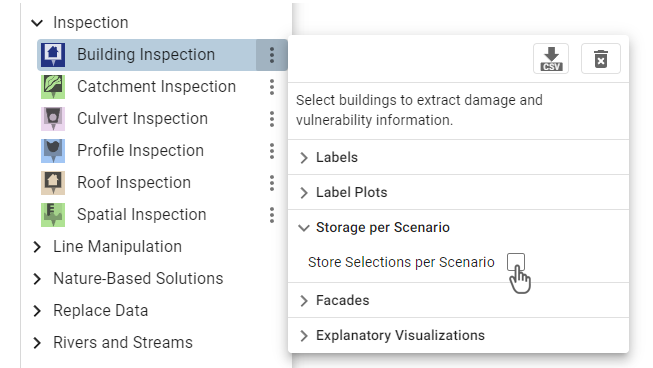
The Building Inspection action is one of the few actions that is not stored per scenario. This allows you to compare information for the same building over different scenarios. To change this behavior and store further inspections per scenario, enable the dedicated setting in the Action Tool Panel, as shown on the right. More information about storing actions across scenarios can be found in the Action Storage description.
Inspection Label
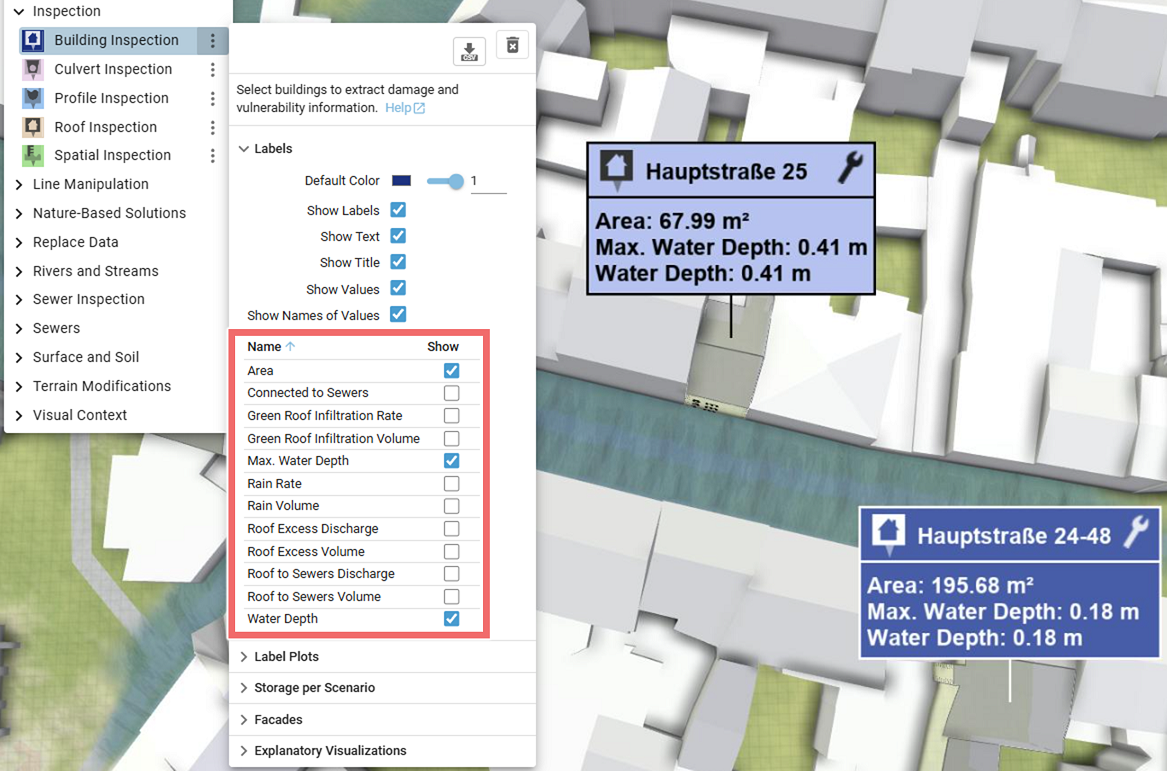
A label displaying the inspected data values for the building can be shown. The data to inspect can be selected in the Labels section of the Action Tool Panel.
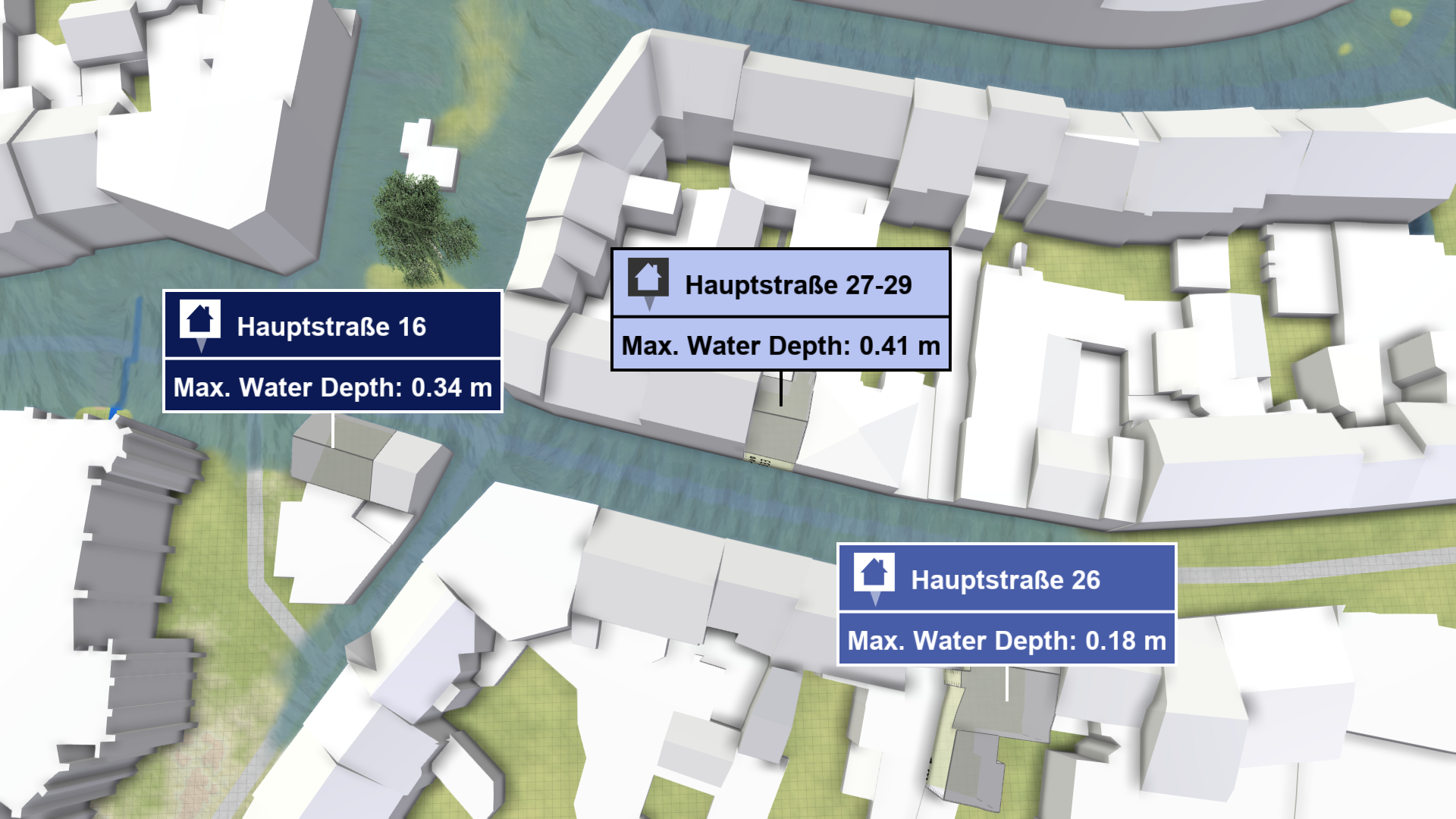
Comparison of Water Depths at Buildings
A task-based workflow for Comparing and Combining Scenarios is available, explaining how inspections can be compared and combined over multiple scenarios. There are two ways to visualize water depths at selected buildings over time, one shows individual plots per action label and the other shows a plot combining all selected buildings:
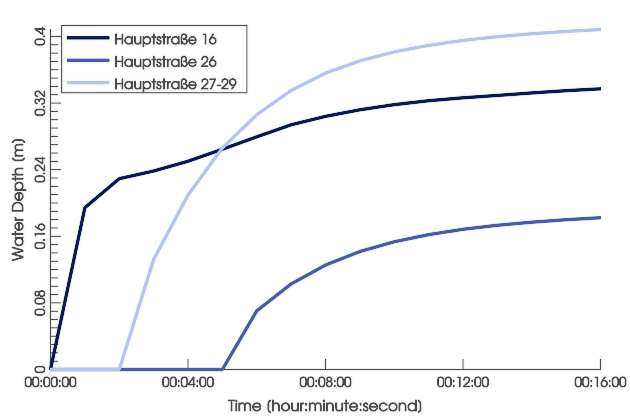
A plot showing water depths from different sources is available in the Plots & Charts Panel under Inspection: Water Depth. The displayed water depths may come from selections made by Building Inspection and Spatial Inspection actions, or from all buildings aggregated and optionally weighted by the Important Building action.
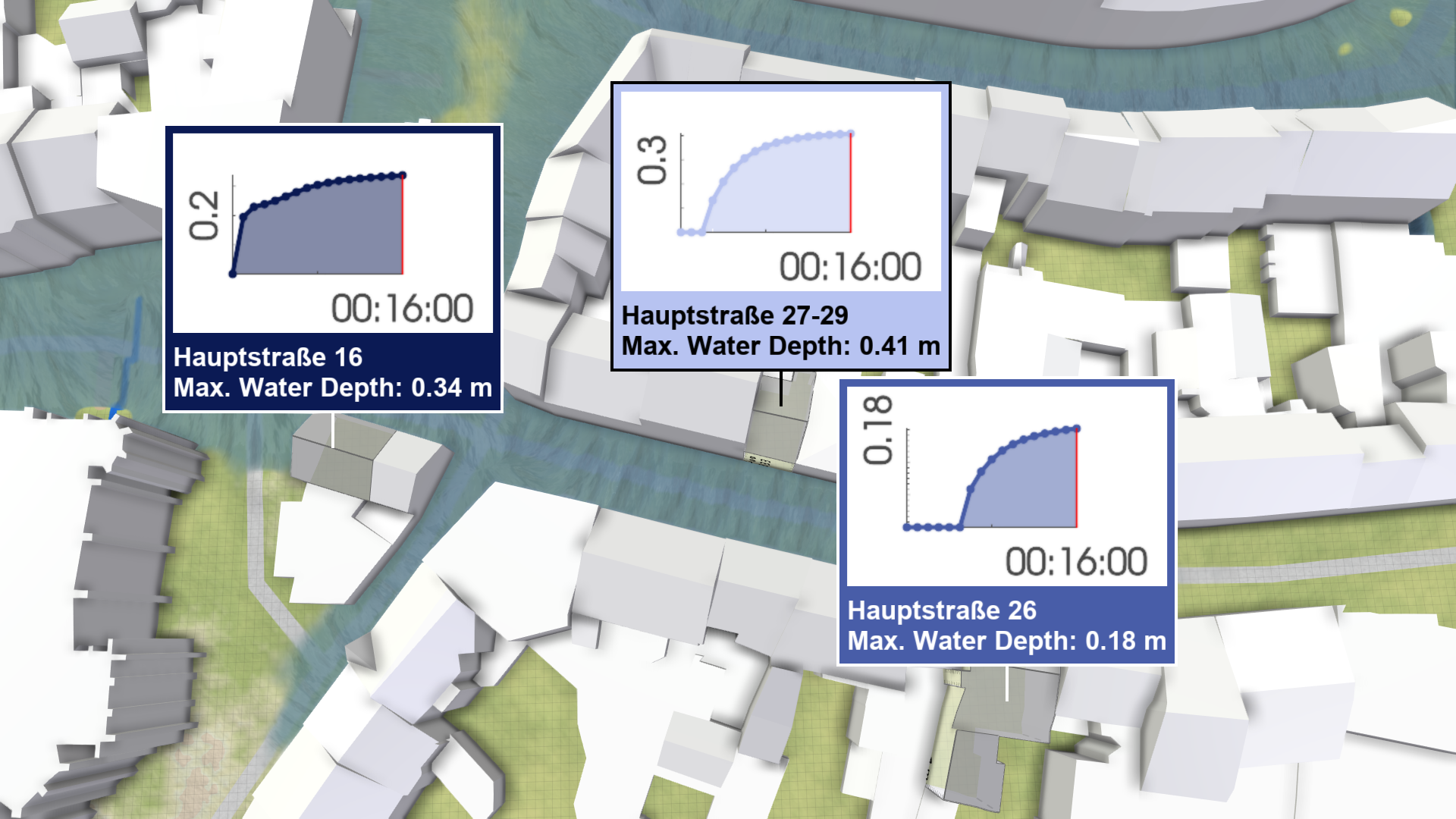
.png)
Water depth plots per action label can be enabled in the Action Tool Panel. They show the water depths at the corresponding building.
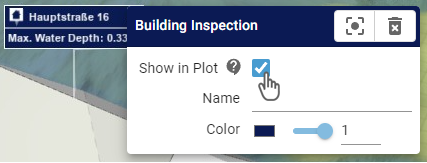
Hint: The display of inspected buildings in the combined water depth plot can be toggled in its action settings.
Visual Enhancements
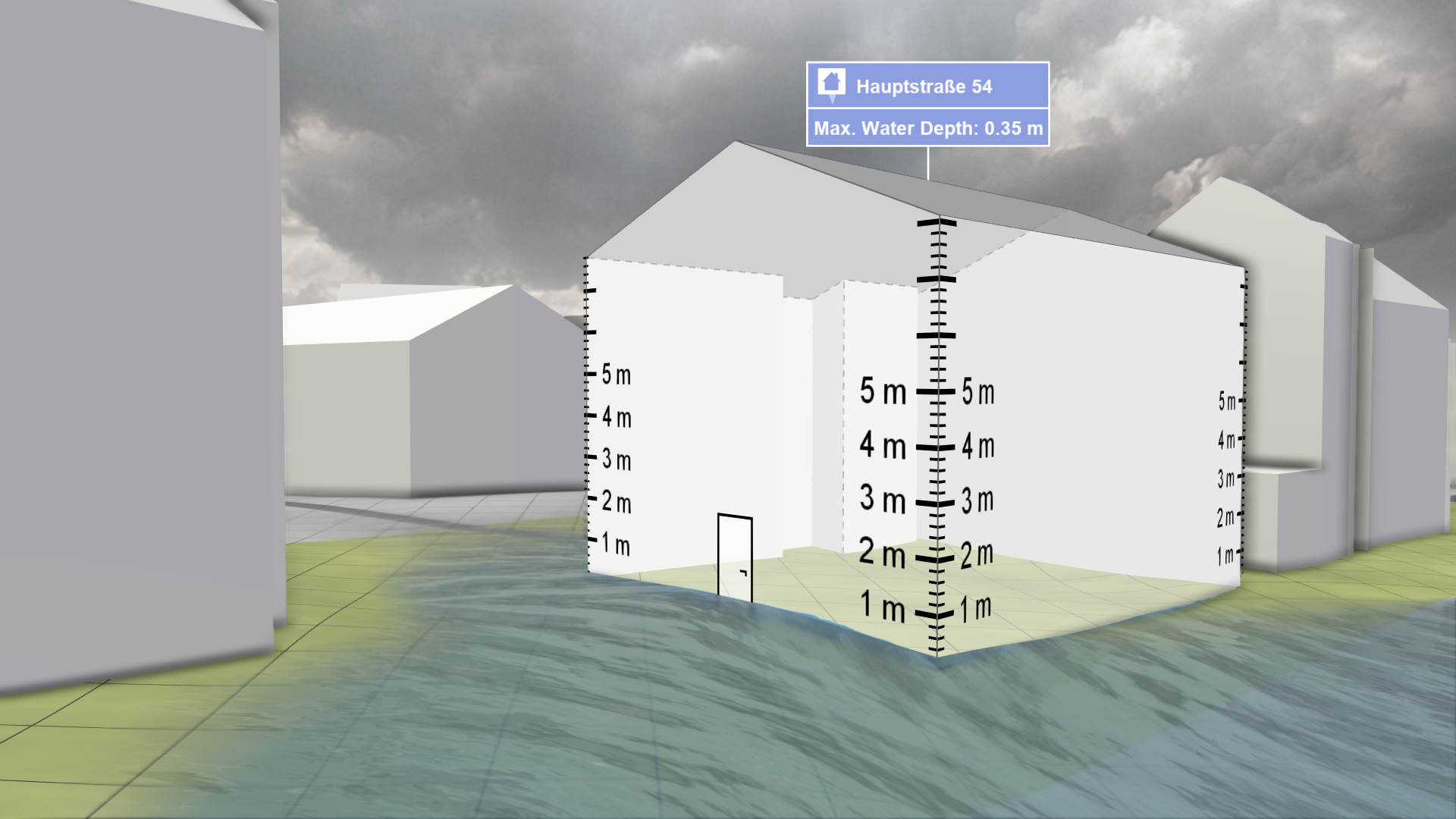
Wet Facades
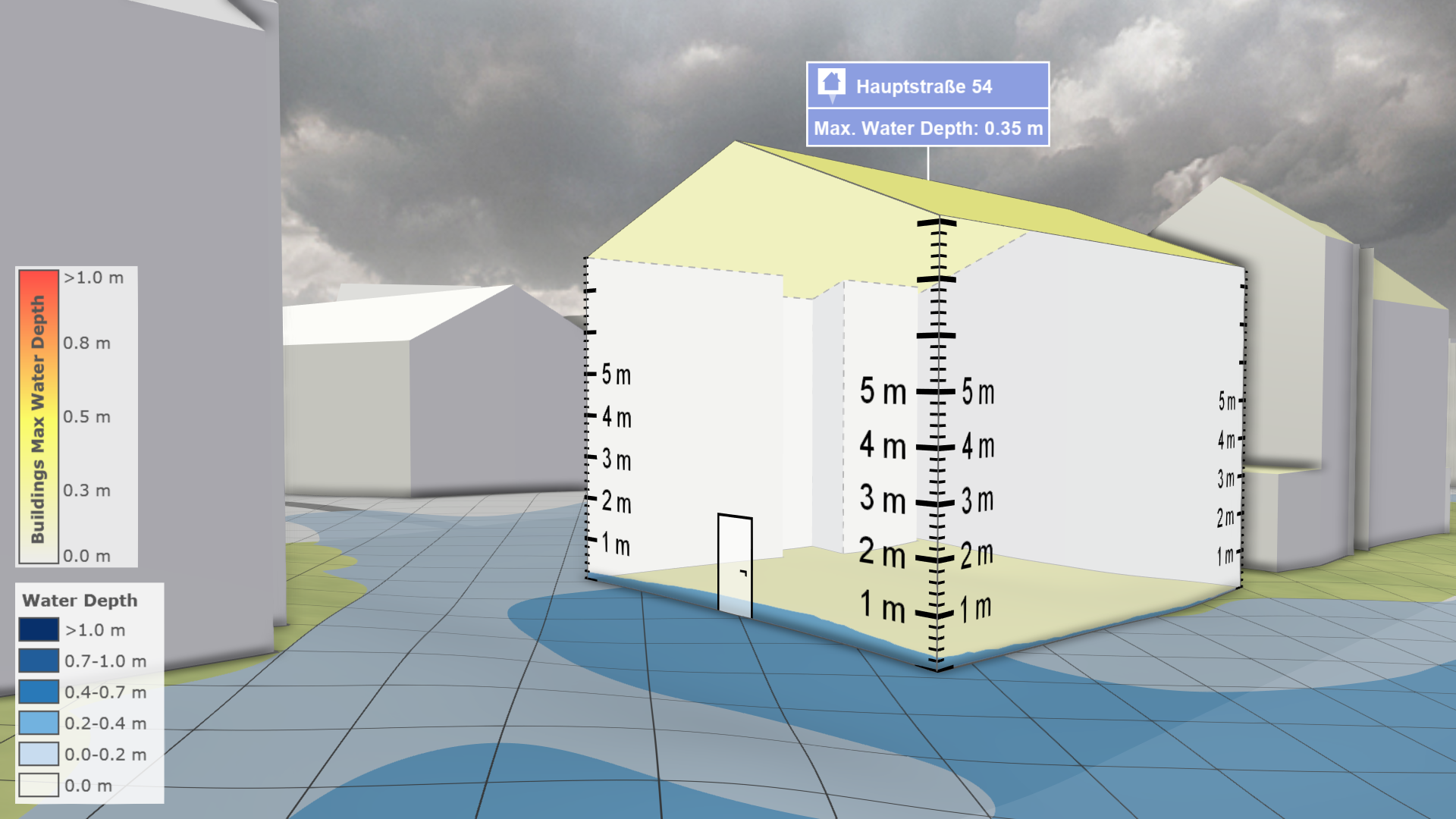
Projecting water depths onto facades gives an indication of how severe building parts are affected. This display can be activated in the Action Tool Panel under Facades > Show wet facades, or by using the Visual Preset Buildings: Wet Facades. Since the wet facades are difficult to see behind the water, the visual preset hides the water surface to have a clear view on the facades. Additionally, the roofs are colored based on the building's maximum water depth.
Occlusion Prevention
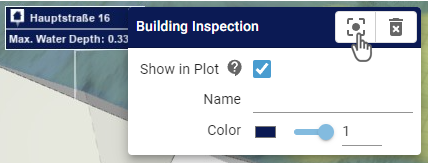
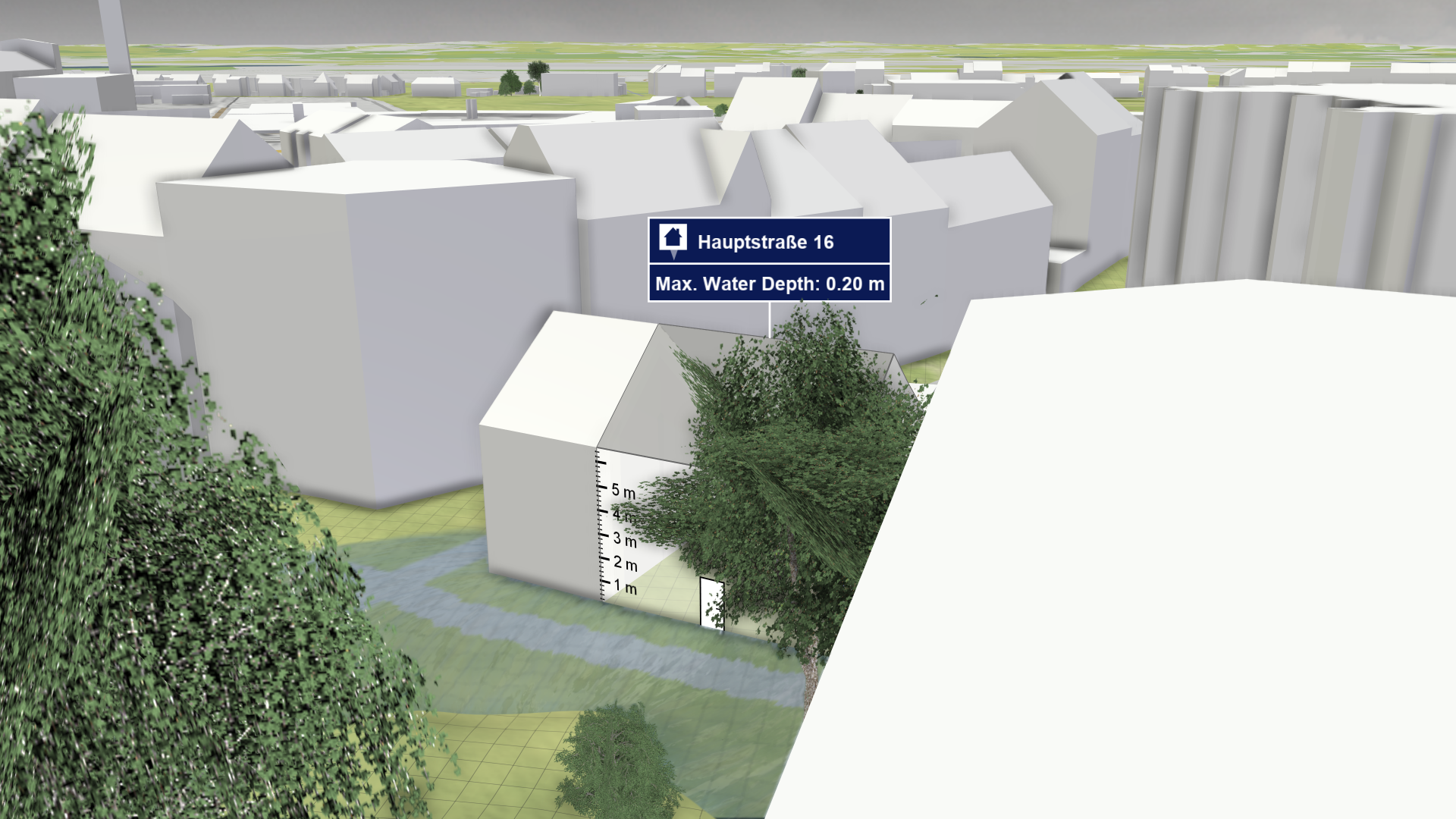
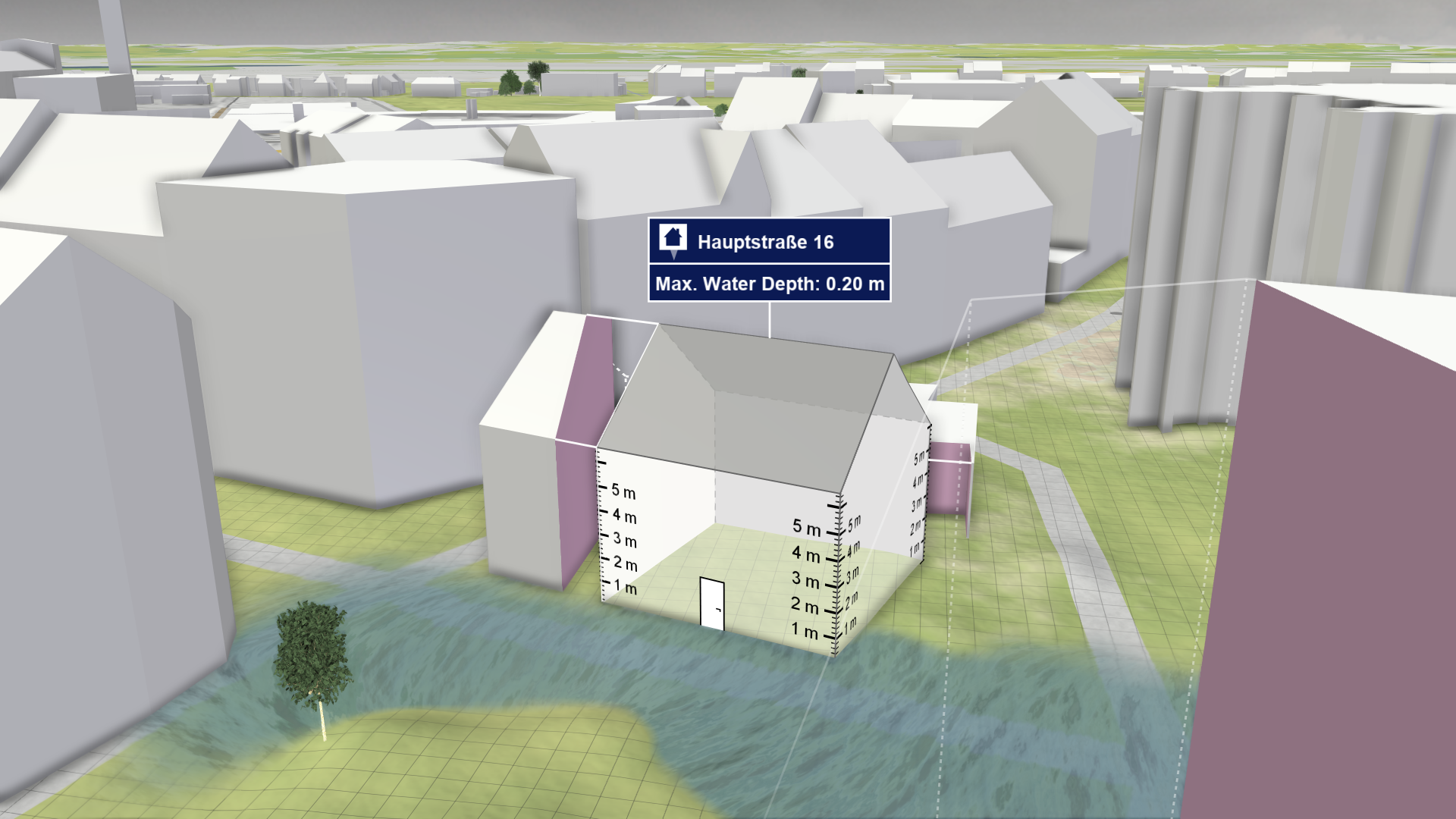
Buildings in urban areas are often occluded by other buildings and the view on buildings near parks or forests can be blocked by trees. To prevent this, click on the focus button of the action label. It centers the view on the inspected building and automatically removes occluding objects.
Trees and other buildings block the view of the inspected building
Trees and buildings blocking the view are removed
Export of Action Data
It is possible to export data from building selections through the Plots & Charts Panel and the Action Tool Panel, as described in Exporting Actions.
| Export interface | Data description |
|---|---|
Plots & Charts Panel > Inspection: Water Depth/Level .png) |
|
Action Tool Panel .png) |
|
Hint: The export of inspected values from the Action Tool Panel only exports values selected for display in the inspection label.