Global Visualization Settings
Visualization settings control the visual appearance of the model in the View and apply to the entire model area. They can be found in the Visualization Settings Panel, at the bottom of Scenario Setup Panel:
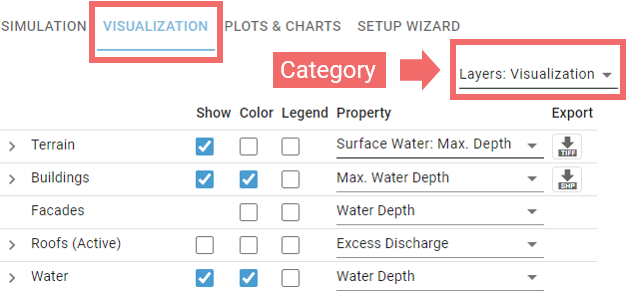
The visualization settings categories are divided into two groups:
-
Layers: Contains settings that control what is visible in the View and how it is displayed.
-
Setup Visual Context: Includes file setups for elements shown in the View. Unlike the file setups in the Simulation Settings Panel, these elements do not influence the simulation.
Layers: Visualization
An interactive table controls the display of the main semantic layers (Terrain, Buildings, Water, etc.). These layers support visualization on top of them:
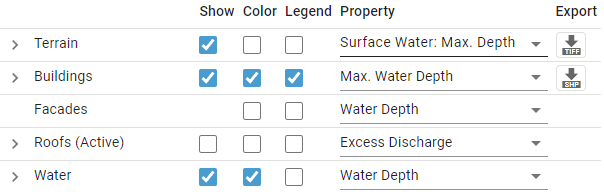
The checkbox in the column "Show" allows the display of the corresponding semantic layer. The "Color" column determines whether the layer is colored based on a specific property, which can be selected from a dropdown in the "Property" column. The "Legend" column enables the display of the associated color legend, while the "Export" column allows the user to download the corresponding layer.
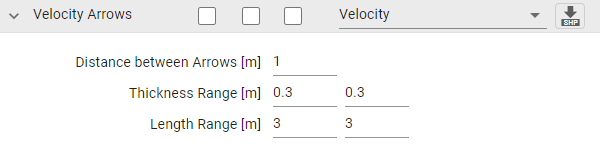
Most semantic layers feature a submenu with additional settings for the displayed layer, such as toggling a grid overlay on the terrain or adjusting the size of velocity arrows:
Layers: Vector Mapping
This category contains an interactive table that manages additional visual layers of vector features (polygons, lines). A layer submenu offers further settings to customize the layer's display:
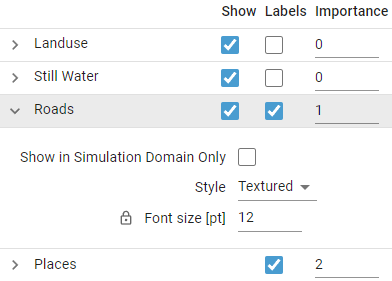
The "Labels" column enables the display of textual labels that show the names of the corresponding layer features, if available. The "Importance" column affects how layers are prioritized when visual clutter is automatically reduced during zooming out; layers with higher importance values remain visible longer.
Layers: Technical
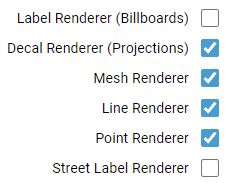
In this category, the user can disable entire classes of visual features, regardless of their semantics. For instance, this allows for hiding all lines, all 3D meshes, or all decal projections on terrain:
Layers: Inlay Plot
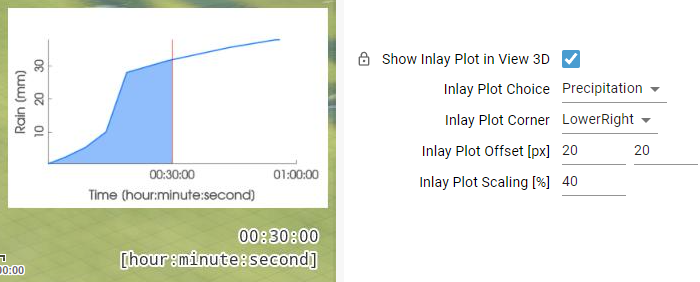
In this category, the user can display and configure an inlay plot within the View. This feature is particularly useful for presentation purposes and for exporting visual media:
Camera Presets
Camera presets are located in the top right corner of the View, allowing the user to save favorite camera perspectives and easily access them later from a drop-down menu:
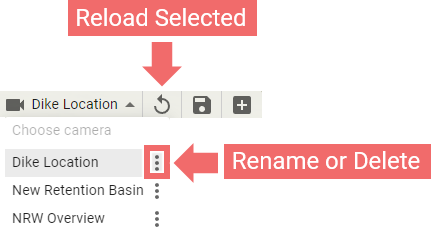
Hint: If there are too many camera presets, they can be grouped by using a colon in the preset names, such as "Demo: Flooded Street" or "Planning: Future Culvert Location". Grouping automatically activates when there are more than eight presets.
Visual Presets
Visual presets allow the user to change visual appearance of a scene in the View. Each preset stores a state of the Visualization Settings Panel and, possibly, color legends. Visual presets are available in the bottom left corner of the View. When the Scenario Setup Pane is closed, only the pop-up menu for selecting an existing visual preset remains visible. However, when the Scenario Setup Pane is open, three additional buttons appear: one to create a new visual preset, another to save the currently selected preset, and a third to re-apply the currently selected preset:

To create a new visual preset, follow these steps:
- Open the Scenario Setup Pane.
- Click the button to create a new visual preset and assign it a name.
- In the Visualization Settings Panel, configure the visual appearance of the 3D scene as desired.
- If necessary, tweak the color legends and make sure they will be saved with the visual preset (see below).
- Save the new visual preset.
Creating new visual presets based on existing ones is a good practice, as it allows modifications to existing presets, including built-in ones, without losing the originals. To do this, first select the preset you want to modify, then follow the steps outlined above to create and save a new visual preset.
Hint: If there are too many visual presets, they can be grouped by using a colon in the preset names, such as "Buildings: Roofs" or "Sewers: Overflow Volume". Grouping automatically activates when there are more than eight presets.
Color Legends
Each color legend can be configured through a menu that opens with a right-click on the legend. Under "Color Ramp," the user can choose a color scheme from a list of presets or insert and delete values to define a custom transfer function. Each value can be defined directly or by a position. Positions represent normalized values within a range of 0 to 1, relative to the minimum and maximum of the data:
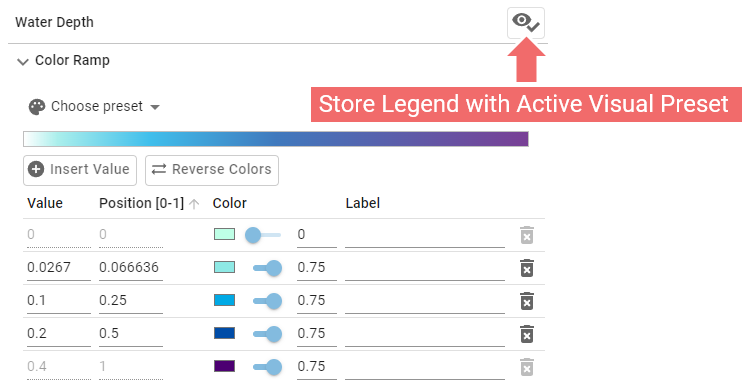
Some visual presets also store color legend settings. As a result, applying these presets may override any custom adjustments made by the user, restoring the color legends to their preset state. To ensure the legend adjustments are preserved, they should be saved in a new or existing visual preset. The color legend menu features a toggle button in the top right that controls whether the legend settings are saved with the active visual preset. First, select or create a visual preset, then adjust the color legends as needed. Ensure the toggle is enabled for each legend, and save the preset to retain your changes.
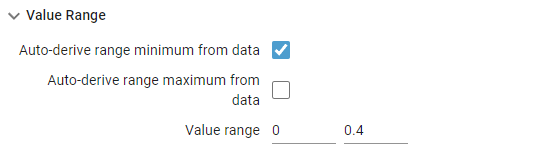
Under "Value Range", users can specify the source of the legend's minimum and maximum values. These values can either be dynamically derived from the actual data or set manually by the user: