Working Collaboratively on a Project
scenarify maintains a separate directory for each user to store project files and uploaded input data. These directories are isolated for security and privacy, ensuring that no user can access or modify another user’s projects. Collaborative work on a project is still possible by explicitly sharing scenarios or entire projects, including their associated input data.
There are two workflows to enable collaboration:
- Settings Sharing: Export all settings and actions specified on a single scenario to a file, then import them into another project and apply them to a target scenario. Any conflicts between existing and imported settings can be resolved interactively.
- Project Sharing: Copy an entire project file and its associated uploaded input data to another user’s directory to enable independent work starting from the same project state. Importing a shared project allows users to merge changes into a unified project, with any conflicts resolved interactively.
Attention: Scenario and project imports cannot be undone using the Undo button. If an error has been auto-saved, the project can be restored from history or backup.
Settings Sharing
The simplest way to share manual work between projects is by sharing the settings of individual scenarios. All simulation settings and drawing action settings specified on a scenario can be exported to a file by clicking the three-dot button in the top-right corner of the Scenario Management Panel.
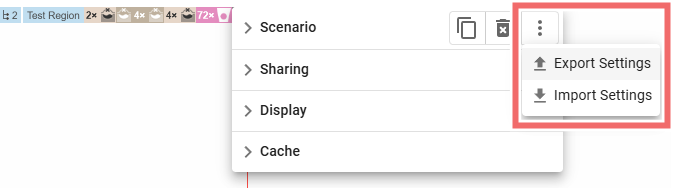
In another project—possibly owned by a different user—the exported settings can be imported via the Scenario Management Panel of the target scenario to which the settings should be applied.
Settings Import for Merging
When importing previously exported settings, conflicts may occur between the imported settings and existing ones in the target scenario. The same applies to uniquely identified drawing actions if one of the two projects was derived from the other—for example, by saving a copy under a new name, downloading, or sharing the project. Therefore, before the import is completed, the user must specify how differences between settings should be handled.
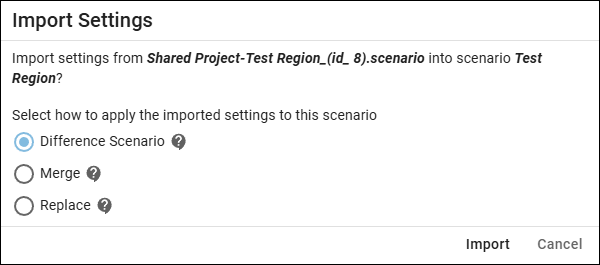
- Difference Scenario: Creates a new scenario containing only the differences and new settings from the imported scenario.
- Merge: Overwrites matching settings and adds new ones from the imported scenario.
- Replace: Replaces all current settings with the imported scenario's settings.
Difference Scenario
If the imported scenario includes new settings or contains values that conflict with existing ones, a Difference Scenario is created to display these new or conflicting settings. This scenario is highlighted in purple and shows an icon to the left of its name. It is derived from the target scenario and allows the user to visually review all imported changes before accepting or rejecting them.

Differences in the general settings can be reviewed in the General Settings Panel. Undesired changes can be edited or removed from the difference scenario.

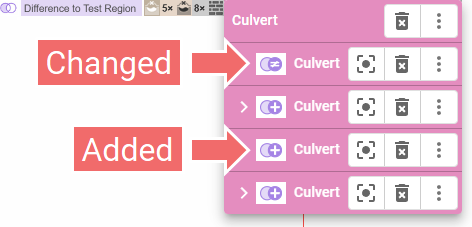
Differences in drawing actions can be reviewed in the Action Settings Panel of the respective action. In the grouped overview, an icon indicates whether an action was newly added or if the settings of an existing action were modified. Undesired changes can be edited or removed like any other action.
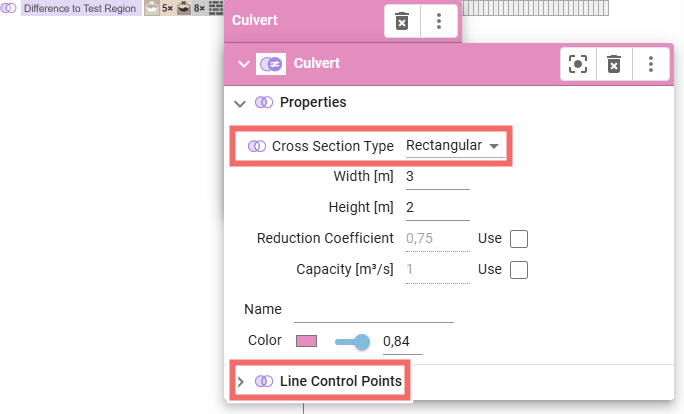
In the Action Settings Panel of each modified action, changed settings are indicated by a purple icon next to them, such as "Cross Section Type" and "Line Control Points" shown in the image below.
After reviewing all differences in the target scenario and editing or removing any undesired changes, the remaining differences can be accepted or rejected by clicking the Merge Scenario Options icon next to the difference scenario.
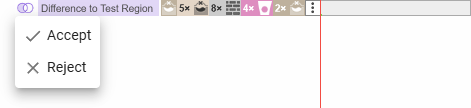
Clicking the merge icon in the Scenario Management Panel produces the same effect.
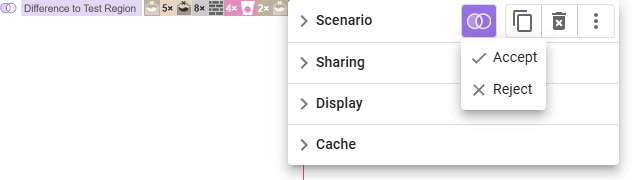
Accept integrates all remaining differences specified on the difference scenario into the target scenario and then deletes the difference scenario. This updates the existing target scenario with all imported actions and settings changes.

Reject converts the difference scenario into a regular scenario. As a result, the target scenario remains unchanged, while all imported actions and settings changes are applied to the child scenario, overriding the parent’s settings.

Merge Mode
As long as a project contains unresolved differences between existing and imported settings on any difference scenario, the system enters a special mode where these differences are highlighted and can be resolved interactively by the user. The Merge Mode is indicated in the Application Bar by a purple icon.
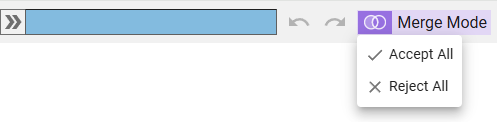
Clicking this icon allows the user to resolve all unresolved differences across the entire project.
- Accept All has the same effect as selecting "Accept" in each difference scenario's Merge Scenario Options, incorporating the imported settings of each difference scenario into its respective target scenario.
- Reject All has the same effect as selecting "Reject" in each difference scenario's Merge Scenario Options, converting all difference scenarios into regular child scenarios of their respective unaltered target scenarios.
Once all differences are resolved, Merge Mode is automatically deactivated.
Project Sharing
A common use case for collaborative project work is to divide manual work between multiple users—by task or work tiles—and then merge the results to create a unified project state. In the following, an example illustrates how such a workflow can be carried out in scenarify, using a collaboration between two users, User A and User B.
Step 1: Sharing an Initial State
User A creates a project and establishes an initial state from which both users can begin their manual work independently. This project includes a scenario named "Test Region" with several drawing actions.

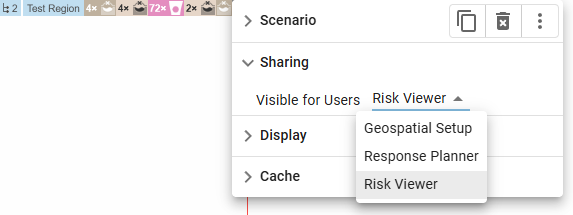
Before sharing the project file, the visibility of each scenario can be restricted by setting the minimum required User Model needed to view it. This is useful when sharing the project with users of a lower User Model, such as customers who should not have access to view or modify base scenarios containing the geospatial data setup.
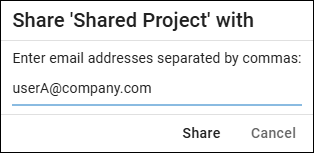
The Share Project option in the Project Menu allows users to share entire project files directly with other registered scenarify users. Selecting this option opens a dialog where one or more comma-separated email addresses of the users to receive the project can be entered.
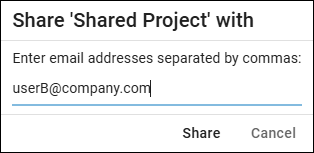
Remark: Users will not receive a system notification when new projects are shared with them.
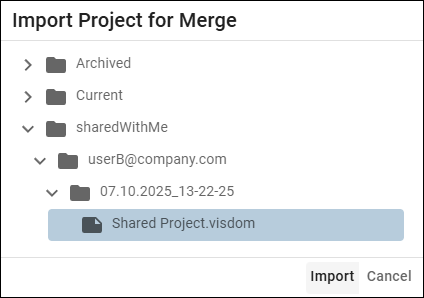
Shared projects are stored in a separate folder named "sharedWithMe" and are grouped by the email addresses of the users who shared them. In this example, User B has received the project shared by User A.
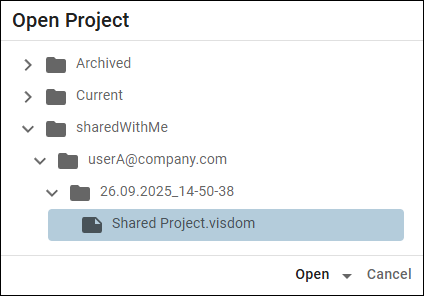
The shared project may include additional input data uploaded by the sharer (User A) that are not part of the base model. For security reasons, a user can never access another user’s uploaded data directly. To allow the recipient (User B) to open the shared project, all uploaded input data referenced in the project are automatically copied to the recipient’s user directory, also in a separate folder named "sharedWithMe".
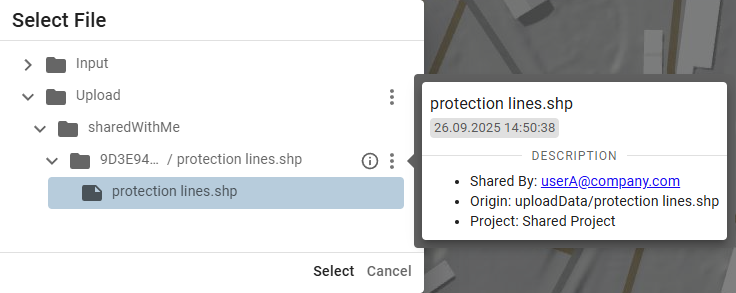
During the copy process, a checksum of each file is calculated from its contents and used as the name of a subdirectory in this folder. The checksum tracks changes to the file and ensures that both the sharer and recipient of a project are using the same version of the uploaded input data. A file is only copied from the sharer’s user directory if the same file version does not already exist in the recipient’s user directory. In the shared project file, all file paths referring to uploaded input data in the sharer’s directory are automatically updated to point to the copied data in the recipient’s directory.
Hint: Projects can also be shared manually by downloading a project and distributing it to others, who then upload it to their user directory. However, this method does not handle uploaded input data automatically.
Step 2: Independent Work on Shared Project
Since both the project file and the uploaded input data are copied during sharing, each user can work independently on their local copy of the shared project without affecting other users.
In this example, after sharing the project, User A adds a new scenario "Retention Basin" with several drawing actions.
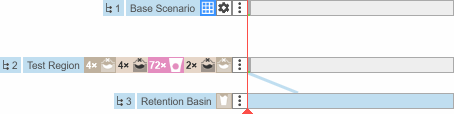
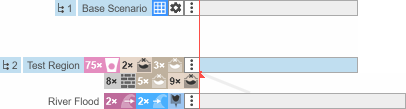
At the same time, User B edits and adds actions to the existing scenario "Test Region", which already contains all drawing actions created by User A. User B also adds a new scenario "River Flood," setting up a river flood along with a profile inspection action.
Changes made by all users to the shared project can now be merged into a unified project by one user. In this example, the project creator, User A, incorporates the changes after User B shares back the updated project using the Share Project option in the Project Menu.
Step 3: Project Import for Merging
The Import for Merge option in the Project Menu allows users to import another project file from their user directory and incorporate its changes into the current project. This workflow extends the Settings Import for Merging process to entire scenarios rather than just the settings of a single scenario. It enables a user to import any other project into the currently open project, including projects shared by other users and stored in the "sharedWithMe" folder. In this example, User A imports the project shared back by User B into the project that User A modified after sharing the initial state in Step 1.
After the project file is loaded, the user can select all scenarios to be imported. Since scenarios in scenarify have hierarchical dependencies, importing a child scenario also requires importing all of its ancestor scenarios.
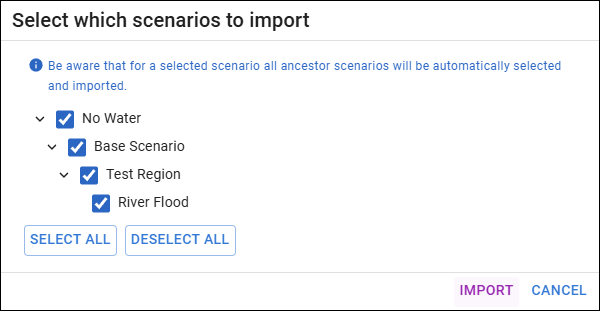
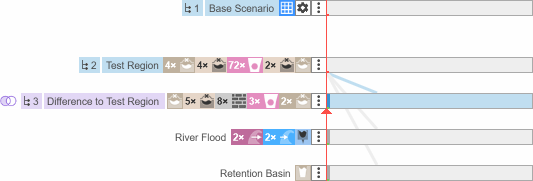
If the settings of an imported scenario conflict with those of a matching existing scenario—such as the "Test Region" scenario in this example—a Difference Scenario is created. All conflicts in settings can then be resolved in Merge Mode as described above. Any imported scenario not already present in the current project will be added as a new regular scenario, such as the "River Flood" scenario created by User B in this example.
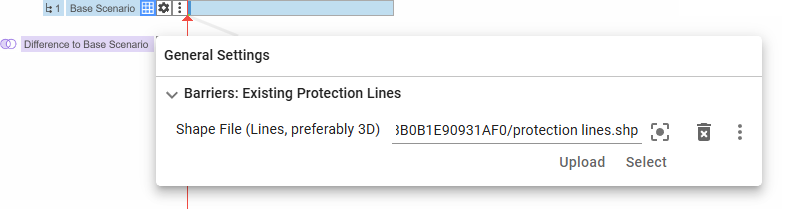
As mentioned in Step 1, sharing a project that references uploaded input data automatically copies these files to the user directory of the recipients, where they are stored in the "sharedWithMe" folder with a unique identifier. When User B shares the project back with User A for the first time, these files are not yet present in User A's "sharedWithMe" folder and are therefore copied from User B's directory. This ensures that both users work with the same version of the data while leaving the original uploaded input data unchanged.
As a result, importing a previously shared project that references uploaded input data may create additional settings differences due to changed file paths. Rejecting these changes preserves references to the original uploaded input data, meaning that any modifications to the copied input data by collaborators will not appear in the current project. Additionally, the changed file paths will reappear each time a new version of the project is imported. It is therefore recommended to accept these changes the first time the project is imported so that the system can properly track data changes.
Step 4: Share Merged Project State
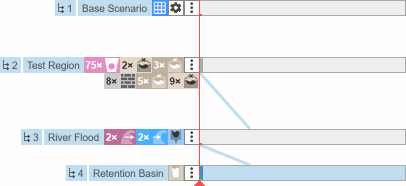
Once all differences between the imported and matching scenarios are resolved, the user obtains a unified project containing the combined work from both the imported and existing projects. Additional adjustments may be needed to fully integrate the contributions of all users. In this example, User A changes the parent of the "Retention Basin" scenario to the newly imported "River Flood" scenario to inherit the river flooding setup.
This project can now be shared again to serve as the basis for further collaborative work.