Troubleshooting
Positioning of sewer network elements
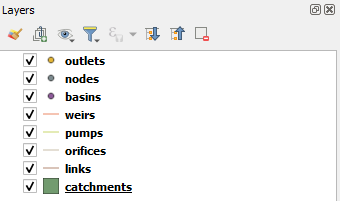
If you suspect that the entire sewer network or some of its elements are incorrectly positioned within the domain or lie entirely outside the domain bounds, use QGIS to inspect your sewer data. Drag the .shp files into the "Layers" pane of QGIS:
From the "Browser" pane, drag the OpenStreetMap layer and place it below all the sewer-related layers in the "Layers" pane:
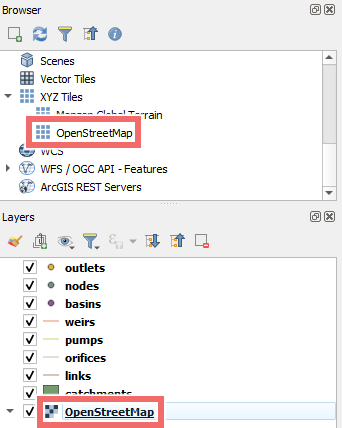
In the main view, you can now verify the geographic accuracy of your data by comparing it with the OpenStreetMap overlay. Ensuring that all shape files are properly aligned and match geographically.
Attributes and values
Identify which attributes are required and which are optional for the sewer component you suspect has issues. Use the inline helper tooltips for detailed information about each attribute. Alternatively, create a new project to review which attributes are marked as "Choose" (required) and "Choose (opt.)" (optional). Check whether you have specified all the required attributes. Make sure all attribute names you have assigned match those in the corresponding shape file—if a name appears grayed out, it typically means that attribute is missing from the file.
In QGIS, you can view the attributes of a shape file by right-clicking on the corresponding layer and selecting "Open Attribute Table". This will display all the attribute data for the selected layer in a table format:
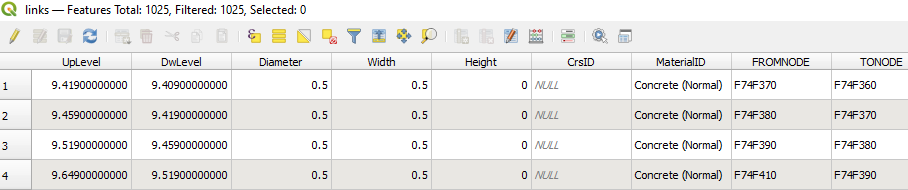
For each relevant attribute, sort the column in ascending and descending order (click on the column header) to analyze the value ranges. Check for any missing or nonsensical values, though remember that missing values are acceptable if they aren’t needed. For example, a conduit with a circular cross-section can lack width and height values as long as the diameter is provided. Conversely, a rectangular conduit can omit the diameter if width and height are available.
Hint: Always pay attention to the warnings issued by scenarify. A complete list of sewer network verification warnings—each linked to the corresponding shape file ID—can be downloaded as a
.csvfile from the Simulation Settings Panel, under category Sewers: Simulation Model.
CSV files
If you suspect an issue with one of the .csv files (such as for profiles or rating curves), carefully read the corresponding inline helper tooltip. Follow the provided example format as closely as possible. Below are some common mistakes to avoid when creating these .csv files:
- Using inconsistent column separators: Always stick to the column separator used in the header (e.g., a semicolon). Mixing separators will cause the file to be misread
- Missing values in the table: Every row must include a value for each column. Incomplete rows will cause errors
- Using a comma as a decimal separator: Use a point (
.) instead, as shown in the examples (e.g.,1.25instead of1,25) - Entering nonsensical values: All values should reflect real-world conditions. Negative depths or unrealistically large dimensions might result in errors
- Using non-standard IDs: Avoid using spaces, quotation marks, commas, semicolons, or diacritics in curve IDs—stick to standard Latin letters, numbers, underscores, and dashes. If you change a curve ID in the
.csvfile, make sure to update the corresponding sewer structure ID in the shape file (e.g., via QGIS) to maintain proper linkage - Using non-unique or misspelled IDs: The more complex an ID, the easier it is to misspell—keep IDs simple (if possible), ensure they are unique, and double-check for correct spelling in both the
.csvand shape files - Not providing a curve for a structure that requires it: If a sewer structure has its curve type set to TABULAR, a corresponding curve must be defined in a
.csvfile—otherwise the simulation cannot proceed