Simulation Domain
Creation Mode: Select Point on Terrain, Assign to File Bounds Polygon, Assign to Catchment Polygon, Assign to Work Tile (not allowed on scenarios with start time > 0)
Purpose and Effect: Allows users to define the Simulation Domain, a necessary step to establish the spatial extents of the simulation area for which data are loaded at the highest resolution. The domain is represented by a Cartesian grid, with the spatial resolution controlled by the Cell Size setting in the Action Settings Panel.
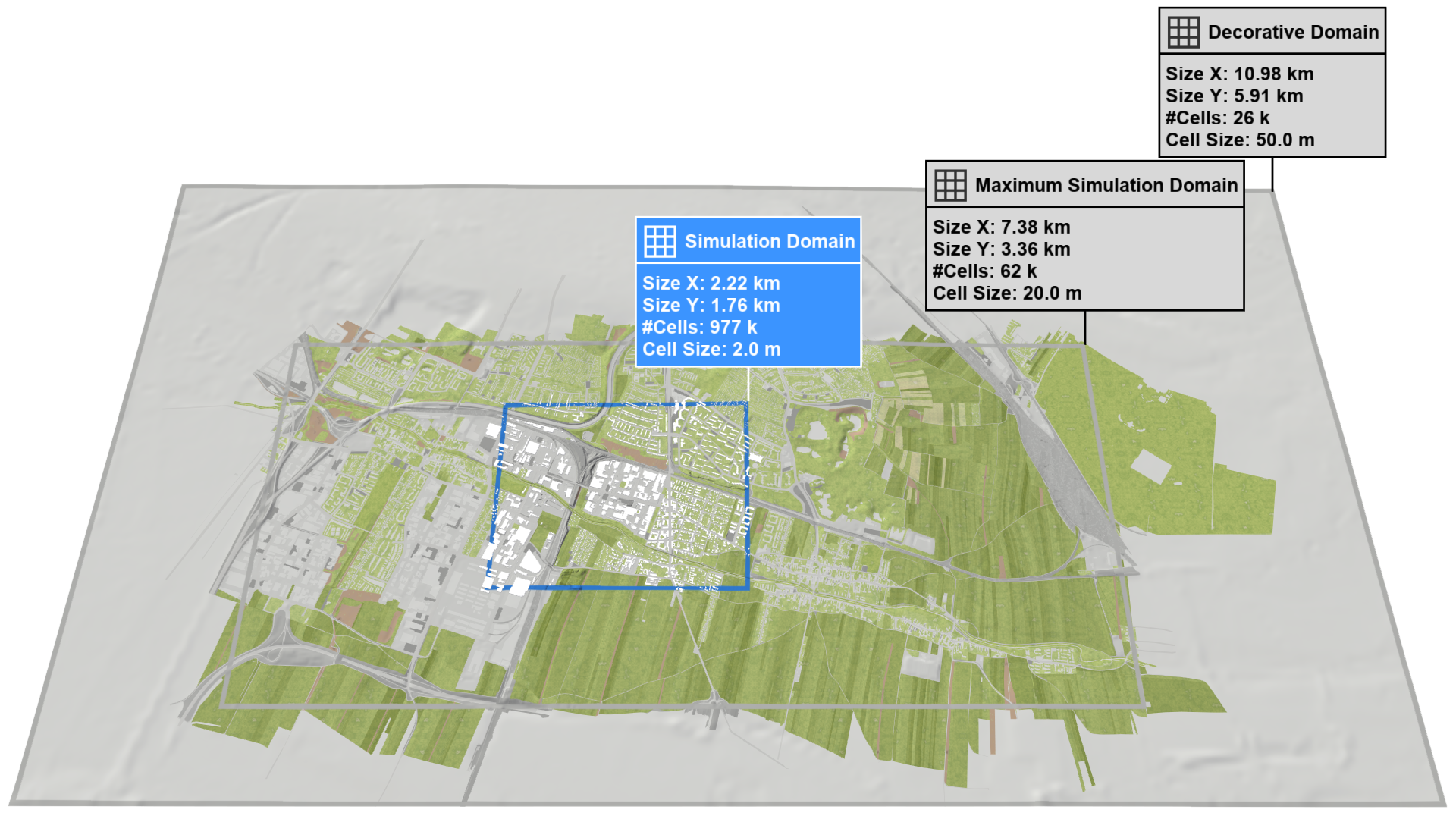
In scenarify, the Simulation Domain is the innermost of three nested domains (see Setup Domains). It is defined within the Maximum Simulation Domain, which is contained by the Decorative Domain. In an Empty Project, users must first create the Decorative Domain and Maximum Simulation Domain through their respective actions. These steps are not necessary when using a Base Model Project.
Hint The extents of the created domain can be downloaded as a shape file in the top right corner of the Action Tool Panel.
Creation Modes
Set Center Point on Terrain
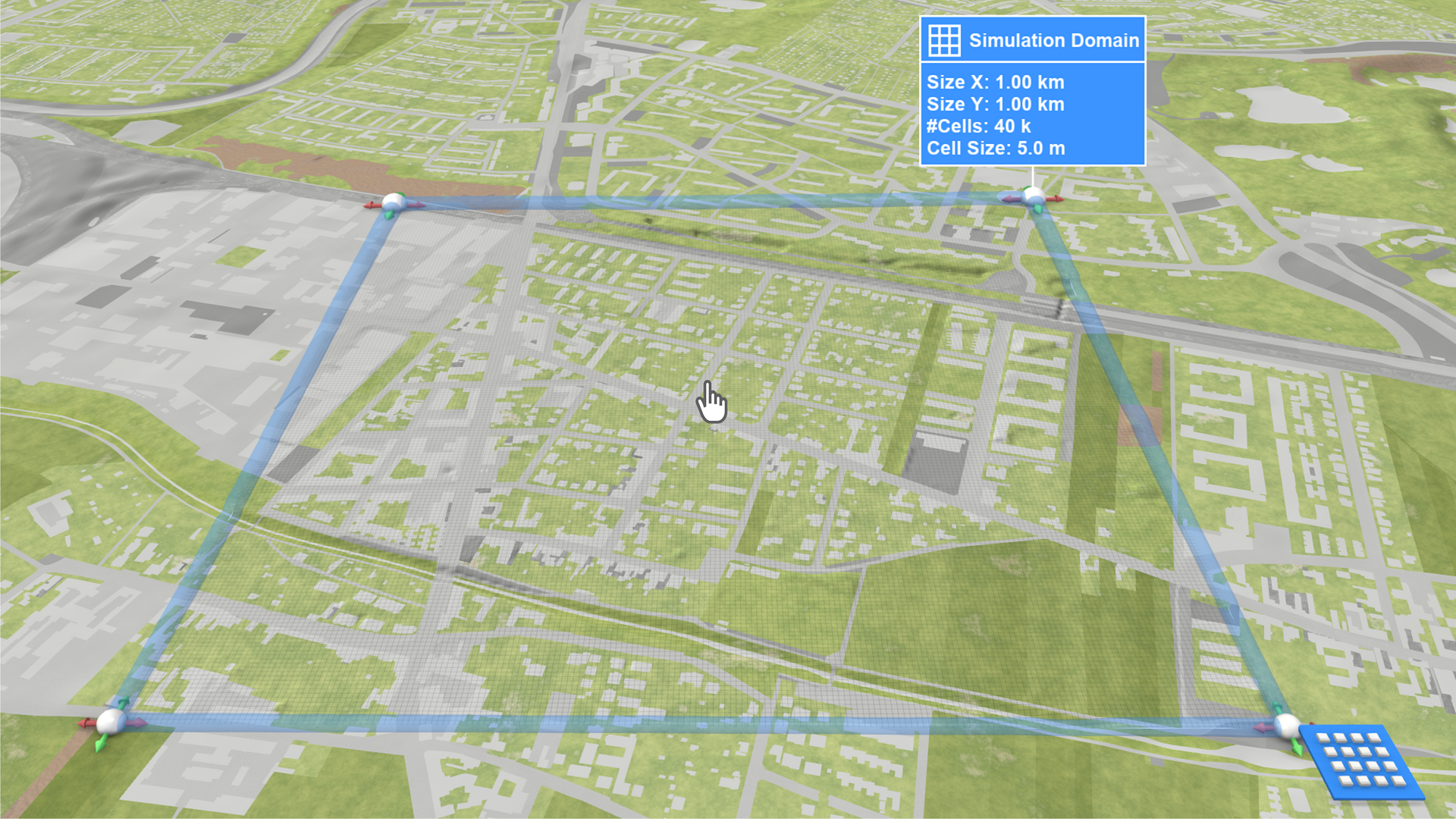
The simulation domain can be placed by selecting a center point on the terrain within the Maximum Simulation Domain. This will create the domain with the default size set in the Action Tool Panel. Size and position can be adjusted using the manipulation handles, as demonstrated in the Quick Start guide.
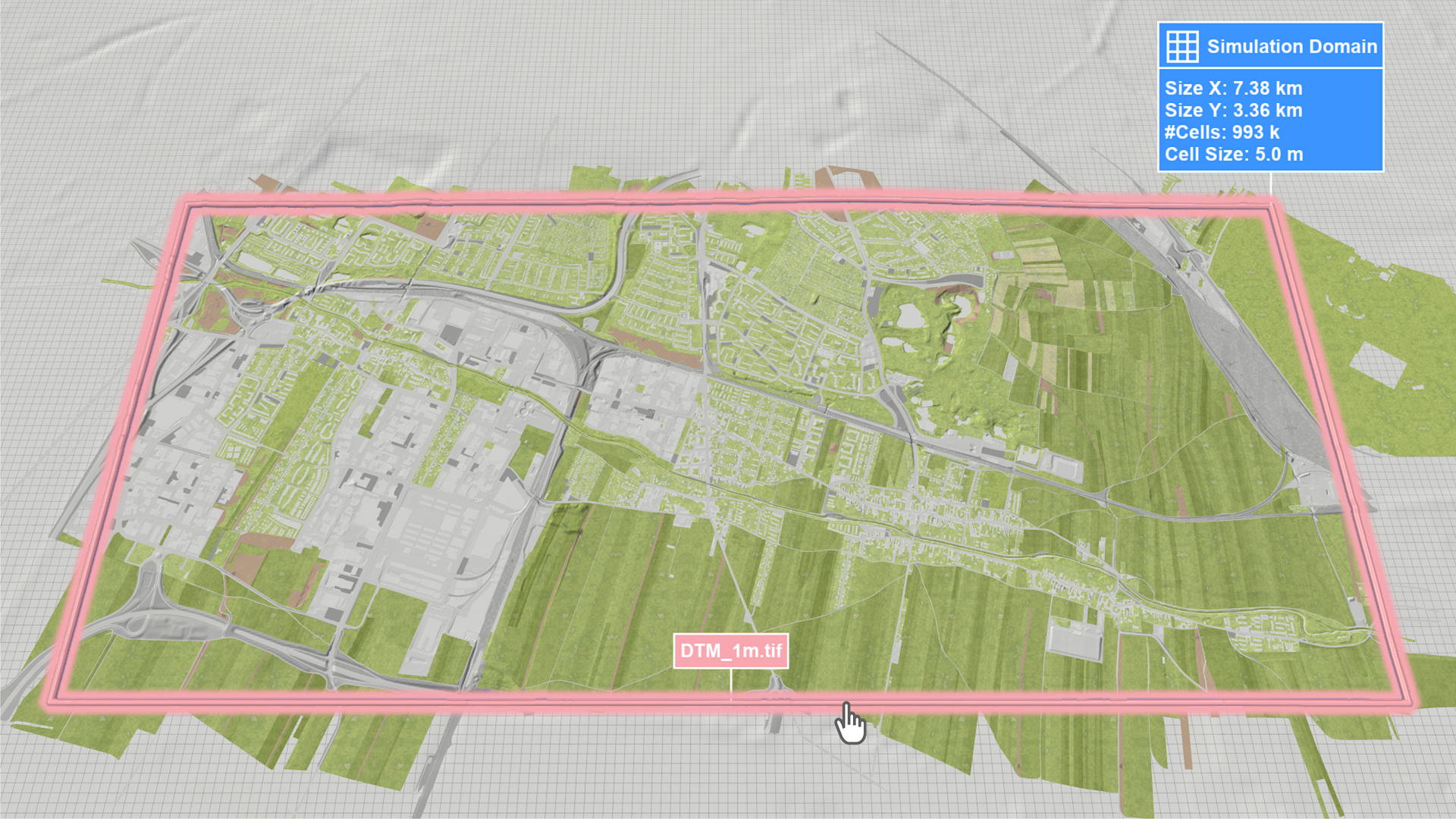
Assign to File Bounds
To create a domain that matches the spatial bounds of a loaded geodata file, the visual representation of the file bounds has to be selected. Users can display the file bounds by enabling the display of File Bounding Boxes in the Vector Mapping Layer of the Visualization Settings Panel or by using the Visual Preset Setup: Files.
Assign to Catchment
If hydrological catchments have been imported or derived using the Catchment Derivation Zone action, this action can be assigned to a catchment polygon to create a domain that fits the catchment. Any cells outside the catchment polygon will automatically be invalidated.
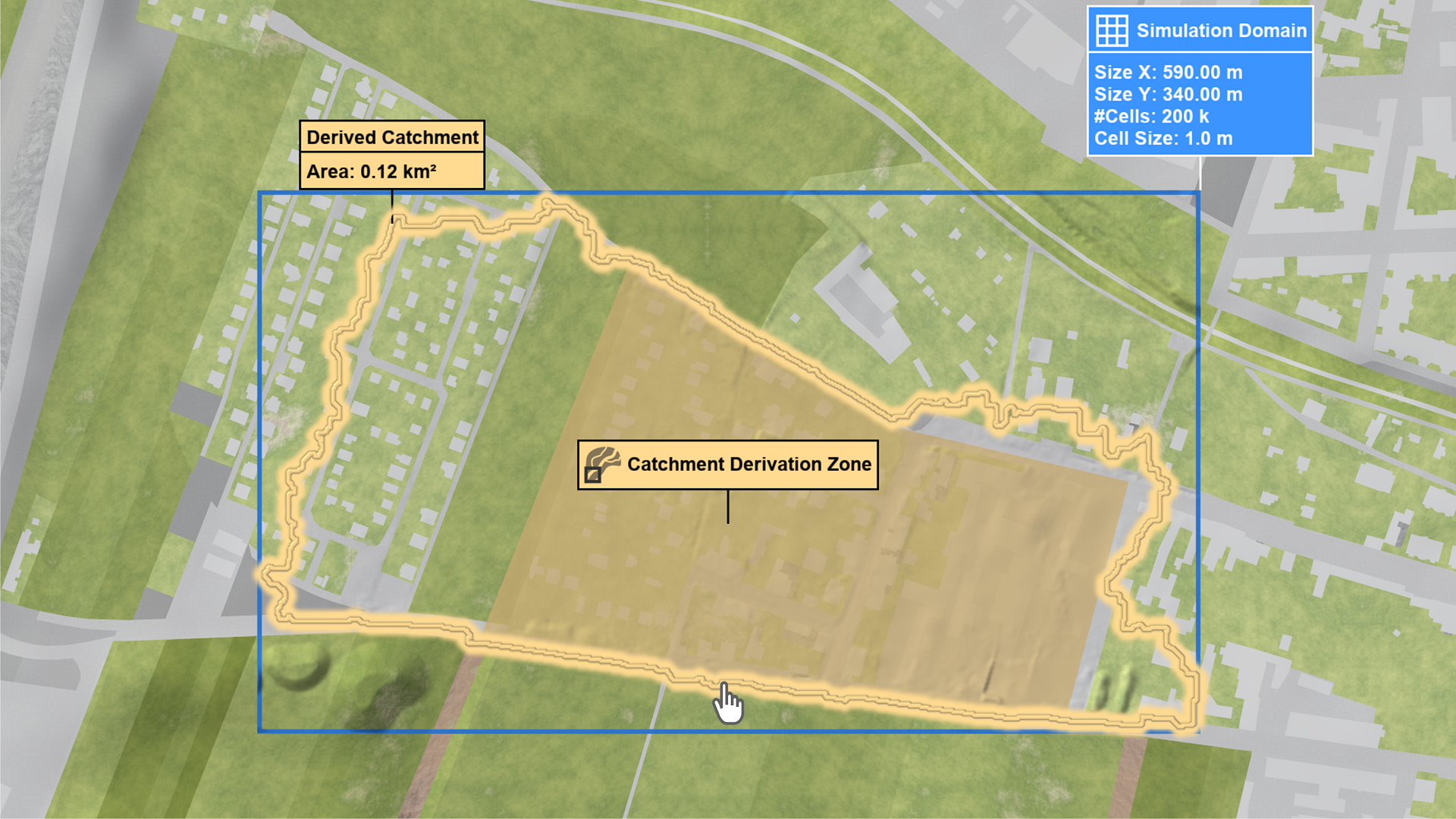
In base models with an existing catchment network, the domain can be updated after assignment by including or excluding catchments using the Catchment Inclusion and Catchment Exclusion actions.
Polygonal Simulation Domain
By default, the simulation domain covers a rectangular area. Simulation within a polygonal area is realized by invalidating cells outside the desired model region. This can be done using the Valid Zone and Invalid Zone actions, or for a catchment, by assigning the action directly to the catchment polygon.
Multiple Simulation Domains
Only one simulation domain can be created per scenario. To represent multiple disconnected regions within the same scenario, a single domain has to be created that encompasses all regions. Specific model regions can then be isolated using the Valid Zone and Invalid Zone actions.
Action Settings
Cell Size
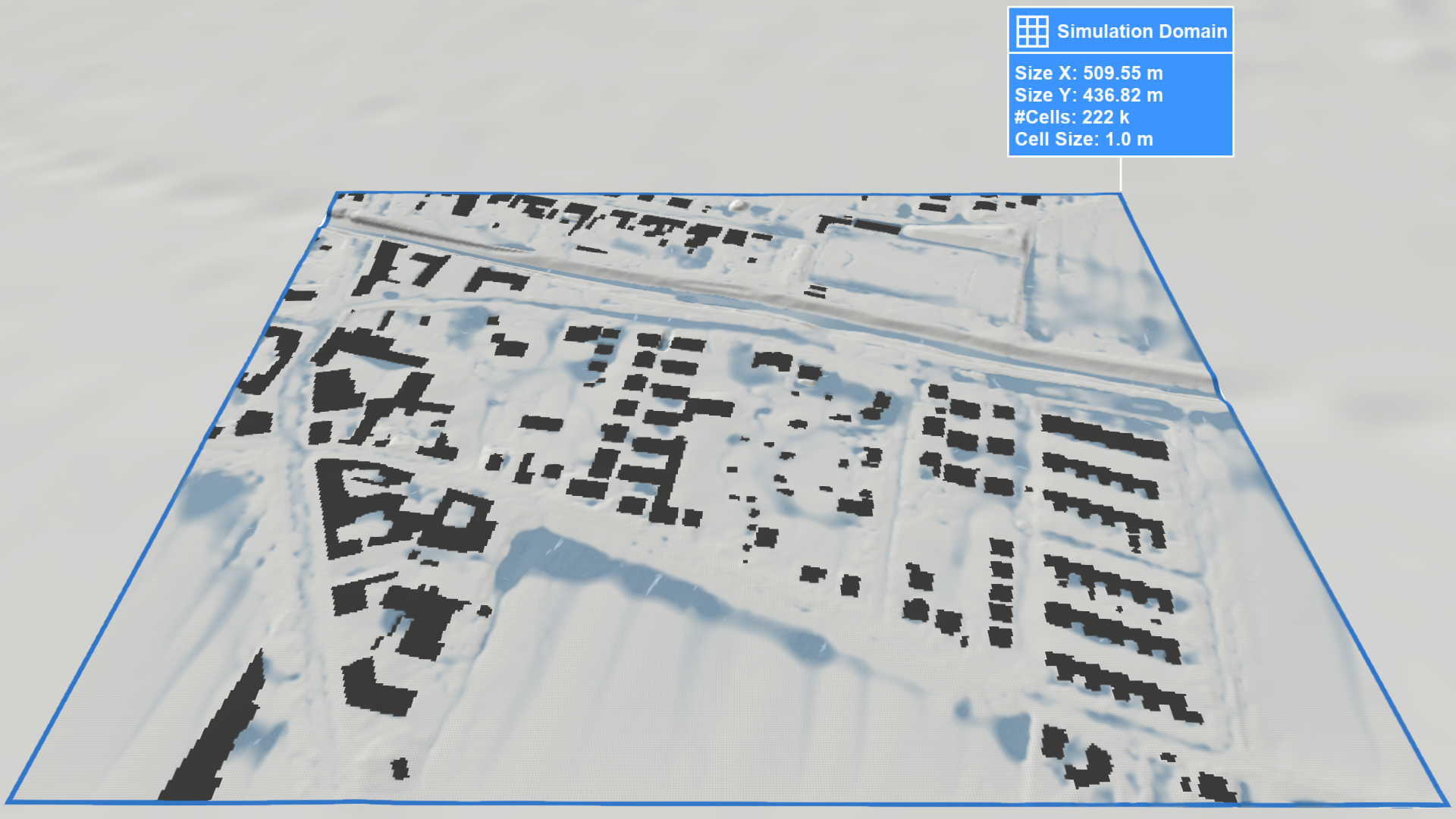
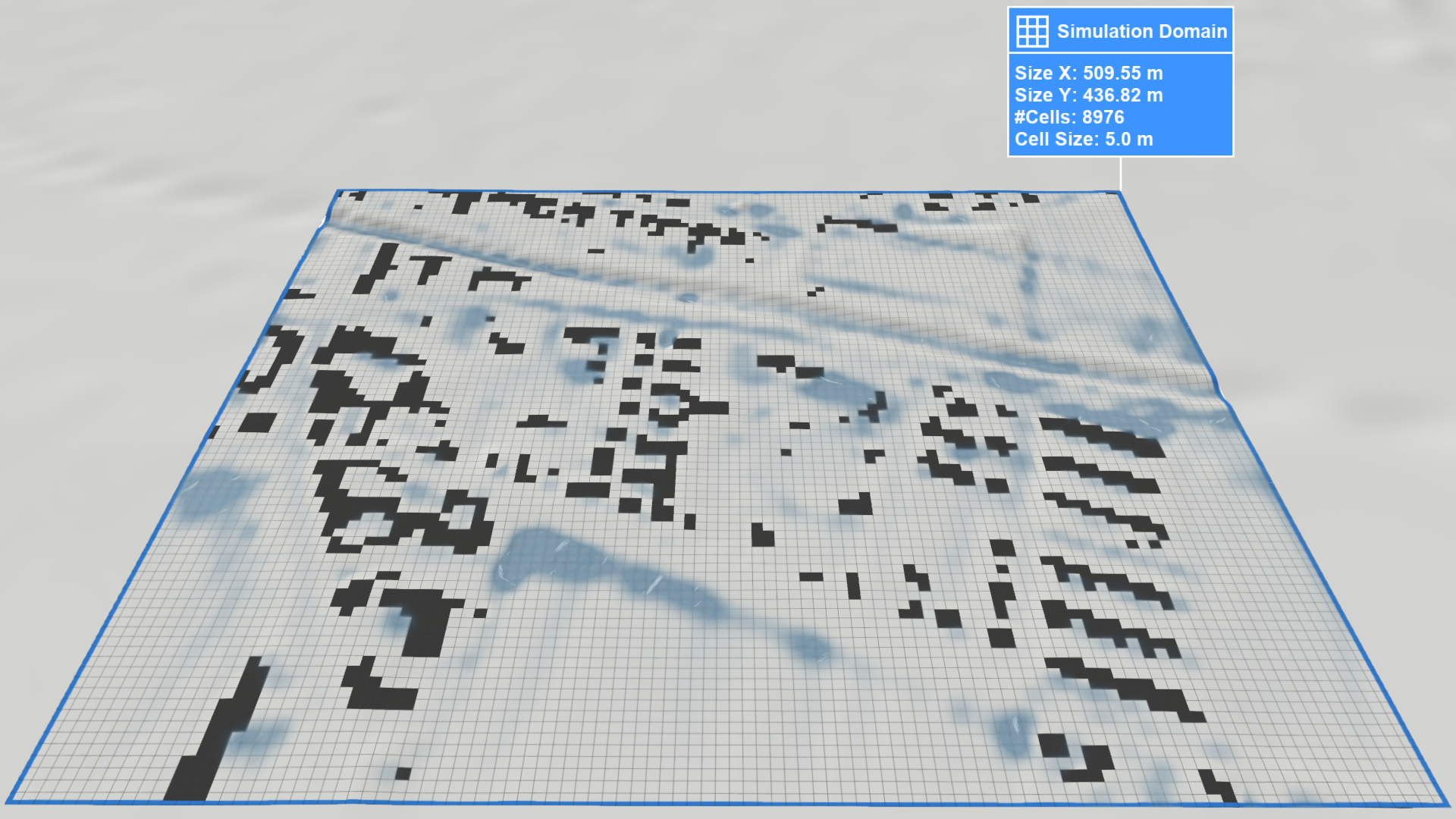
Specifies the edge length of a square cell within the Cartesian grid. This parameter controls the spatial resolution of the terrain data, the wall boundaries (shown in black below), and the overall simulation. Terrain data not matching the specified resolution will be resampled.