Project Management
In scenarify, a model setup with all the settings, input data paths, and scenarios is called a "project". Projects are managed via the Project Menu in the Application Bar:
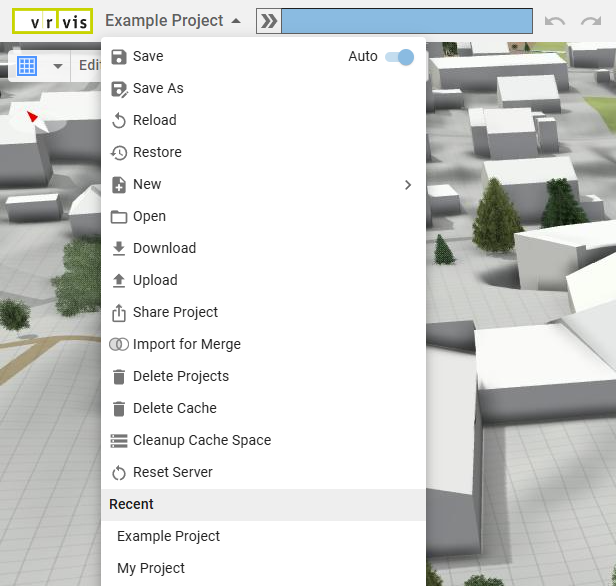
The Project Menu provides standard means to save the current project or open an existing one. In addition, it contains options to restore older project versions and some cache management features.
Creating New Projects
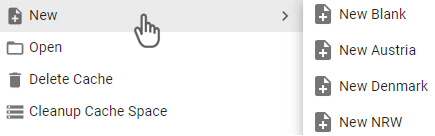
There are two types of project available. The entry "New Blank" corresponds to a completely empty project where the user is supposed to set up all the data sources on their own. All the other entries correspond to so-called "base model projects". These projects are already set up for a particular region – a city, a federal land, or a country. A base model project assumes that the user just selects a desired subregion, fine-tunes some settings, and starts simulation right away. For example, the entry "New NRW" corresponds to a model of the federal state of Nordrhein-Westfalen in Germany with a 1-meter terrain data resolution.
Auto-Saving and History
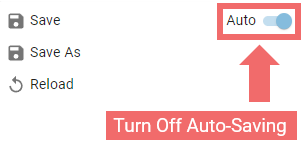
The auto-saving feature saves the current project every time something changes. This includes simulation and visualization settings, 3D navigation, scenarios, time steps, etc. Usually it makes sense to keep the auto-saving feature enabled. However, auto-saving can be turned off to preserve the project state for a demo, brainstorming session, etc:
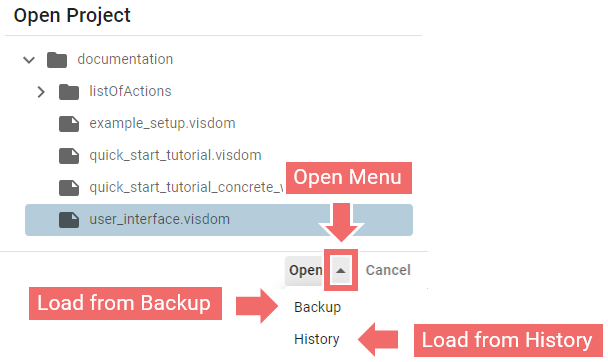
Whereas the "Reload" entry just reloads the last saved state of the current project, the "Restore" feature enables the user to roll back to one of the history versions, created automatically every 15 minutes:
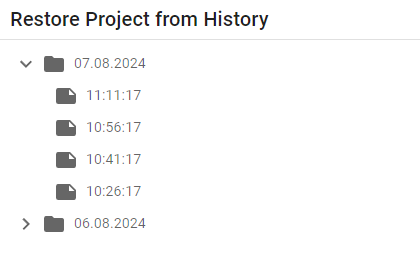
Project history is also reachable from the "Open Project" dialogue:
Hint: scenarify supports the traditional keyboard shortcut for project saving,
Ctrl + S.
Project Download
The "Download" option in the Project Menu allows users to download the last saved version of the currently opened project to local storage. We strongly recommend that cloud service users create regular local backups of their project files to safeguard against data loss.
Downloaded project files in the .visdom file format can also be shared with others, for example to provide a reproducible example for a bug report in the issue tracker.
Project Upload
The "Upload" option in the Project Menu allows users to import a scenarify project file, for example, a project shared by another user, a locally saved backup used to restore a project’s state, or a corrected file provided through a support request in the issue tracker. Note that uploaded projects do not include any version history.
Project Sharing
The "Share Project" option in the Project Menu allows users to share project files and associated input data with other registered scenarify users. This functionality supports collaborative work on a project and also provides a convenient way to grant scenarify developers access to a project for support requests in the issue tracker.
Import for Merge
The "Import for Merge" option in the Project Menu allows users to import other project files to incorporate scenarios, settings, and actions into the current file. A typical use case for this functionality is the merging of a shared project after collaborative work.
Cache Management
A project-specific, smart cache stores expensive computations on a hard disk to avoid repeating them every time the project is being run. The cache intelligently tracks project settings and recomputes only what is outdated due to a settings change.
Attention: After a new scenarify release, caches may become outdated and have to be recomputed.
Attention: The cache can detect if an input file name or path has changed, but it does not track file contents. If the contents of an input file have been modified or the file has been replaced under the same name, it is necessary to delete the project cache manually to ensure up-to-date results.
Cache Sharing Between Projects
When a project is saved under a different name, it is possible to re-use the cache of the old project by enabling cache sharing between the old and the new projects. Otherwise, a new cache will be created:
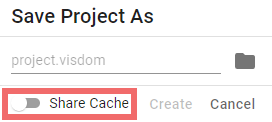
When using the sharing feature, it should be kept in mind that the project cache is now a shared resource. If one project makes changes to the cache, the other one will not be aware of that.
Cache Clean-Up
If the cache space assigned according to the license is exhausted, it is possible to clean it up. In the Project Menu, the "Delete Cache" entry deletes the cache of the current project. The "Cleanup Cache Space" entry allows the user to delete the cache of multiple projects:
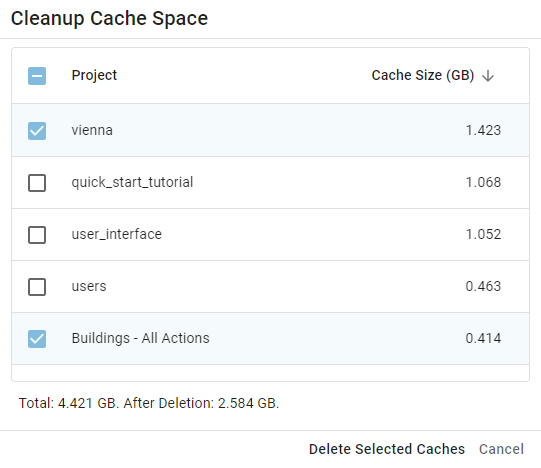
Hint: The size of a project cache is primarily determined by simulation data. Smaller time steps result in more simulation outputs, which in turn increase the cache size.
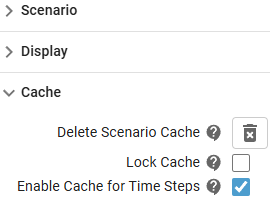
Within a project, you can delete the cache of individual scenarios through the Scenario Management Panel:
Cache Locking
The Lock Cache feature, accessible via the Scenario Management Panel, ensures that a scenario's cache remains intact despite any changes to the settings. This can be helpful for preserving important and time-consuming computations. However, it should be used cautiously, as caches usually become outdated after new scenarify releases. Locking a cache across one or more releases may result in inconsistencies or errors.
Cache Synchronization Between Machines
A user's scenarify instance may run in a distributed server environment optimized for high performance across many users. The project cache is always updated on the machine the user is assigned to. In most cases, the user will be assigned to the same machine for seamless work, but depending on resource availability, the instance may start on a different machine.
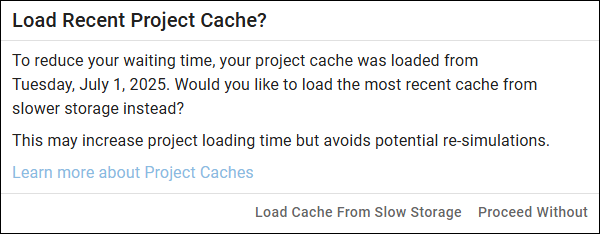
When loading a project, the instance checks whether it has the latest version of the project cache locally. If not, a pop-up dialog will prompt the user to either copy the newest cache from another storage or use the outdated local cache, which may require some recomputation. Depending on the cache size, copying can take several minutes.
Attention: Time-consuming cache synchronization may happen when starting an instance. Please plan accordingly in time-sensitive situations, such as live presentations of pre-simulated scenarios. We recommend logging in and loading your project at least 20 minutes before your presentation to allow for possible synchronization, but no earlier than 90 minutes before, as the system automatically logs out inactive sessions after 90 minutes.