Quick Start
This tutorial will help you get started with scenarify by demonstrating key concepts such as live simulations, visual interactions, and the rapid creation of what-if scenarios. We will use readily available country-wide model data to help you get started quickly, without needing to build a simulation model from scratch.
1. Log In
Open your browser and navigate to the scenarify service website provided by your organization. Log in using your credentials. If you don't have access information or credentials yet, request access by emailing scenarify@vrvis.at.
2. Create a New Project
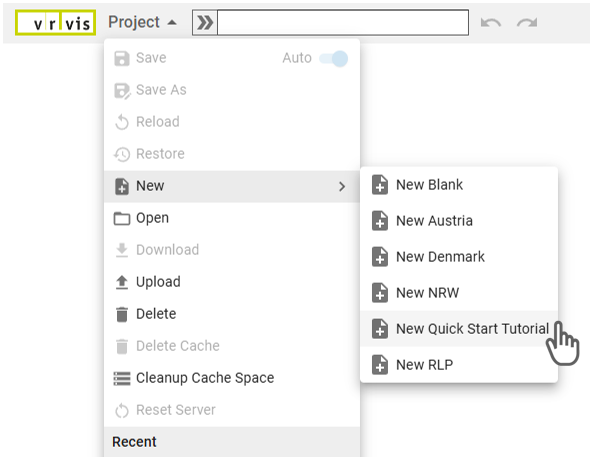
- Open the Project Menu in the Application Bar.
-
Click "New" and select a pre-built base model for your simulations. For this tutorial, choose "New Quick Start Tutorial" which uses a base model of the federal state of Nordrhein-Westfalen (NRW) in Germany. This version includes 1-meter resolution terrain data and land use information derived from OpenStreetMap.
-
Enter a name for your project and click "OK." Once the project loads, you will see an overview of the model region, NRW:
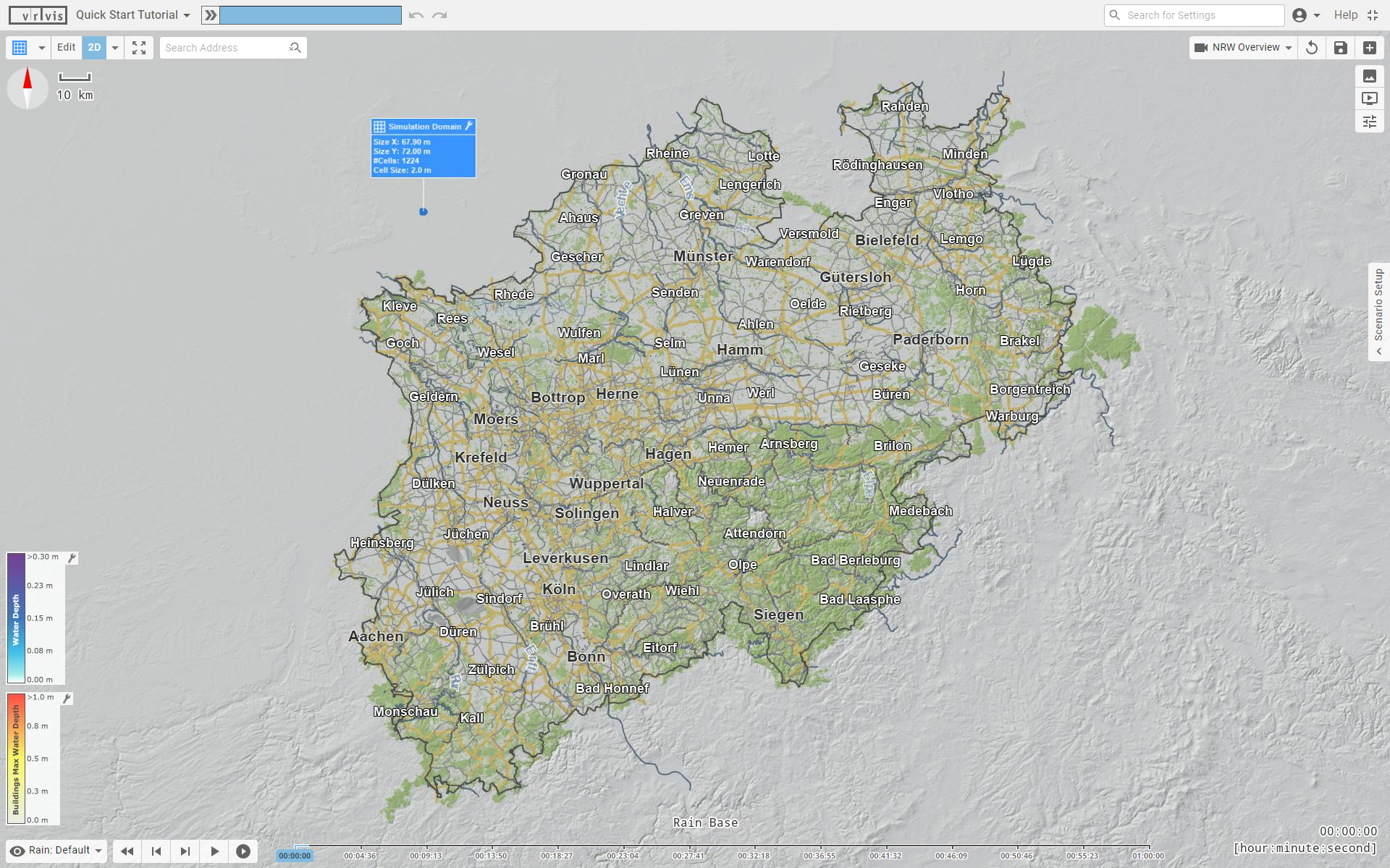
Note: The Quick Start Tutorial base model is intended for usage with this tutorial only. For practical modeling in NRW, use "New NRW", which provides enhanced datasets such as official ALKIS land use, culverts, and soil data.
3. Choose Your Model Area
Next, select the location in NRW where you want to perform detailed hydrodynamic simulations.
Navigate the Scene
By default, the View shows the base model in a 2D top-down perspective, with navigation options similar to standard map applications:
- Zoom: Use the mouse wheel (or use the two-finger zoom on touch devices) – the zoom is directed towards the mouse position.
- Pan: Click and drag the left mouse button (or use one-finger interaction on touch devices).
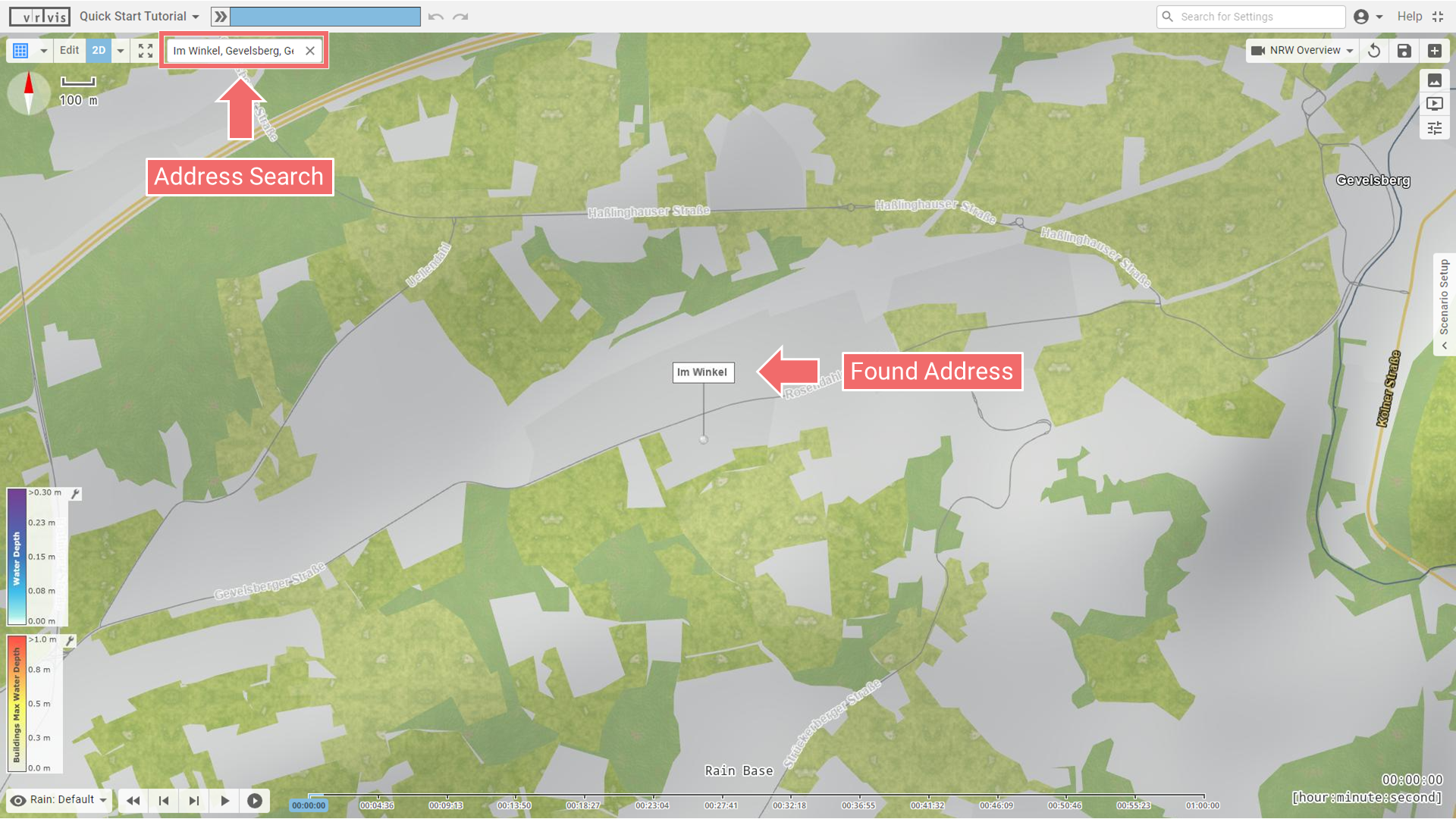
- Search: Use the address search field to find and highlight a location of interest.
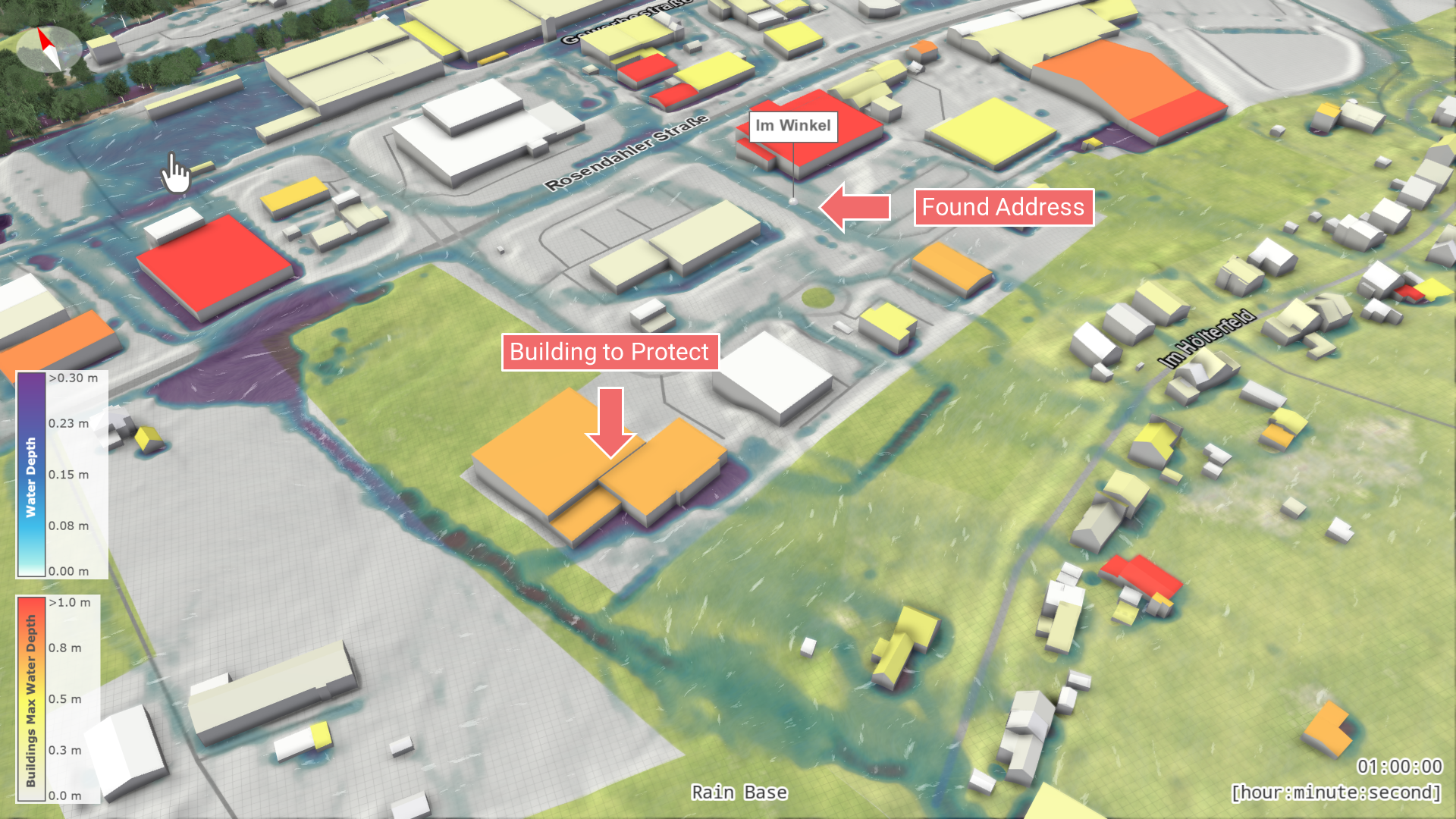
For this example, enter the address "Im Winkel Gevelsberg" and zoom into the highlighted label:
Draw a Simulation Domain
The area to be included in the simulation is called the "Simulation Domain." Within this domain, model data is loaded in high detail based on a user-defined resolution.
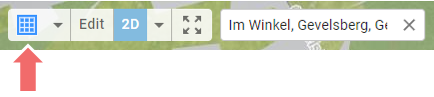
- Select the Action "Simulation Domain" from the Toolbar in the top left corner of the View.
- Click in the visualization to define the center of the rectangular Simulation Domain. Use the location of the found address.
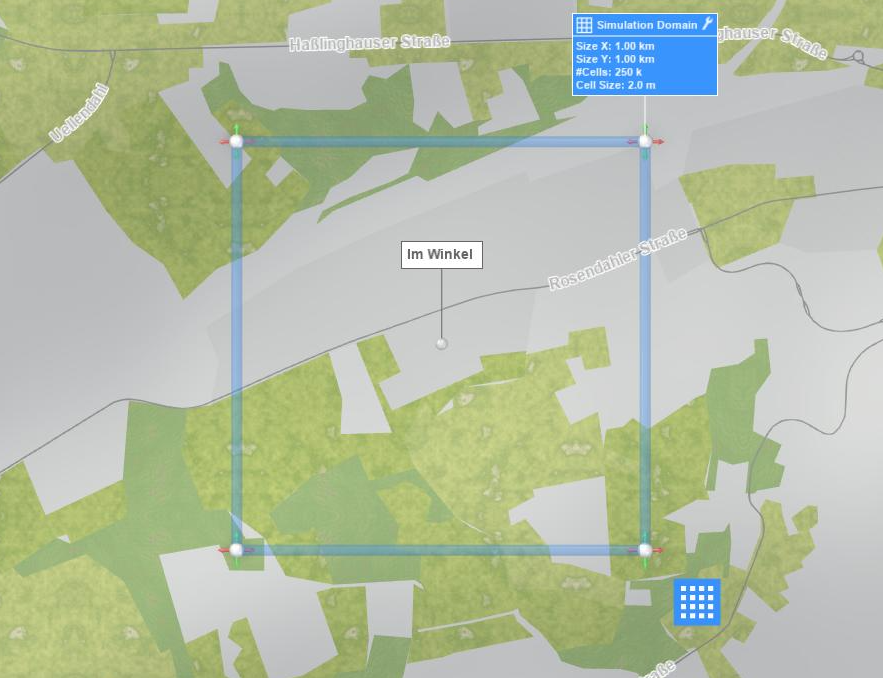
Edit Mode: Fine-tune the Domain Boundaries
Once you have created the Simulation Domain, the system automatically switches to "Edit Mode", allowing you to fine-tune the domain using visual handles.
- Adjust Size: Click and drag the boundary or corner handles of the Simulation Domain as needed. If you create a domain that is too large for the resources your account is licensed for, click "Undo" in the Application Bar.
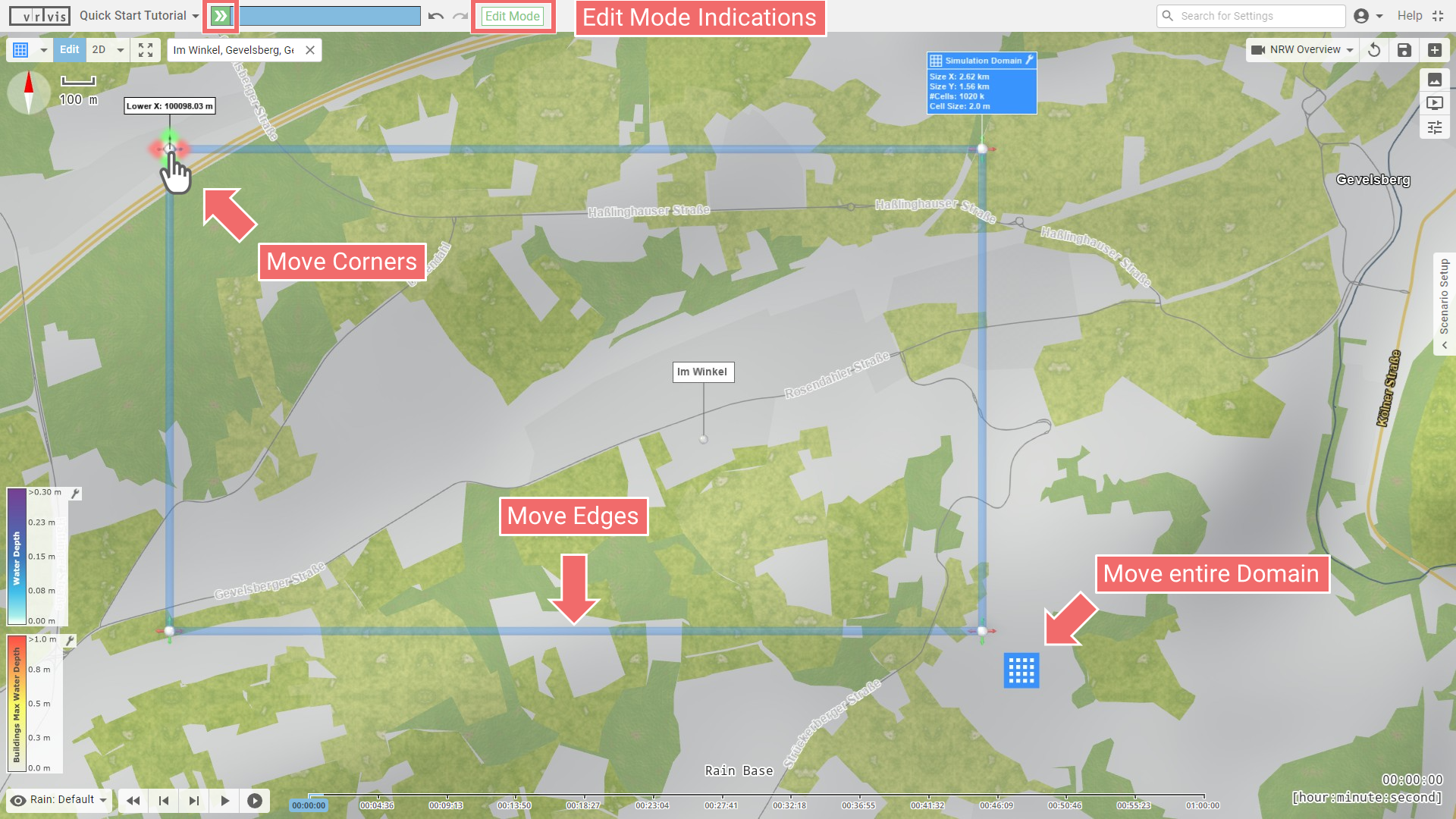
Hint: The simulation resolution is determined by the Cell Size setting of the Simulation Domain action. This setting can be accessed through the Action Settings Panel.
- Apply Changes and Run: To leave the edit mode and apply your changes to the simulation model, click the "Run" button (green in Edit Mode) in the Application Bar.

Hint: The "Run" button changes its appearance to a "Stop" button while your changes are being applied on the server side. Click it if you wish to cancel the ongoing process. This is also useful if you have triggered longer simulation runs or other heavy computations that you wish to cancel.
Once the computation has finished, the model is ready for water simulations and 3D visualization.
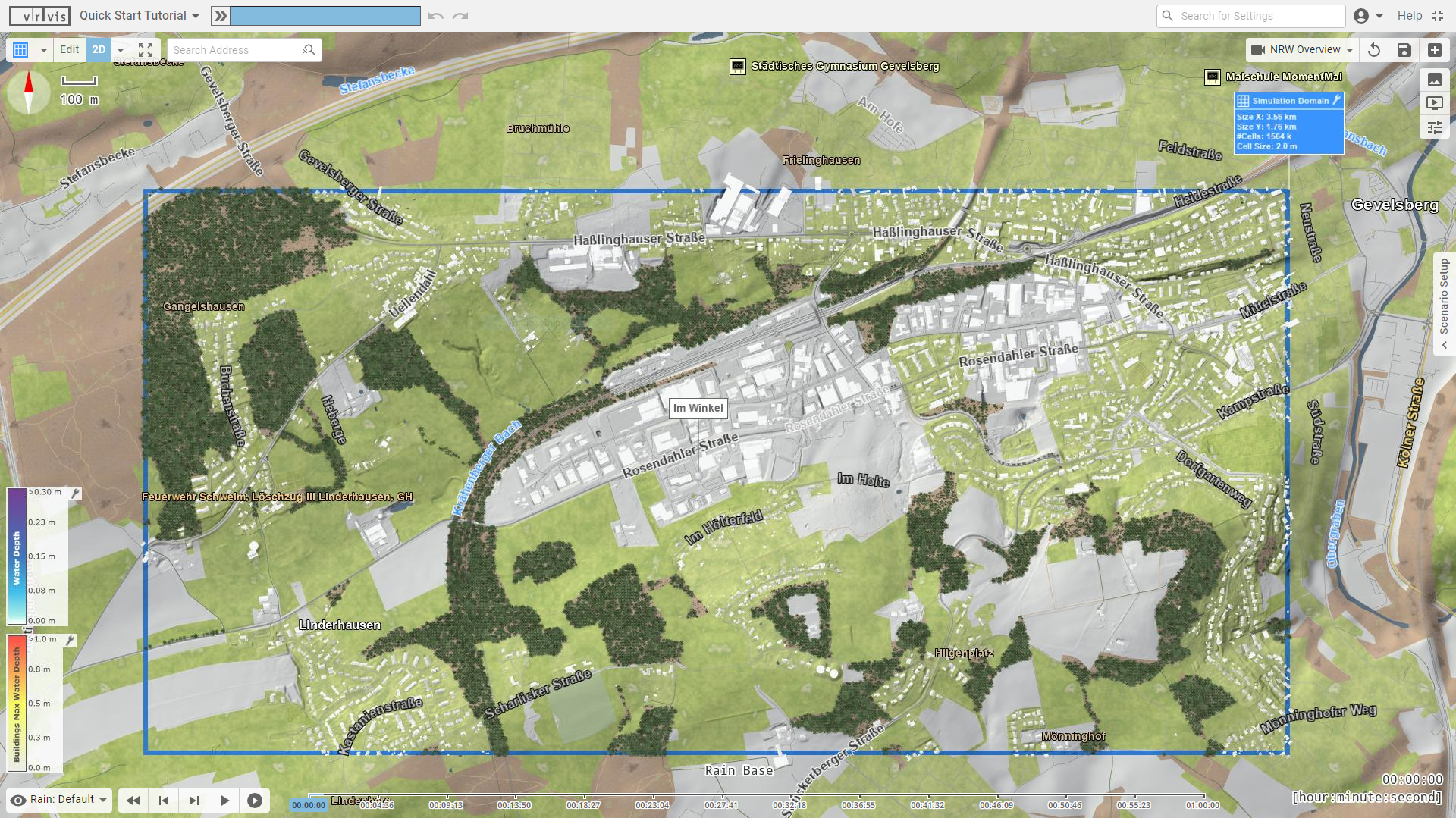
4. Explore Your Model in 3D
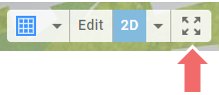
In the Toolbar, switch the navigation mode to 3D to explore the model in more detail.
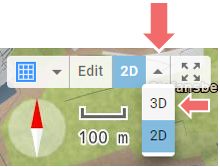
In 3D mode, spatial navigation works as follows:
- Zoom: Use the mouse wheel (or two-finger zoom on touch devices). As in 2D, the zoom is directed towards the mouse position.
- Rotate: Click and drag the left mouse button (or use one-finger interaction on touch devices).
- Pan: Click and drag the mouse wheel (or use two-finger pan on touch devices).
If you get lost, click the "Fit Perspective" button in the Toolbar to reset the view and fit the entire scene.
5. Simulate Heavy Rainfall
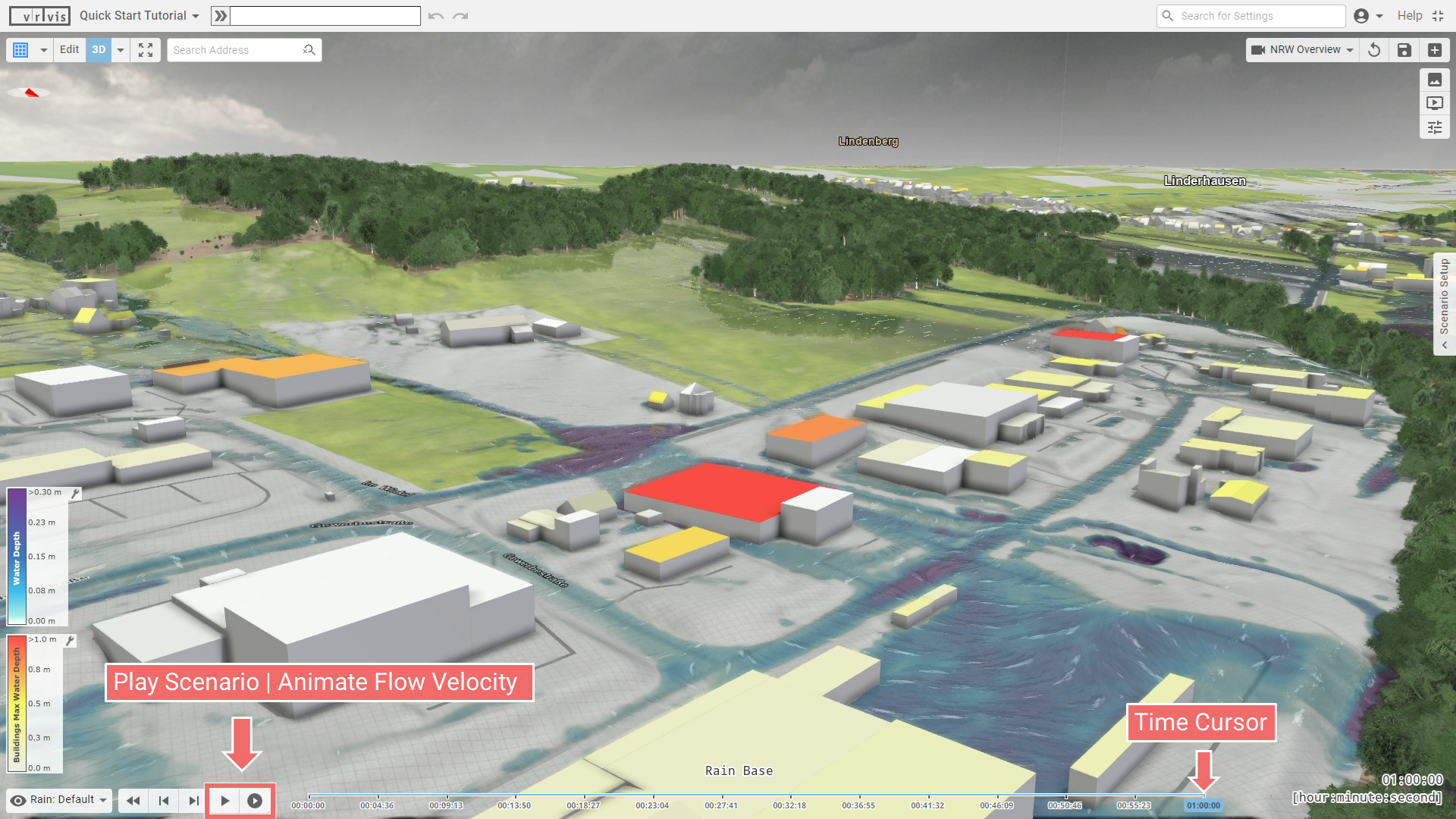
The model defines a 50-year heavy rain event by default. Use the Time Navigation to start the simulation and to navigate the simulation scenario.
- Play Scenario Button: Starts the simulation and processes through each time step.
- Animate Flow Velocity Button: Animates the flow velocity field at the active time step.
- Time Scale and Time Cursor: Similar to video players, click into the time scale at the bottom of the View or drag the Time Cursor for arbitrary time navigation.
Note that buildings are colored based on the maximum water depth encountered along their footprints. The color mapping follows the legend located in the bottom left of the view.
6. Modify the Simulation
You can modify simulation parameters by drawing Actions into the scene. In this example, we will create a concrete wall to redirect water flow away from a building nearby our address search result.
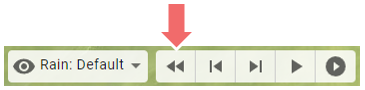
- Go to Beginning of Scenario (Optional): Check if the active time of the scenario is at time step 0. If not, use the "Go to beginning of scenario" button. Note that this step is optional, as drawing an action can sometimes be easier with the visual context provided by a specific time step, such as seeing where the water flows.
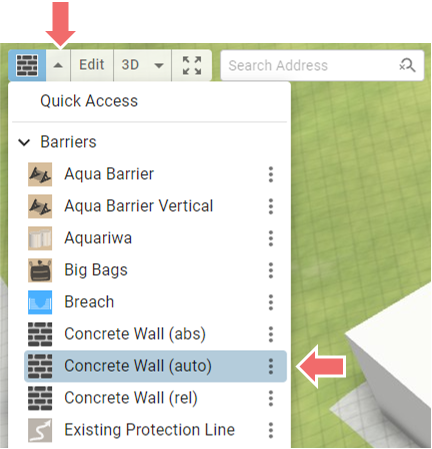
- Select the Action Tool: Open the Action Tool Selector in the Toolbar. Under the "Barriers" category, choose "Concrete Wall (auto)".
-
Draw the Wall:
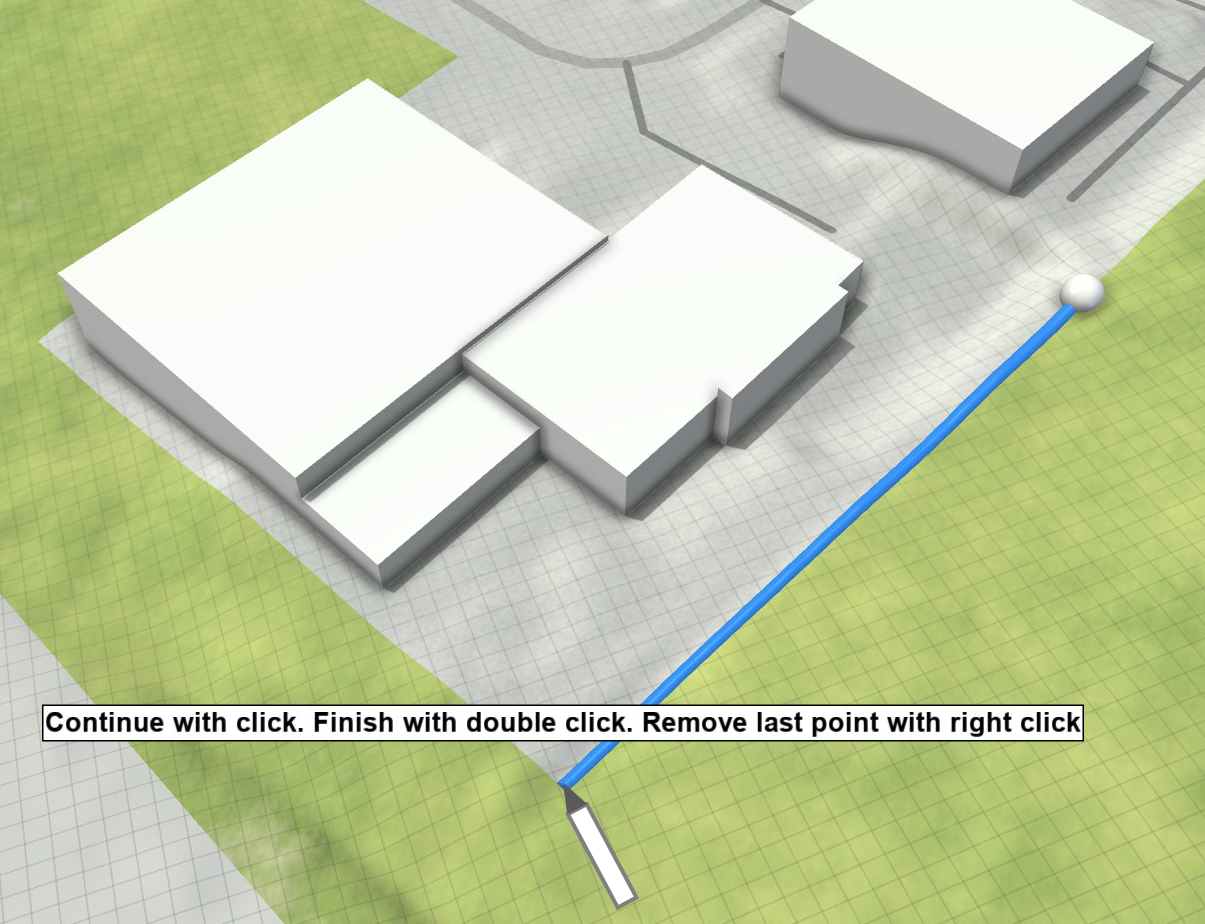
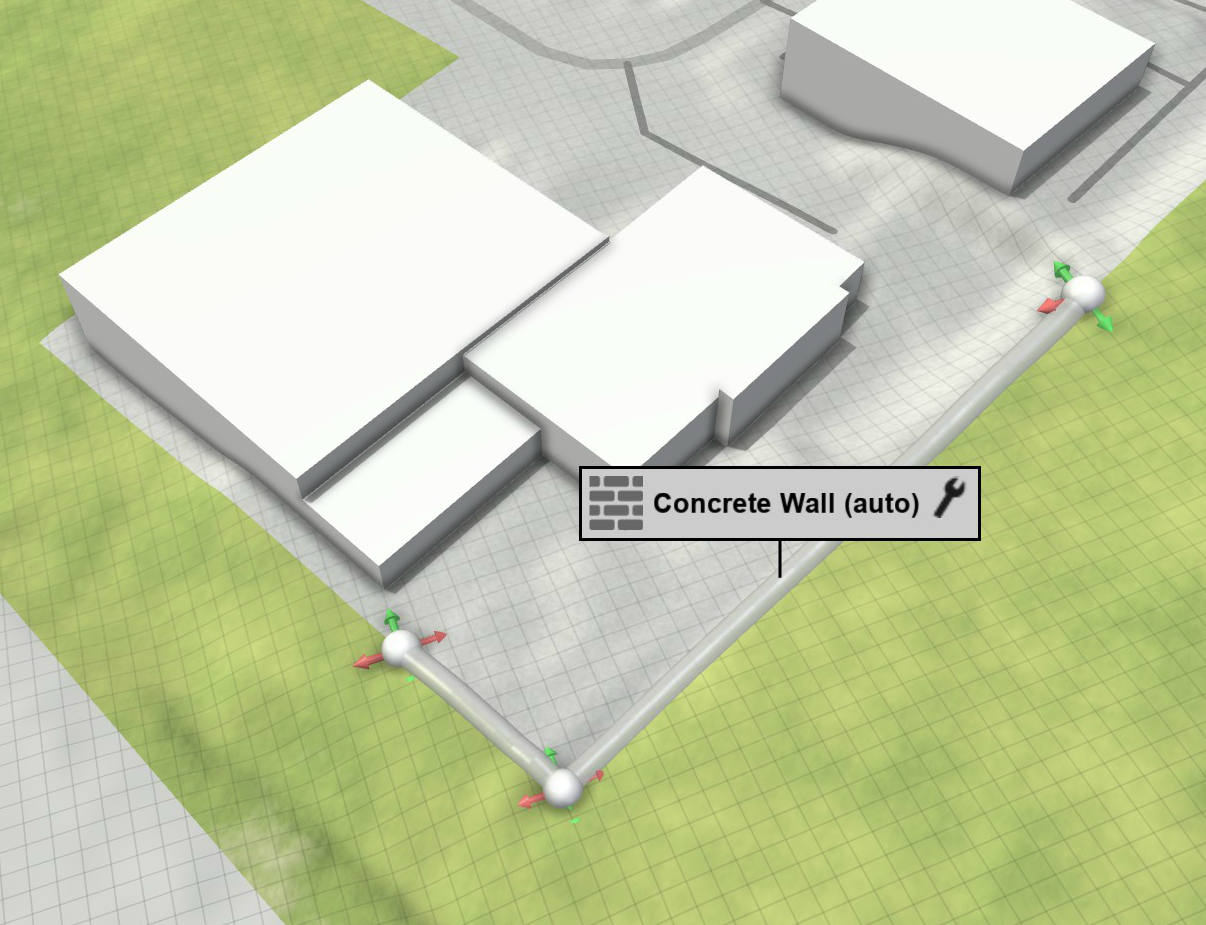
Create points with the left mouse button to define the wall's shape. Finish by creating the last point with a double click. Use a right click to undo the last created point while drawing.Add Start Point Add Middle Points (Optional) Last Point created with Double Click 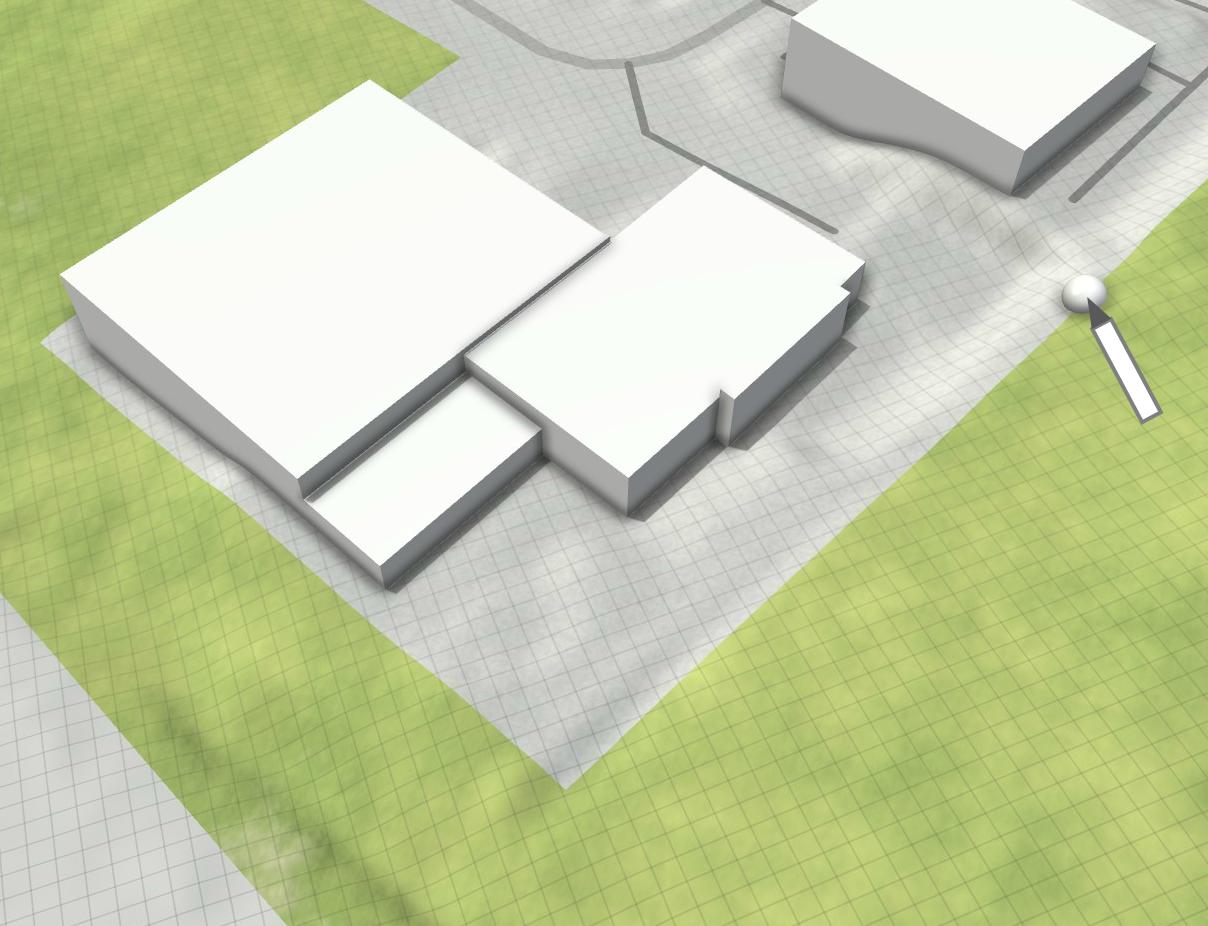
-
Fine-Tune (Optional): After drawing, the system switches to Edit Mode, allowing you to adjust the control points of the wall line using visual handles.
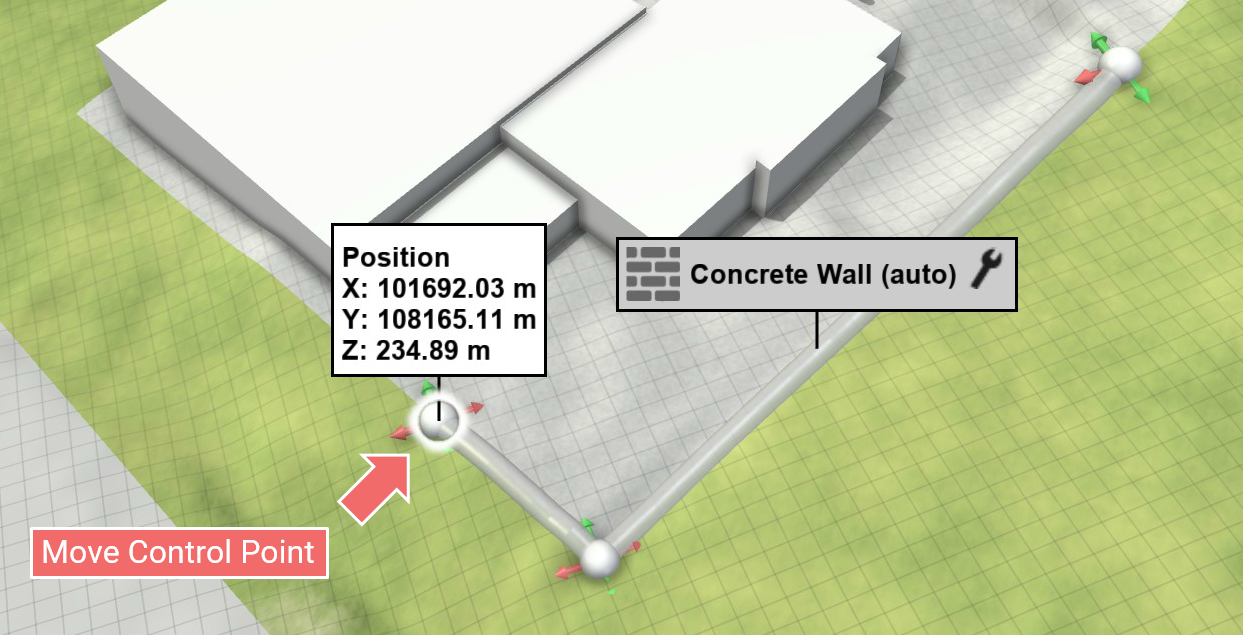
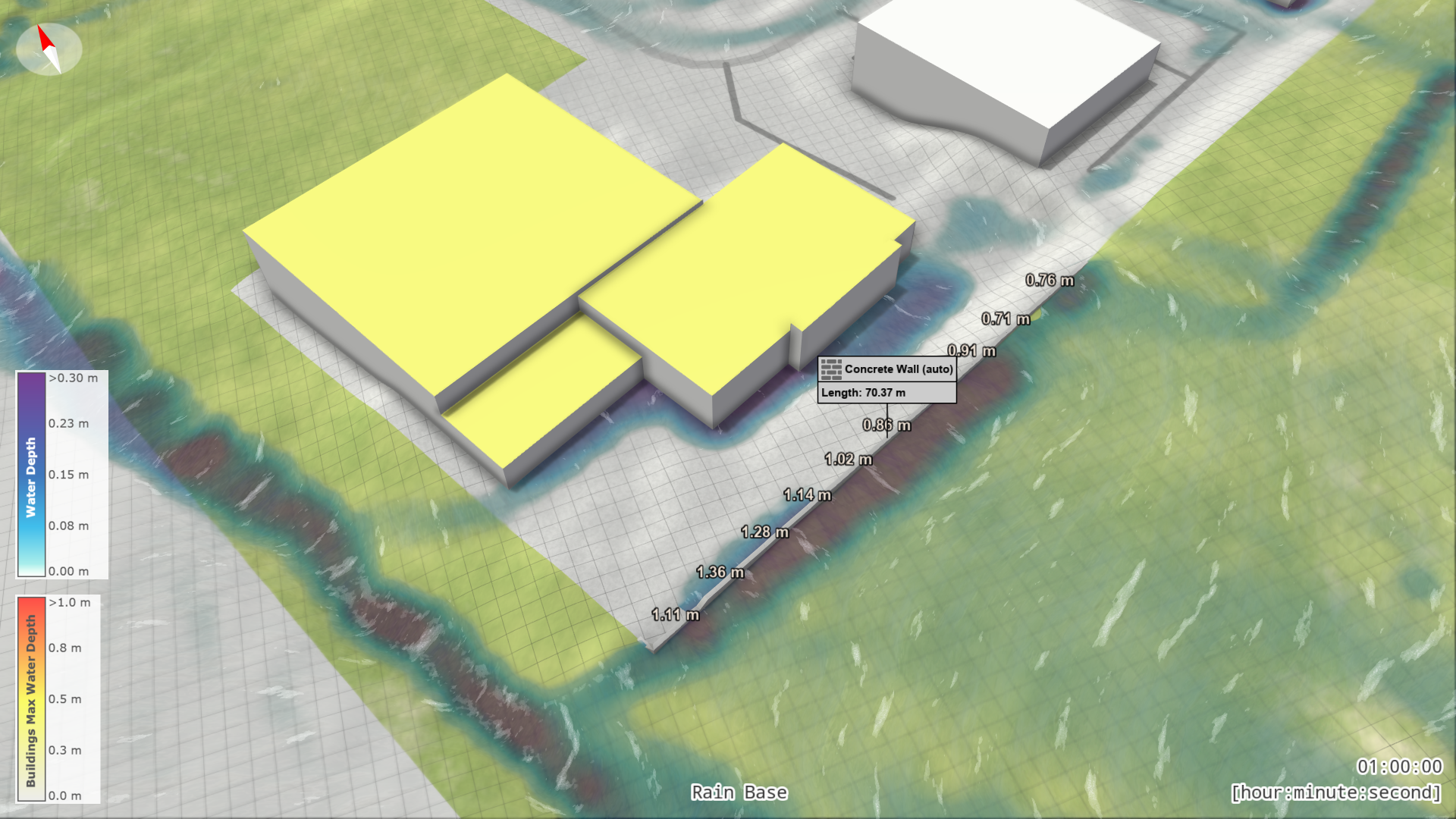
- Simulate: In case you are not at time step 0, go to the beginning of the scenario first (see Step 1). Click the Play Button to leave the edit mode and follow the simulation.
Important: When outside of edit mode, the wall will only be visible where water is present. Its location and height automatically adjust based on the nearby water depths. As the simulation progresses and more water is introduced, the barrier will grow dynamically over time.
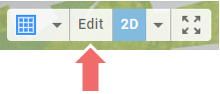
Manually going into Edit Mode: So far we have learned, that the system automatically switches to the Edit Mode, once we have created actions that influence the simulation. If you want to manually switch to the Edit Mode for further adjustments, click "Edit" in the Toolbar.
7. Create Scenarios
So far, we have modified parameters within a single base scenario. This approach makes it difficult to compare changes to the original scenario. A fundamental feature of scenarify is the ability to create and compare scenarios. Let's create a new scenario and draw an action specific to it.
Create a New Scenario
- Open the Scenario Setup Pane: Click "Scenario Setup" on the right to show additional windows. The top right view is called "World Lines," where scenario management occurs. Currently, it shows one scenario named "Rain Base" as a timeline.
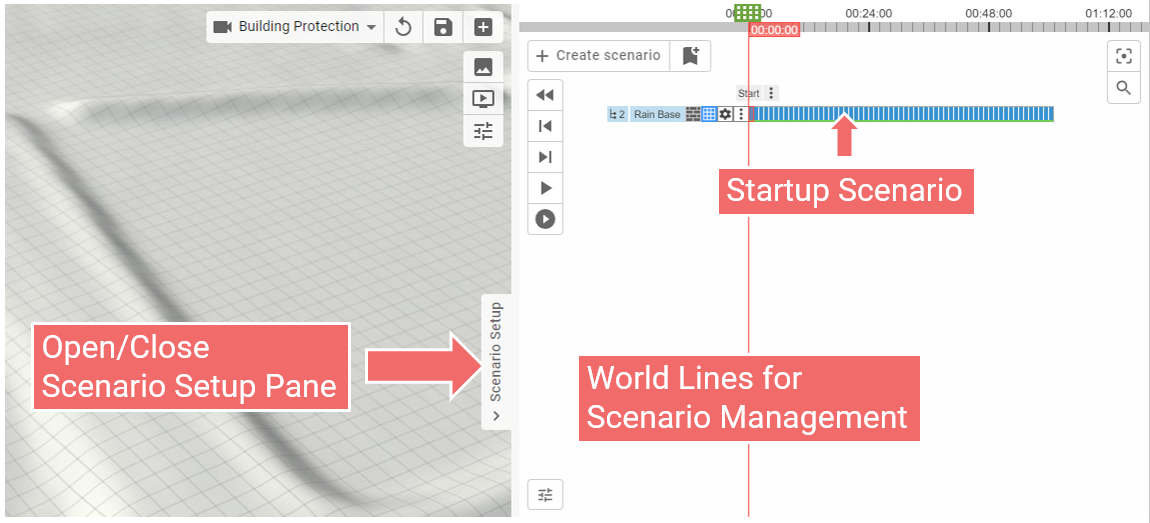
- Go to Time Step 0: Ensure the active time of the scenario is at time step 0. If not, use the "Go to beginning of scenario" button. Note that the Time Navigation buttons are located inside the World Lines view if the Scenario Setup Pane is opened.
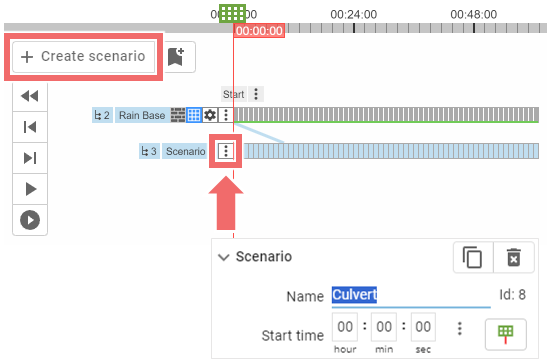
- Create a New Scenario: Click "Create Scenario" to generate a new timeline representing the new scenario. The new scenario is auto-activated (indicated by a blue color) and is derived from the "Rain Base" scenario, initially identical to it. Use the three-dot button on the scenario to access general properties of it. Change the name of the new scenario to "Culvert" as we intend to add a Culvert Action to it.
Create a Culvert Action for the new Scenario
Further downhill from our protected building, water accumulates at a road embankment. This buildup leads to road overtopping after about 35 minutes, causing significant flooding to a building on the other side of the road. To prevent this, we will draw a culvert (pipe) to redirect the water further downhill and reduce the accumulation.
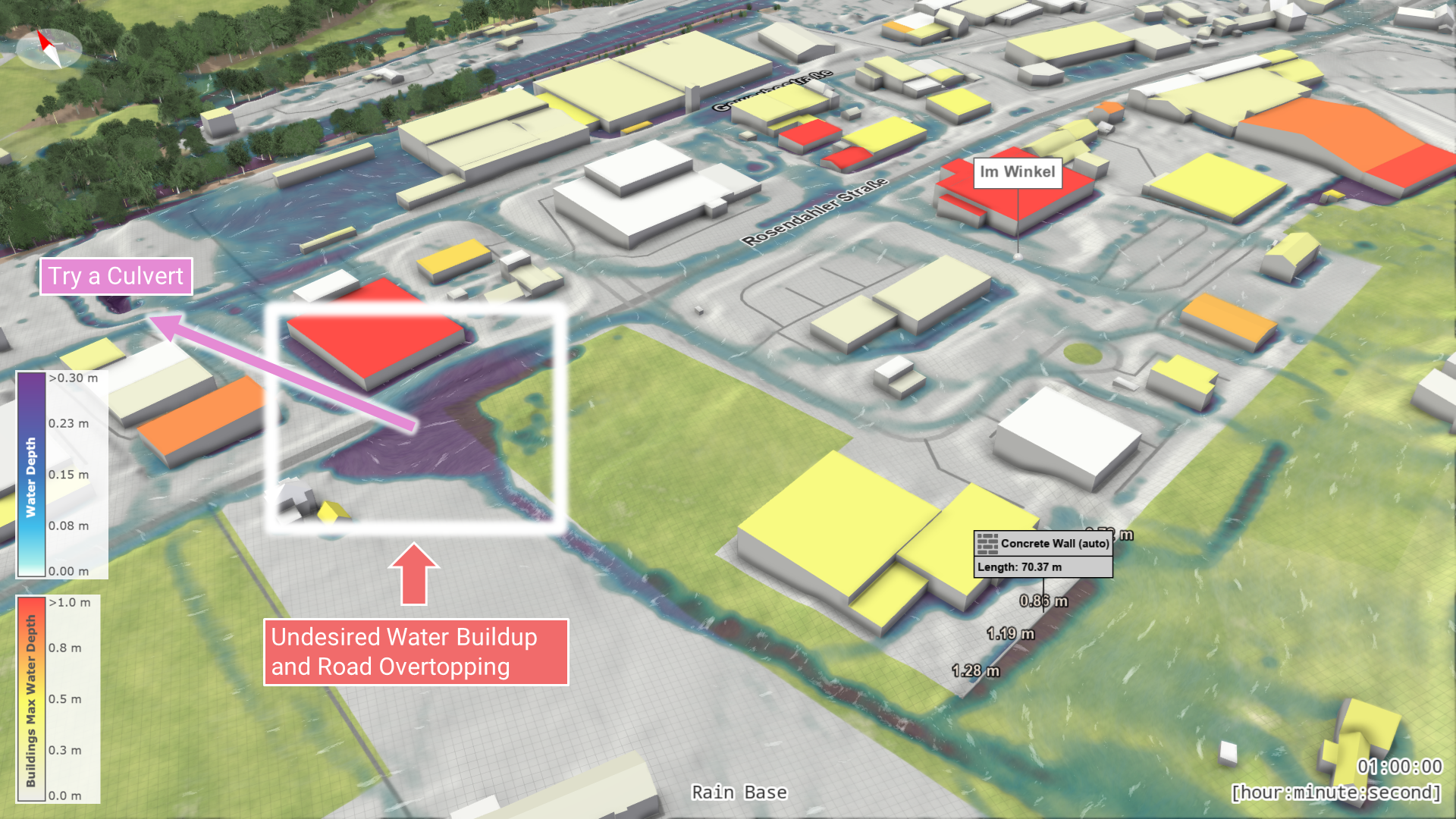
1. Draw a "Culvert" Action for the Active Scenario
- In the Action Tool Selector, choose "Culvert" from the "Surface and Soil" category.
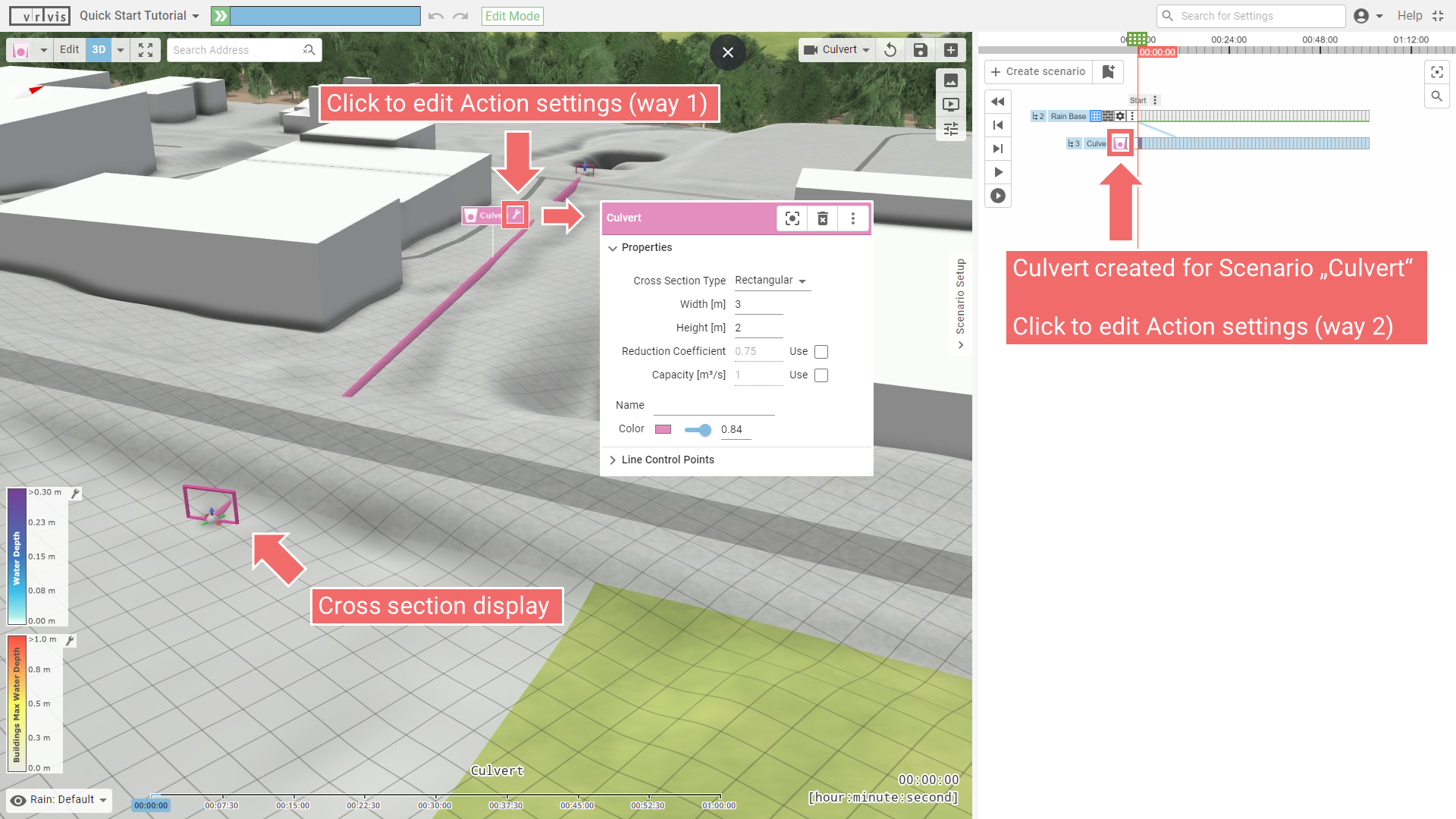
- Draw a 2-point line starting from the water build-up. A Culvert Action icon will appear in front of the scenario in the World Lines view.
2. Edit the Culvert Action Settings
- Click the wrench button of the Action label in the View (way 1) or the Action icon in World Lines (way 2).
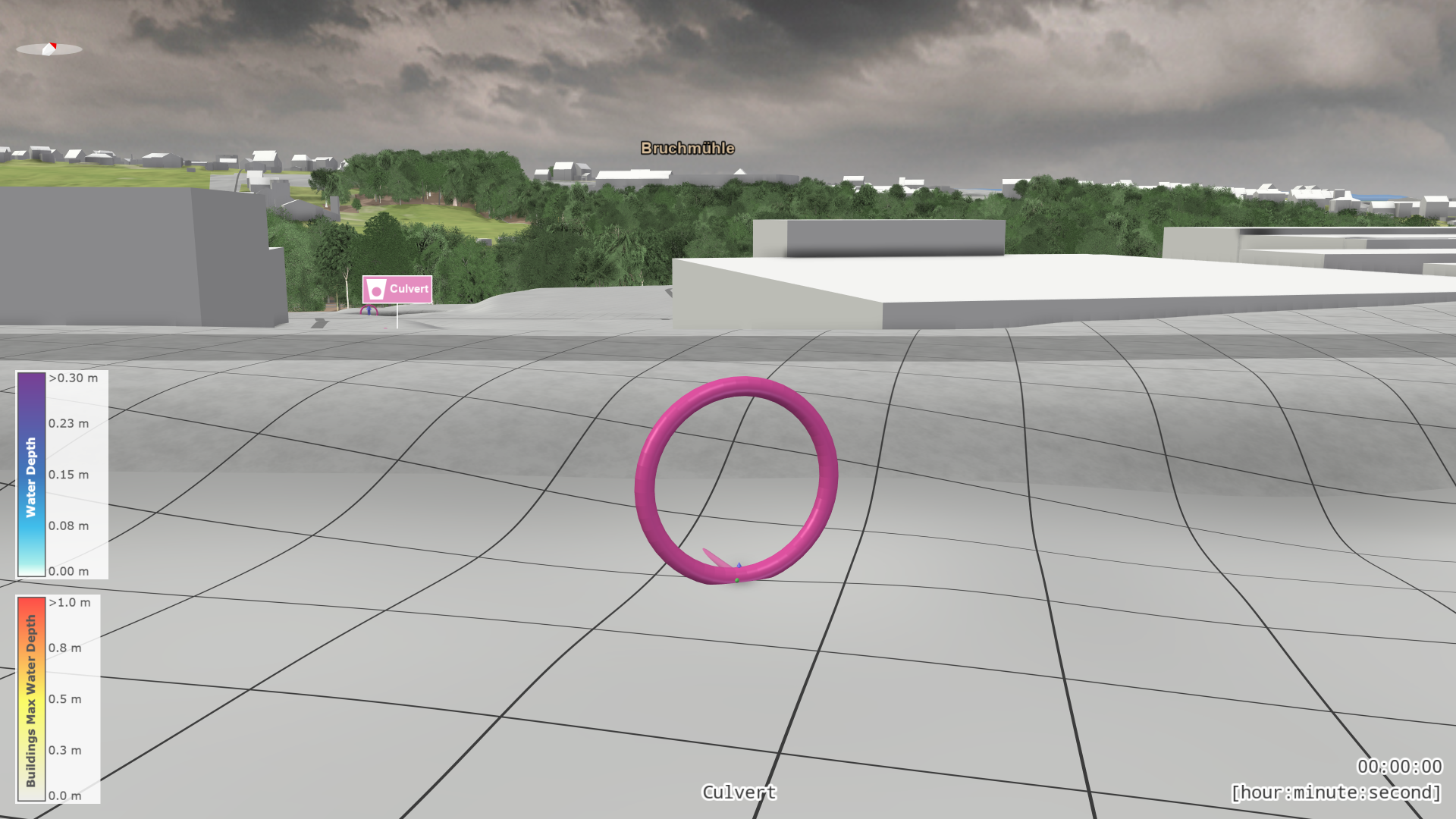
- Change the culvert type to "Circular" and reduce the diameter to 2 meters.
-
View the culvert in perspective to see changes in the cross section within the model setup.
Rectangular Circular 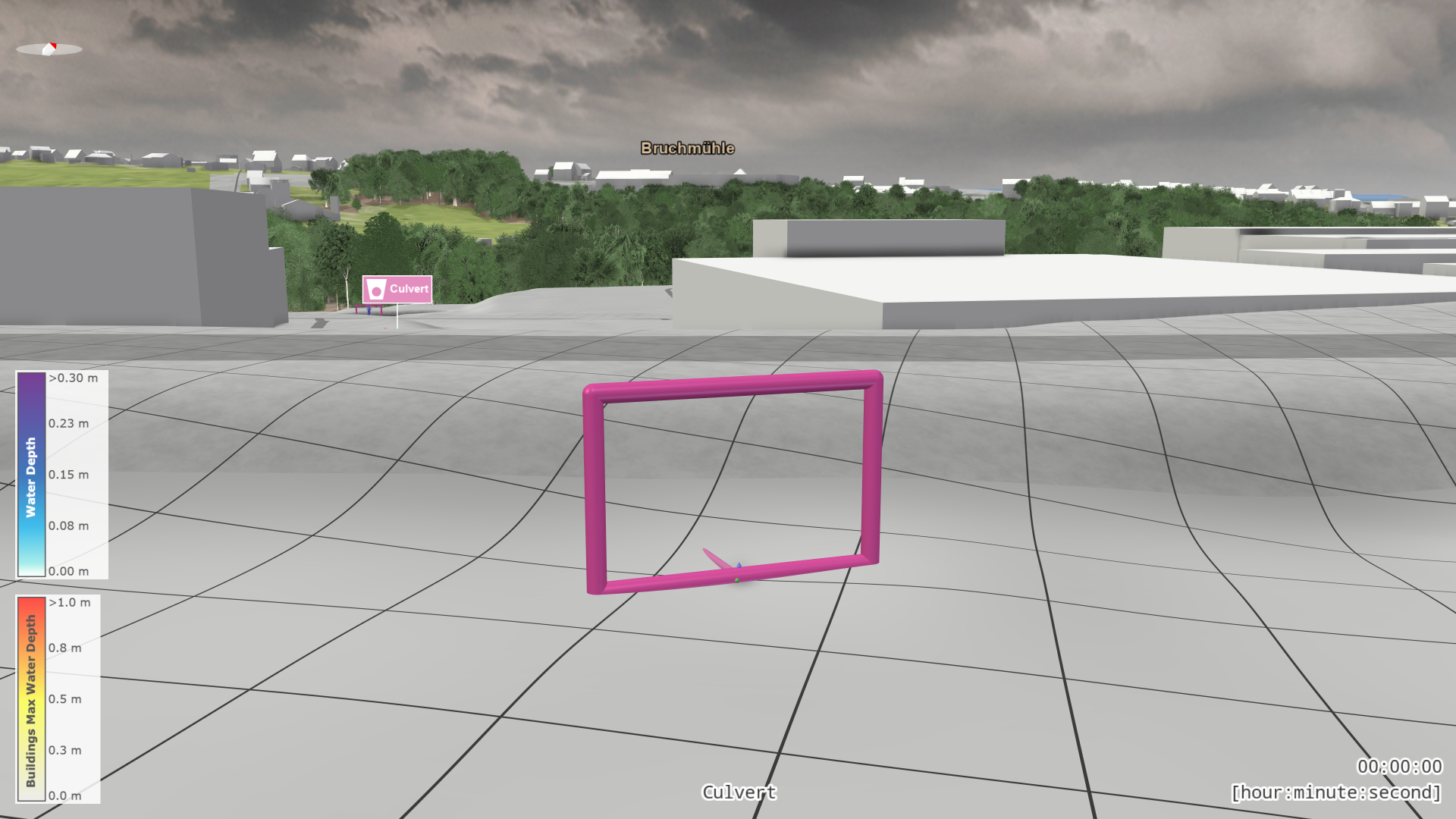
Comparing Scenarios
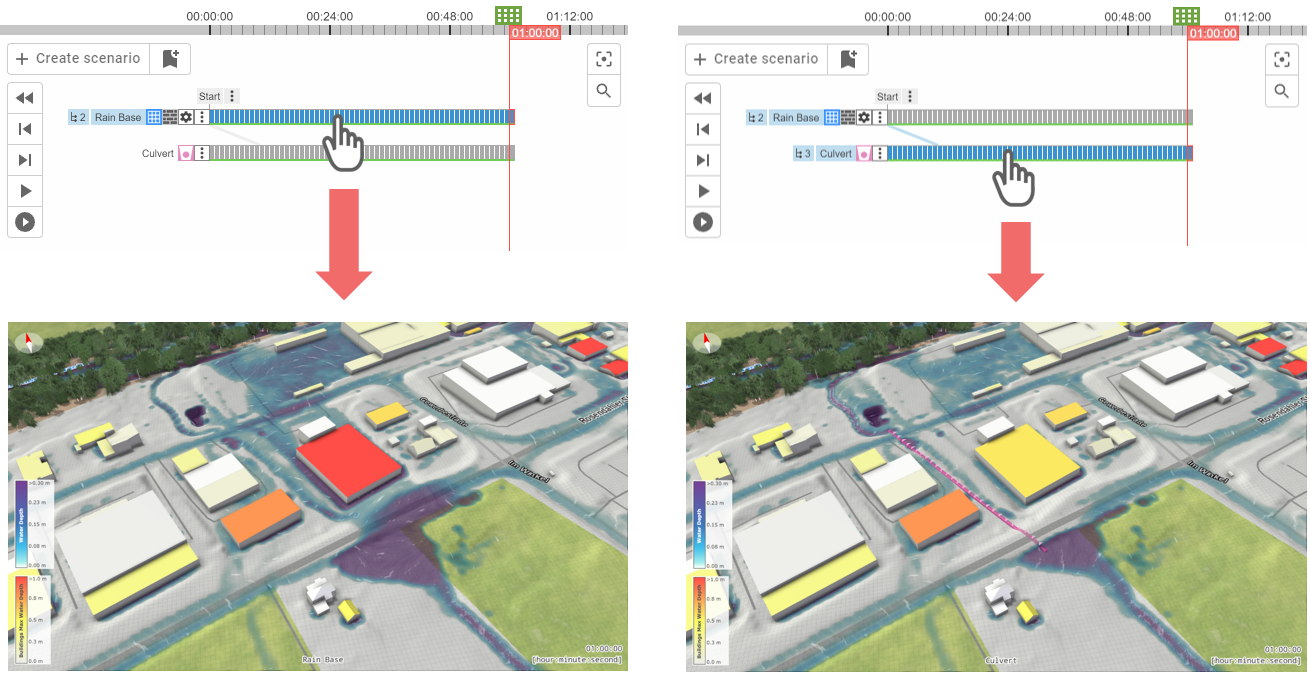
Use the Play button to simulate the Culvert Scenario. Observe how water is redirected through the pipe further downhill, preventing road overtopping. Compare this scenario to the original by switching between their timelines. Note that comparisons are made at the active time step.
Changing Global Simulation Settings
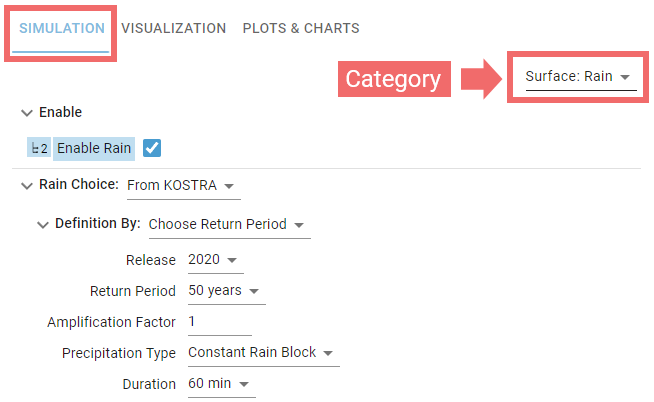
Besides local modifications using Actions, you can change global simulation settings, such as rain intensity, in the Simulation Settings Panel below the World Lines view.
Let's create a new scenario with increased rain intensity to model a 100-year event.
Hint: The base model automatically derives spatially varying rain rates from the KOSTRA dataset available in Germany.
1. Create a New Scenario
- Select the "Culvert" scenario as we want the new Scenario to originate from this one
- Go to time step 0 and click "Create Scenario."
- Rename the new scenario to "100-year event."
2. Change the Rain Intensity
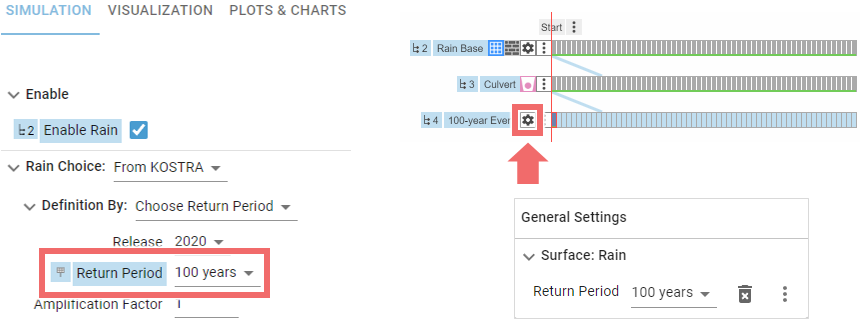
- In the Simulation Settings Panel, under "Surface: Rain" (default category), change the Return Period setting from 50 years to 100 years.
- Note the change is applied only to the active scenario, indicated by the blue-colored setting label with a cursor icon and the scenario's Global Settings panel accessible via the gear button.
3. Simulate and Compare
Simulate the 100-year event scenario and compare it with the Culvert scenario. Despite more runoff, the Culvert functions effectively, and the Concrete Wall needs only minor height adjustments.
Navigating the World Lines View
When managing multiple scenarios, you might need to zoom and pan within the World Lines view:
- Zoom (Time Axis): Use the mouse wheel. The zoom is directed towards the mouse position.
- Pan: Click and drag the mouse wheel.
- Center View on Cursor Button: Use the button at the top right of the World Lines view to focus on the active time step of the active Scenario.
8. Change the Visualization
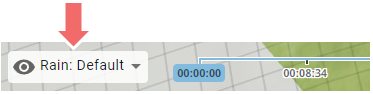
To further analyze the simulation results, adjust the visualization in the View. The quickest way to do this is by using the Visual Presets located at the bottom left corner of the View.
Examples:
| Surface: Max. Velocity: Corresponds to a traditional flood risk map. It displays the maximum water depth over the terrain using discrete intervals and shows the maximum velocity with arrows. |  |
|---|---|
| Surface: Road Driveability: Colors roads according to their maximum water depth to indicate driveability. Roads with depths above 20 cm are marked in red, signifying they are not passable by vehicles. | 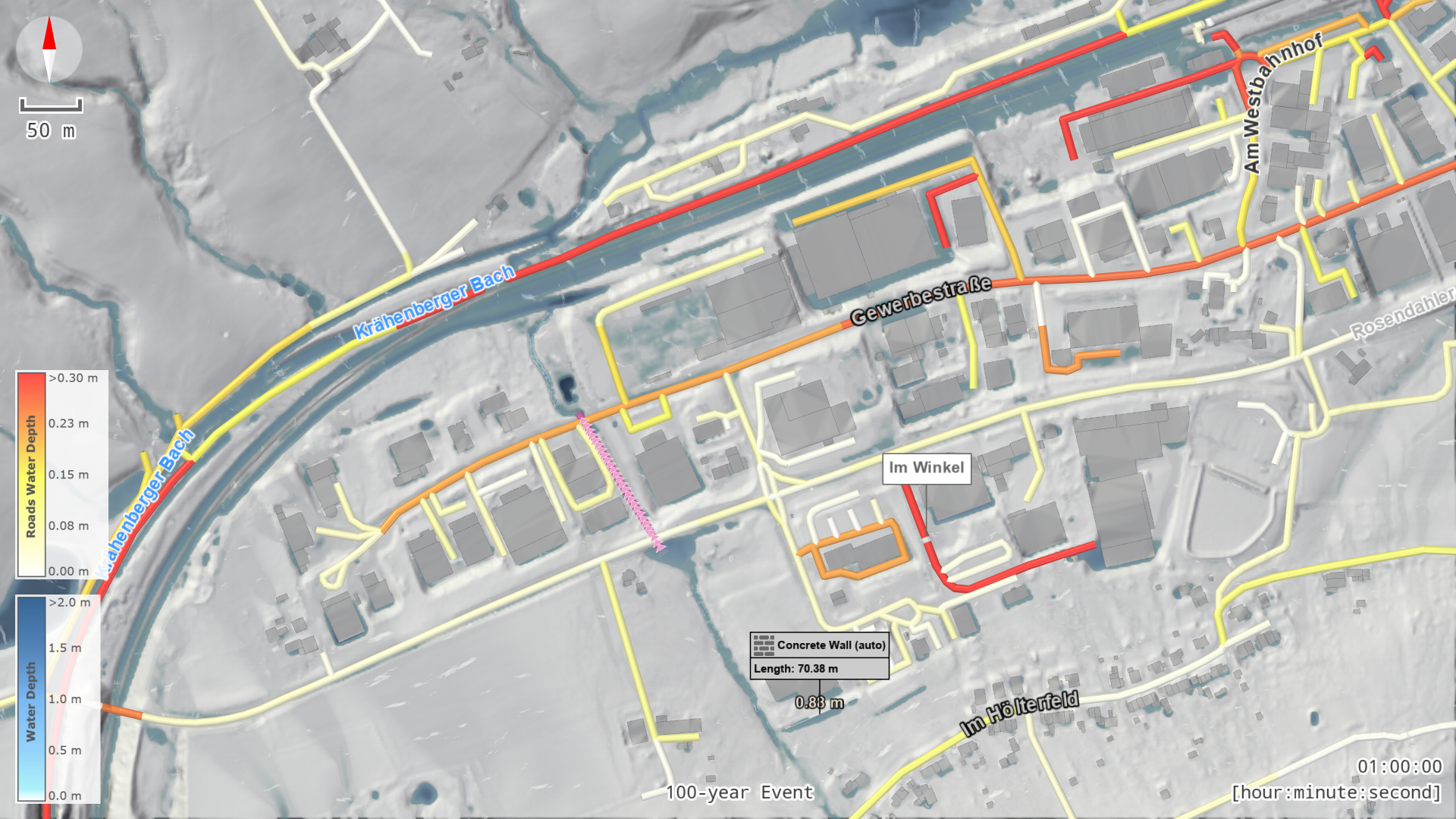 |
| Soil: Infiltrated Heights: Shows the amount of water that has infiltrated into the soil. | 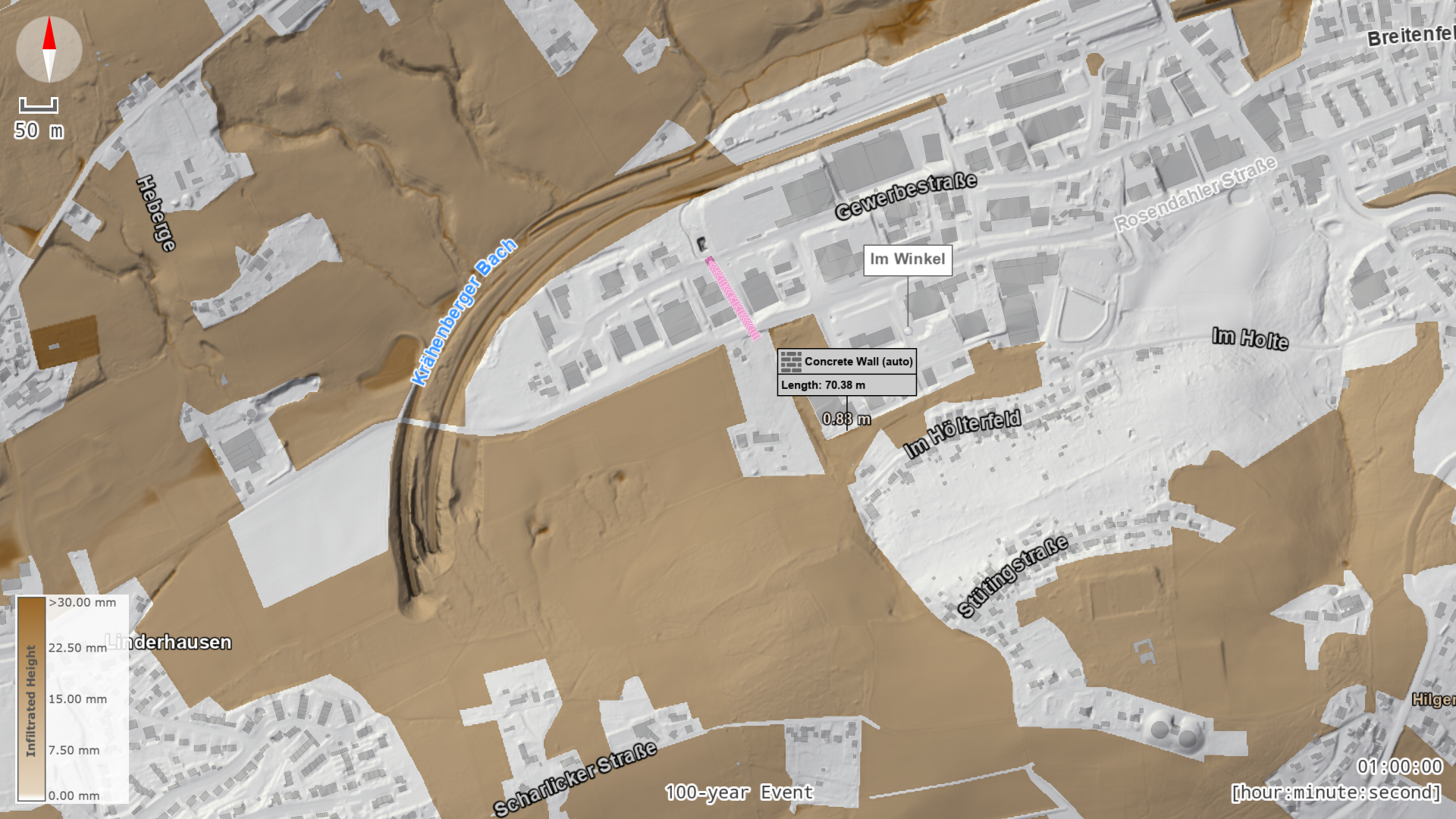 |
The visual presets modify settings available through the Visualization Settings Panel, located next to the Simulation Settings Panel.
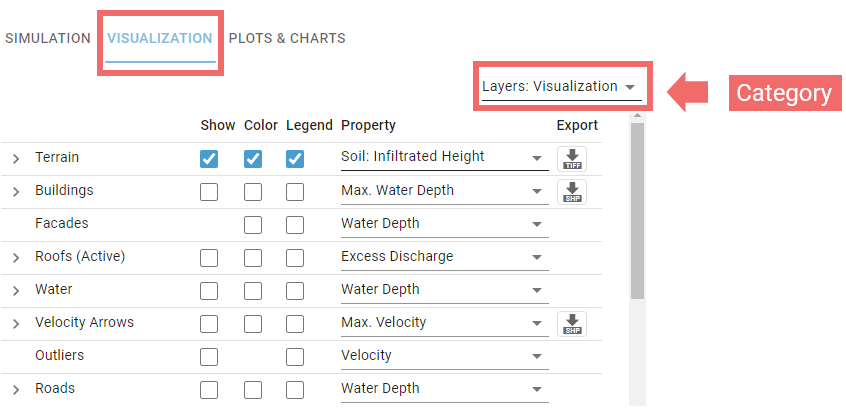
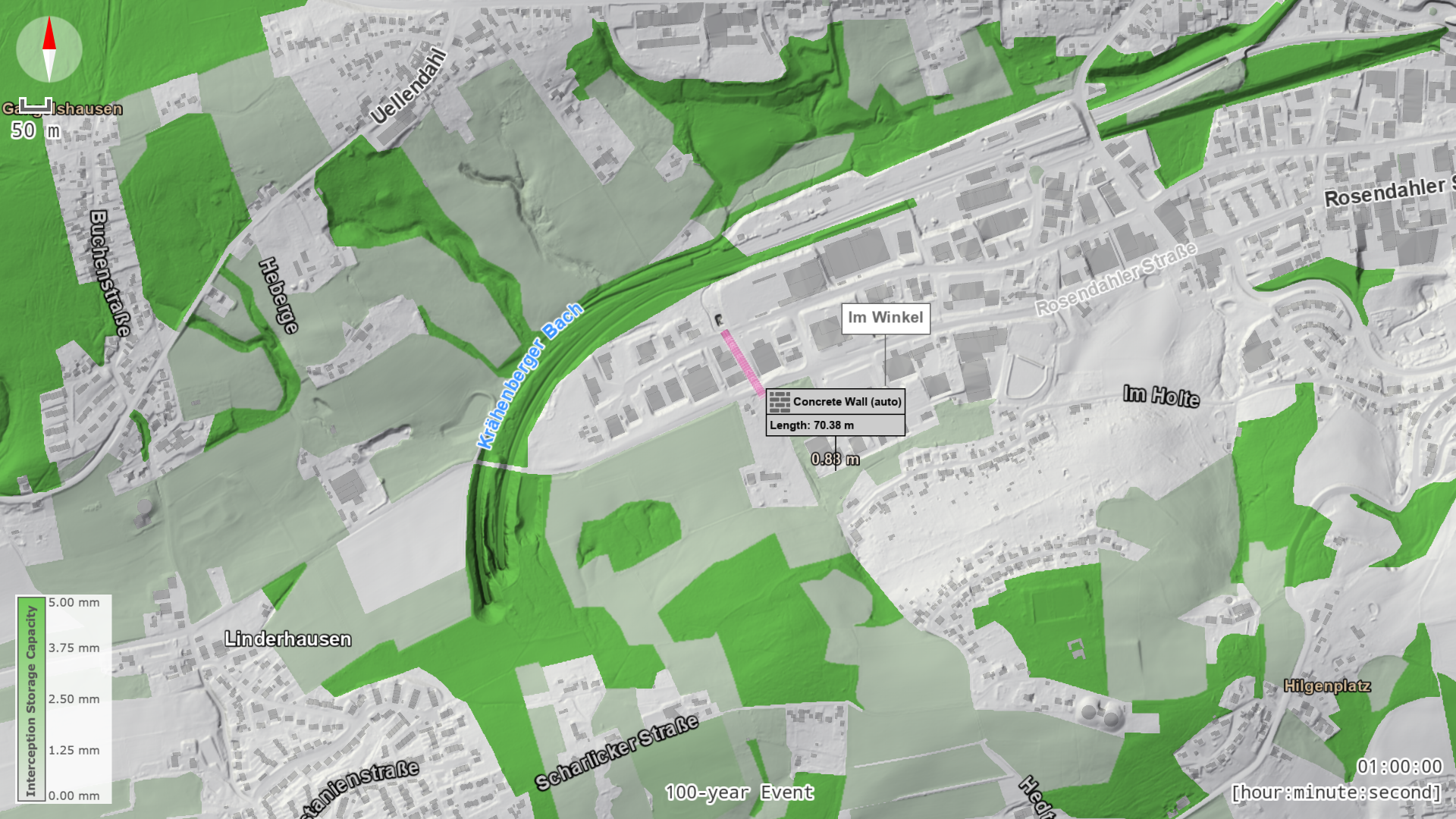
The "Layers: Visualization" category controls the display of the main semantic layers (Terrain, Buildings, Water, etc.). These layers support visualization on top of them. Start with the Visual Preset "Soil: Infiltrated Height," then use the Property selector of the Terrain Layer to visualize a different property. For example, select "Surface: Interception Storage Capacity" to display the amount of rainfall that can be held by vegetation before reaching the surface.

9. Extract Local Information
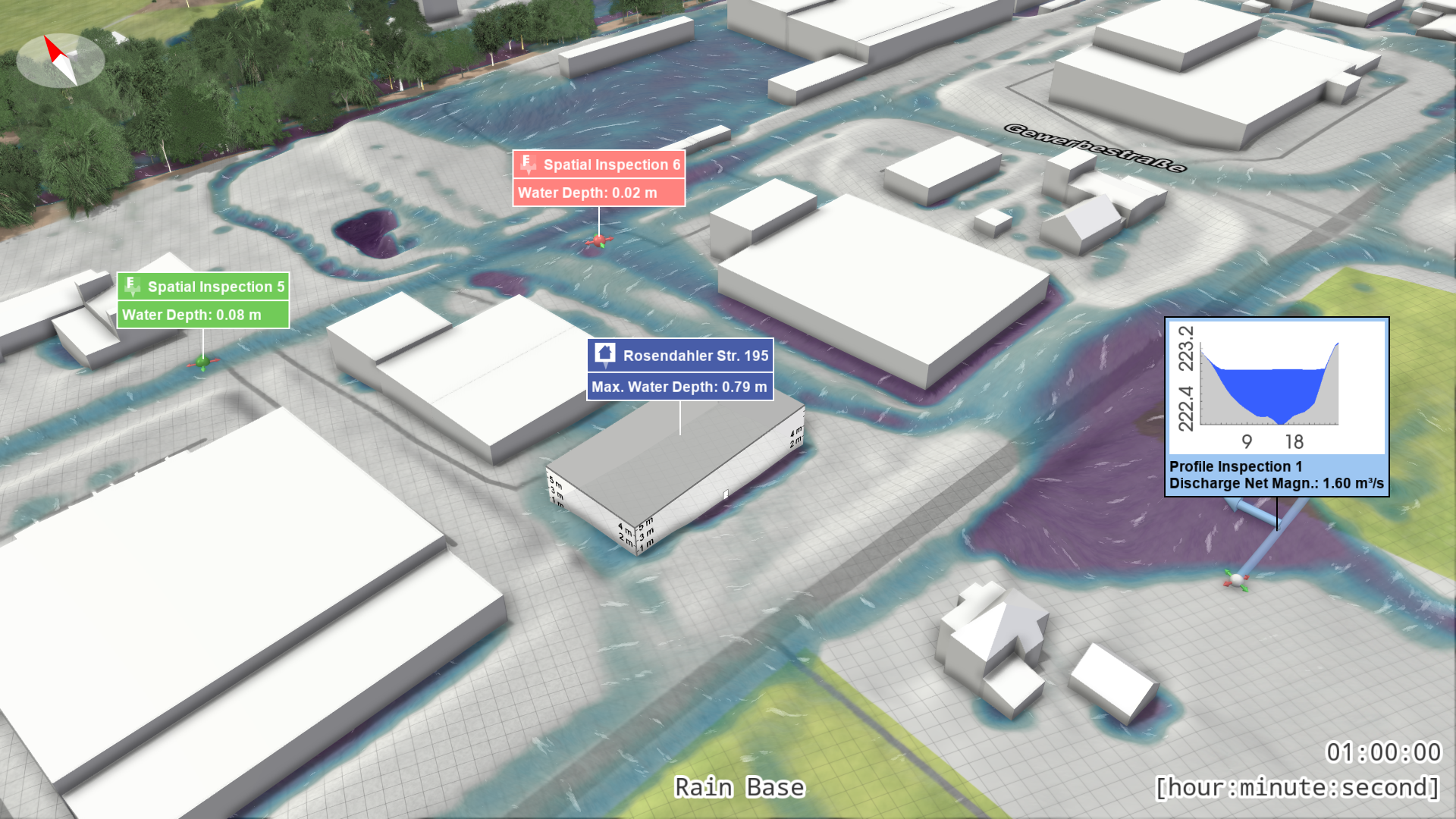
To obtain detailed simulation results at specific locations or objects, use the "Inspection" action category. Experiment with the following actions to gather precise data:
- Spatial Inspection: Click on the terrain to extract local water depth.
- Building Inspection: Click on a building to display the maximum water depth along its footprint.
- Profile Inspection: Draw a line to show the water profile along it and display the discharge through this profile.
10. Export Images and Videos
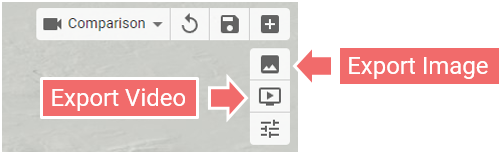
Use the Export Bar located in the top right corner of the View to generate high-quality images and videos of your scenarios.
Hint: When exporting videos, the Run Button changes to a Stop Button. Click this button if you wish to cancel the video export. Note that even if you cancel, the video will still be created using the images that have been rendered so far.