Choosing the Right Accuracy for your Task
A central concept in scenarify is interactive modeling—meaning users can quickly see the effects of their changes without waiting for long simulation runs to complete. For example, when you draw a sandbag wall or modify the terrain, you get near-instant feedback on how water behaves in response. This is made possible by highly optimized GPU-based simulations that run faster than real time.
However, even with this performance, there are practical limits. Some settings—like very high resolution or long event durations—can slow things down. That's why scenarify lets you balance accuracy and speed, depending on the task at hand. The core principle is to use lower accuracy settings for fast, interactive scenario planning, and switch to higher accuracy in dedicated scenarios for final simulations and result generation.
Key Factors Affecting Simulation Performance
Cell Size
Smaller cell sizes improve spatial resolution but also slow down simulations due to the CFL stability condition, which reduces the internal simulation time step. For interactive planning, consider using a coarser grid. Reserve finer resolutions (e.g., 0.25 m – 1 m) for final simulations where detail is critical.
Simulation Domain Size
Larger domains mean more cells and thus higher memory usage and computation time. Performance depends heavily on how many of those cells can become wet. To optimize performance:
- Use Domain Setup actions like Valid Zone, Invalid Zone or Catchment Derivation to limit the number of wet cells.
- Use smaller, focused domains in dedicated work scenarios for fast interaction.
- For very large areas, consider splitting the region into overlapping simulation domains, one per scenario (see Working with Large Models).
Solver Accuracy
scenarify offers two solver schemes, see also Accuracy and Numerical Schemes:
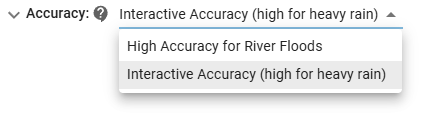
- First-order (Interactive Accuracy – high for heavy rain): Faster and ideal for interactive work; sufficiently accurate for heavy rainfall simulations, even for final results.
- Second-order (High Accuracy for River Floods): More precise but computationally demanding; use for final results of river flood scenarios.
You can configure the solver accuracy in the Simulation Settings Panel, under Surface: Simulation Model:
Inflow and Outflow Time Series
The duration of inflow and outflow actions directly influences simulation time. This is particularly important for large rivers with extensive catchments, where flood events can last several days. To enable interactive experimentation in such cases, start by using simplified inflow time series that quickly reach peak discharge levels, for example, a linear rise over a few hours. Once the scenario setup is refined, switch to realistic inflow hydrographs for final simulations. These could be based on Gamma curve approximations or measured time series from real events, ensuring that both timing and water volumes are accurately represented.
Lower Accuracy Usually Encloses Higher Accuracy
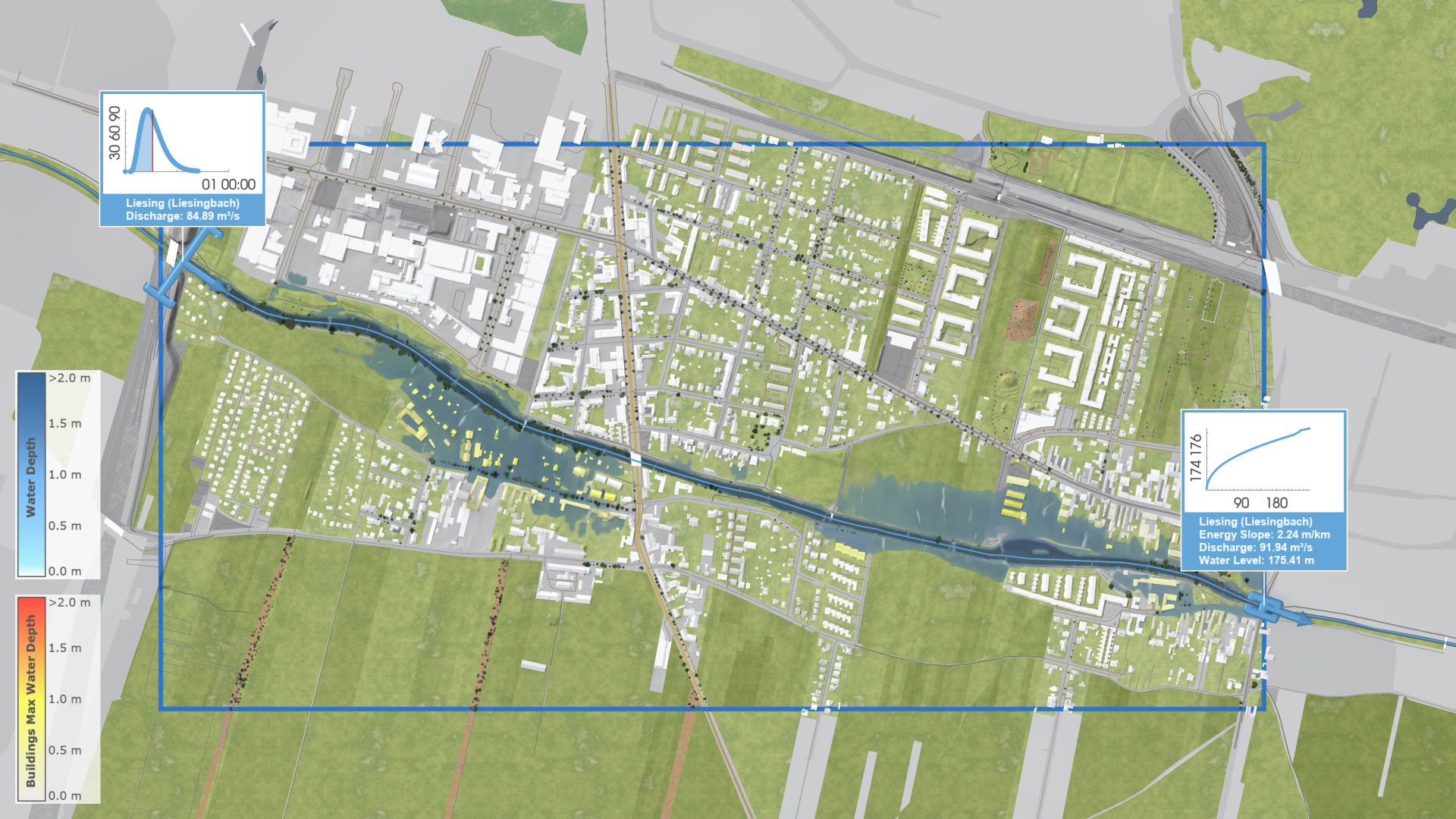
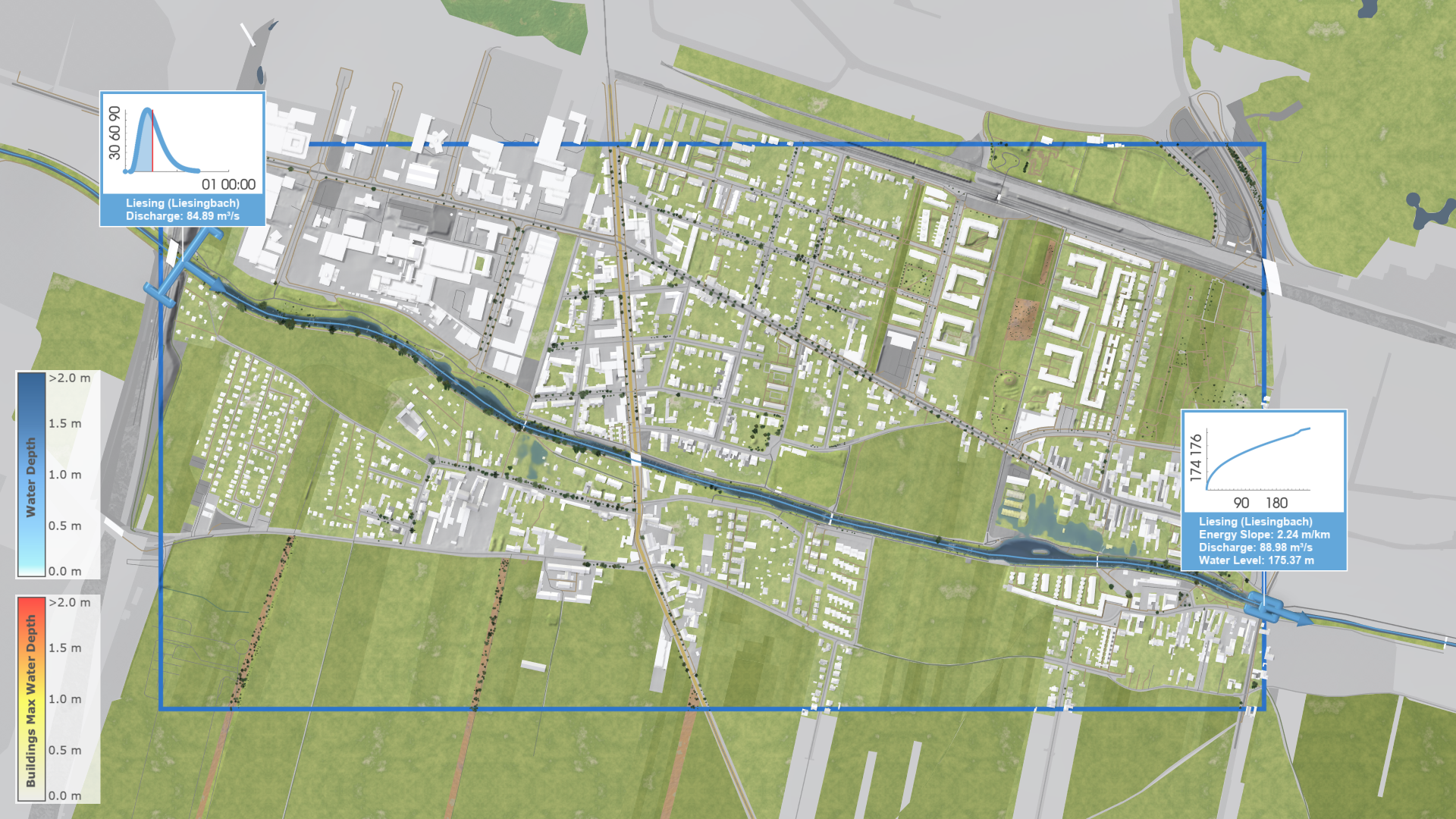
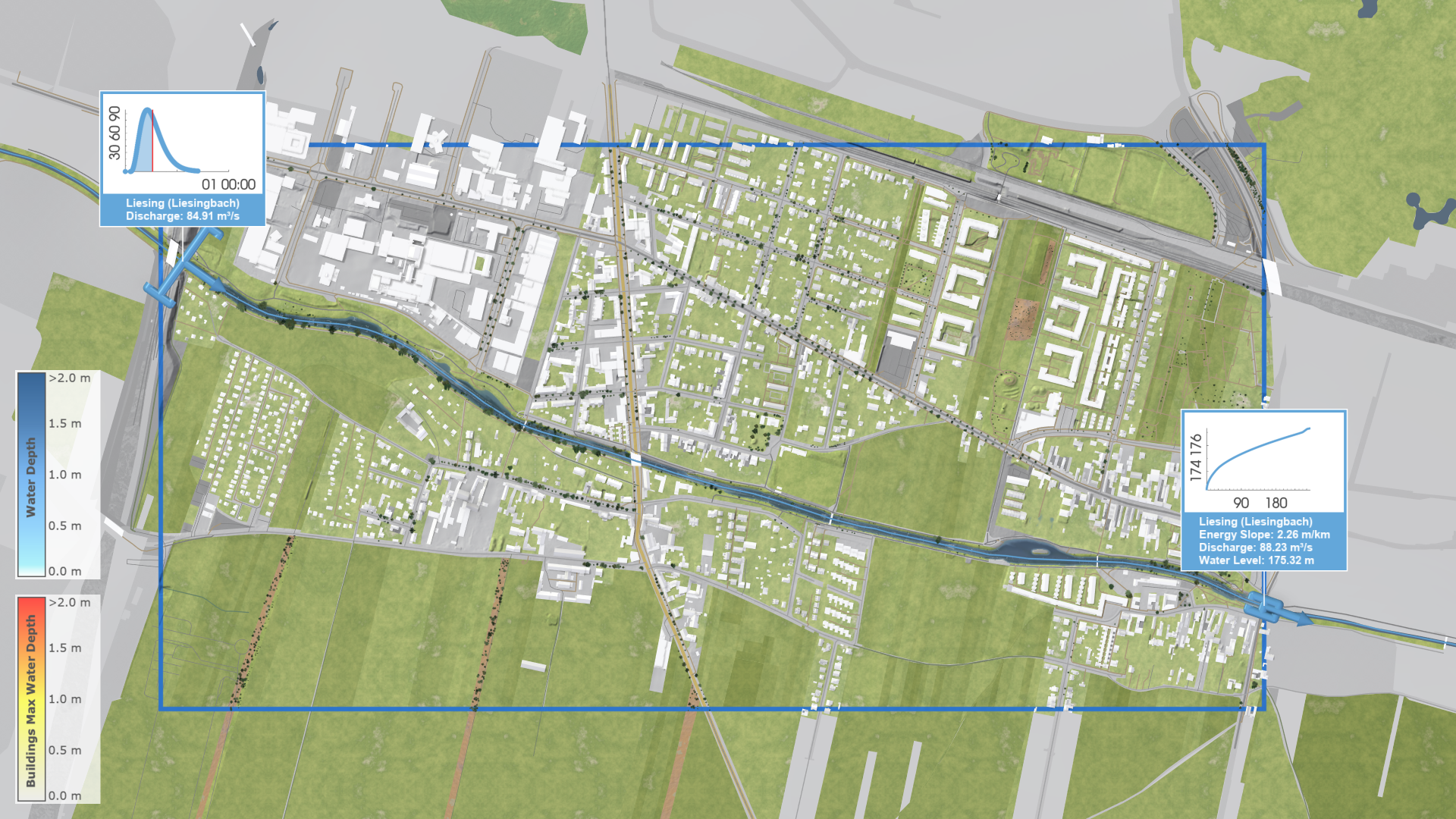
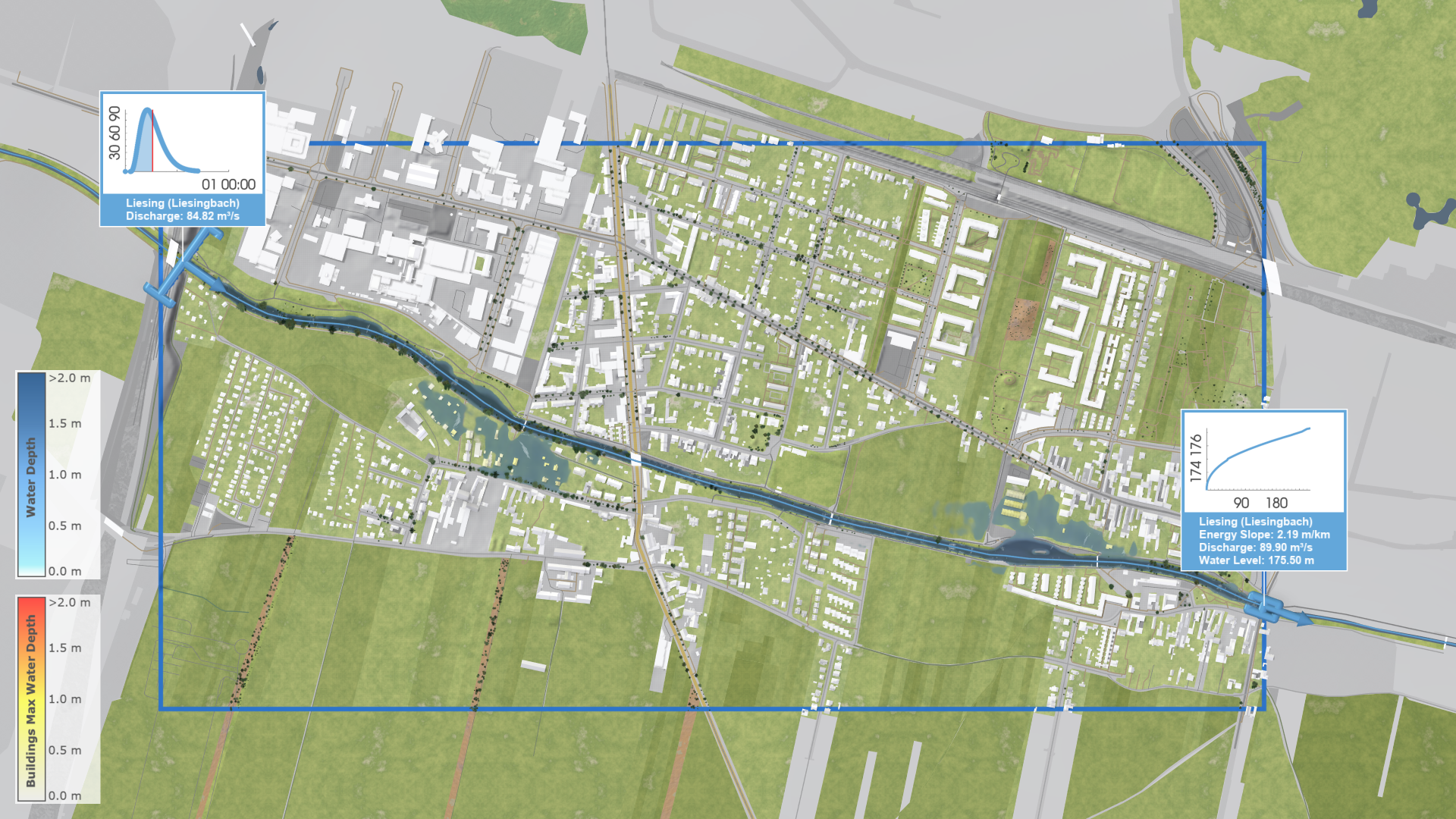
Results at lower accuracies are usually enclosing those of higher accuracies for river floods, especially for middle-sized rivers or smaller streams. Switching between the First-order (Interactive Accuracy – high for heavy rain) and Second-order (High Accuracy for River Floods) scheme illustrates this behavior:
A similar pattern can be observed when modifying the cell size:
Best Practice: Interactive Accuracy vs. Final Accuracy
The general principle is to use faster, lower-accuracy settings during scenario planning and interactive testing, and switch to higher-accuracy configurations for final simulations and the generation of risk maps. It is recommended to create separate scenarios tailored to each purpose, with dedicated accuracy parameters.
Each of the mentioned accuracy parameters—such as solver type, cell size, or inflow setup—can be defined as individual scenario settings. The following table provides an overview of how best to apply these settings depending on the type of flood hazard simulation.
| Flood Hazard | Interactive Accuracy (for planning & testing) | Final Accuracy (for producing final results, for risk maps generation, for calibration and validation tasks) |
|---|---|---|
| Heavy Rain | - Cell size: 2-4 m - Domain size: up to 10–20 million cells - Solver Accuracy: First-order |
- Cell size: 0.25 m - 2 m - Domain size: up to 400 million wet cells - Solver Accuracy: First-order is sufficient |
| River Flood | - Cell size: 3–5 m - Domain size: up to 30 million cells - Solver Accuracy: First-order - Inflow/Outflow: Simulate only up to flood peak or use simplified time series to reach peak quickly |
- Cell size: 0.5 m – 3 m - Domain size: up to 400 million wet cells - Solver Accuracy: Second-order - Inflow/Outflow: Use time series from measurements or realistic model curve |