Export Results
Exporting Data
Depending on what exactly is being exported, scenarify offers multiple ways of exporting data.
Via Action Tool Panel
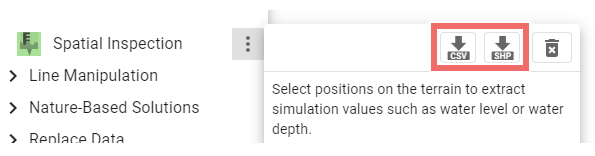
For many action types, geospatial locations and associated action parameters can be exported as shape files via the Action Tool Panel. For certain action types, like Inspection actions, the inspected quantities can also be exported as a CSV file:
Hint: If characters in the CSV files are not displaying correctly, try opening the files using Western European (Windows 1252) encoding.
Via Visualization Settings Panel
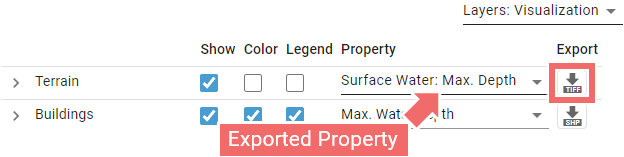
In the Layers: Visualization category of the Visualization Settings Panel, the properties selected in the "Property" column can be exported using the button in the "Export" column. Depending on the data type, this export is in the form of shape files or GeoTIFF files:
Via World Lines
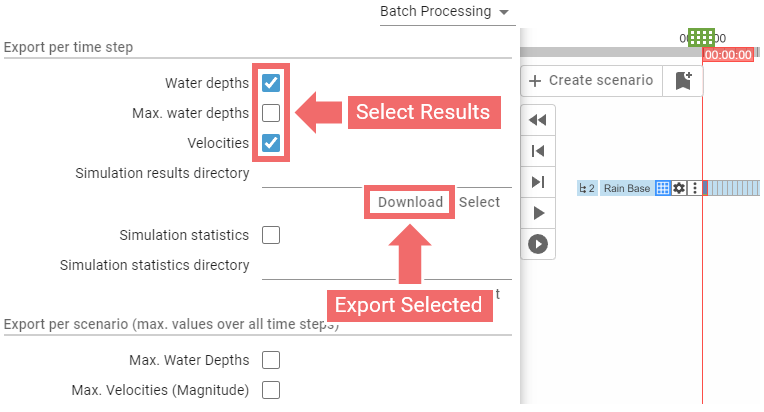
In the World Lines Settings Panel, it is possible to export simulation results or statistics for each time step or the maximum simulation results per scenario to a selected directory. Unlike the export buttons in the Visualization Settings Panel, this feature is designed exclusively for batch-processed scenarios, which is why it is located in the Batch Processing category:
Via Plots & Charts Panel
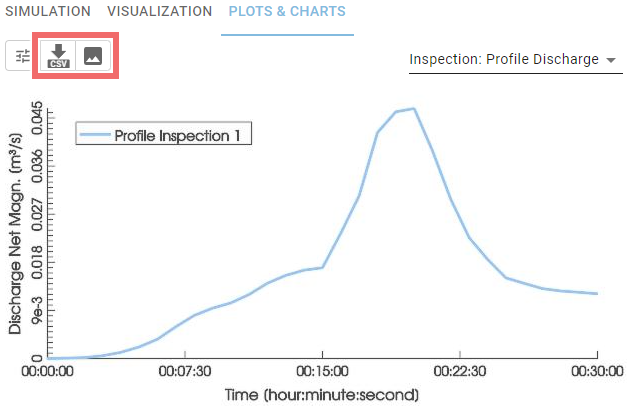
In the Plots & Charts Panel, each category offers options for exporting the corresponding data. Water volume balance values from the bar charts can be exported as CSV files. Additionally, every plot can be exported in CSV format or as an image:
Hint: If characters in the CSV files are not displaying correctly, try opening the files using Western European (Windows 1252) encoding.
Exporting Visual Media
The Export Bar allows the user to export visual media, including images and videos:
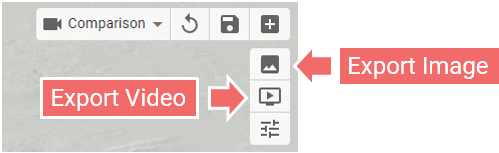
The "Export Image" button saves the current contents of the View — the 3D scene, color legends, annotations, and more — as a single image. The "Export Video" button records the current scenario as a video, capturing the 3D scene, color legends, annotations, and other elements. While the basic use of these buttons is straightforward, we will now outline some hints and best practices:
-
If possible, opt for image export using the dedicated button rather than taking a simple screenshot. The exported image will always be of higher quality.
-
Visual elements such as fonts, labels, legends, inlay plots, or handles can be scaled up, which is especially useful for printed media like scientific papers. Use the relevant settings in the popup menu under the "Export Settings and Camera Animation" button:
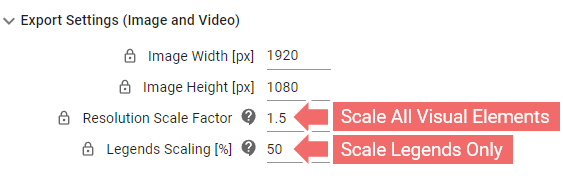
The scaling adjustments are not directly visible in the View; they only appear in the exported image or video. -
Image export works in Edit Mode too, if you wish to emphasize created actions with their edit mode handles and labels.
-
Create a dedicated scenario for video export. One of the many benefits of this approach is that the end time of the exported video can be indirectly controlled by setting the end time of the dedicated scenario.
-
If the exported scenario has too few time steps, the resulting video may play too quickly. There are two effective ways to address this issue, and both can be applied simultaneously for better results:
-
Use the Minimal Video Duration setting in the popup menu under the "Export Settings and Camera Animation" button:
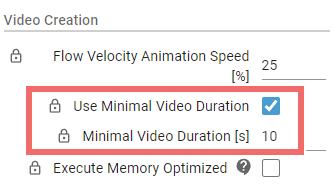
By applying this setting, scenarify will automatically insert still frames to achieve the desired video duration, resulting in a longer video. -
Reduce the time step size to generate more time steps and achieve a smoother video. Ensure this adjustment is applied not only to the dedicated video export scenario but also to its closest ancestor where settings affecting the simulation were modified (i.e., where the simulation actually occurs). Otherwise, if the time steps are mismatched, the export scenario will request intermediate time steps that were never simulated, resulting in an error.
-
-
You can export the final time step of a scenario alone with flow velocity animation enabled. To do this, ensure that the dedicated scenario consists of a single time step that spans the entire scenario duration. Use this technique in combination with the minimal video duration setting, and remember to enable the flow velocity animation.
-
While creating a video, use the Stop Button at time steps that haven't been simulated yet. This allows for an early interruption of the video.