Troubleshooting in scenarify
If you encounter an error while using scenarify, try these steps in the given order to troubleshoot and resolve the issue:
-
Use the "Undo" button in the Application Bar to revert your most recent steps and see if that already resolves the issue.
-
Reload the project from the Project Menu to initiate a complete re-synchronization between the server and your browser.
-
Reload the browser page to refresh the client instance. If the server instance is idle, it will also restart. If the server instance is currently processing a computation, the refreshed client instance will reconnect to it.
-
Reset the server from the Project Menu. This will forcefully terminate a hanging server instance and start a new one.
-
Clear the project cache from the Project Menu.
-
Restore the project from history to try and revert to an earlier project version. This feature is accessible from the Project Menu.
If your project is stuck in a state where reloading triggers a costly re-execution, potentially causing an exception (for example, a faulty sewer network setup with the visual preset "Sewers: 3D Meshes" enabled), the only way to restore a functional state is to load a history version. To do so:
- Reset the server.
- Load a history version via the "Open Project" dialogue. The "Restore" feature is not applicable in this case.
Using the Issue Tracker
If you encounter a software bug in scenarify, have a feature request for new functionality, or need additional user support, please use the scenarify Issue Tracker and submit a new issue. If you do not have an account for the issue tracker yet, please write a mail to scenarify@vrvis.at (only users with a valid license are eligible to register). Note that issues reported to this mail address will not be processed.
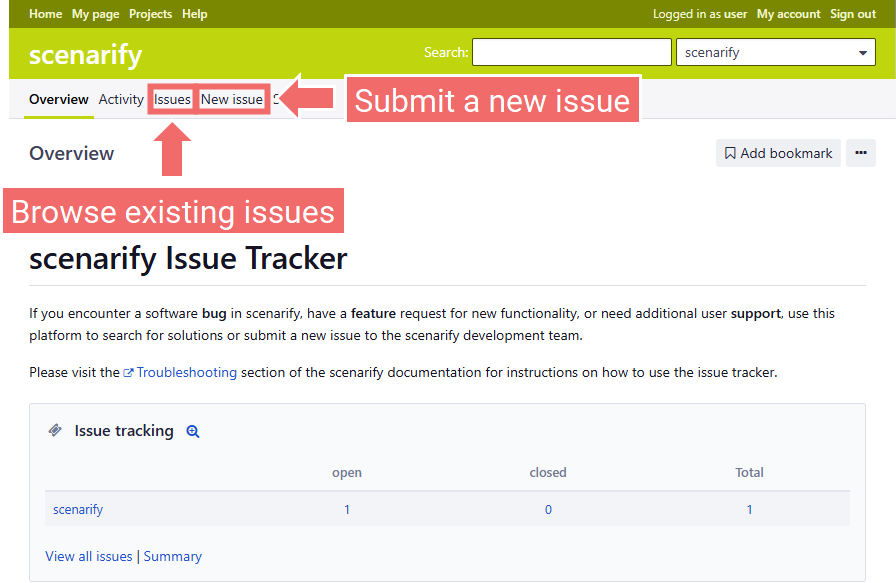
Browsing Related Issues
Before submitting a new issue, please browse the list of existing issues or use the search bar at the top of the issue tracker's landing page with one or more keywords related to your request to search for existing related issues.
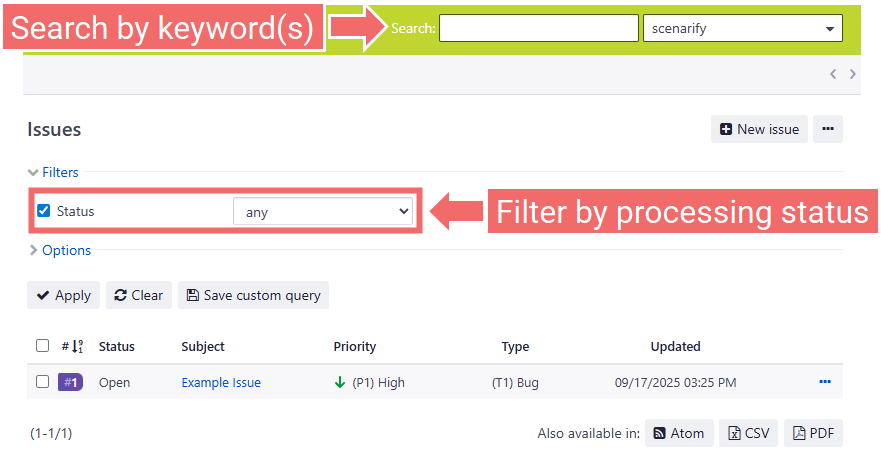
You can filter existing issues by their processing status. Closed issues have already been resolved and may contain a solution to your problem. If you find an open issue that matches your feature request or the bug you are experiencing, please do not create a duplicate. Instead, add a note at the bottom of the existing issue to express your interest in its resolution. VRVis gives priority to issues that affect multiple users. To receive updates about an issue’s progress, click the Watch button below it.
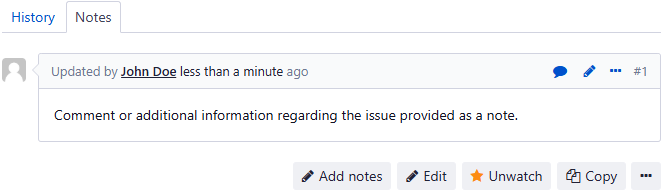
Note: Commenting on a related existing issue instead of creating a duplicate accelerates processing of the issue.
Submitting a New Issue
To submit a new issue, click the New issue button at the top of the landing page. In the issue form, please be concise, but provide all necessary information and steps to reproduce the issue. Note that only tickets written in English or German will be processed.
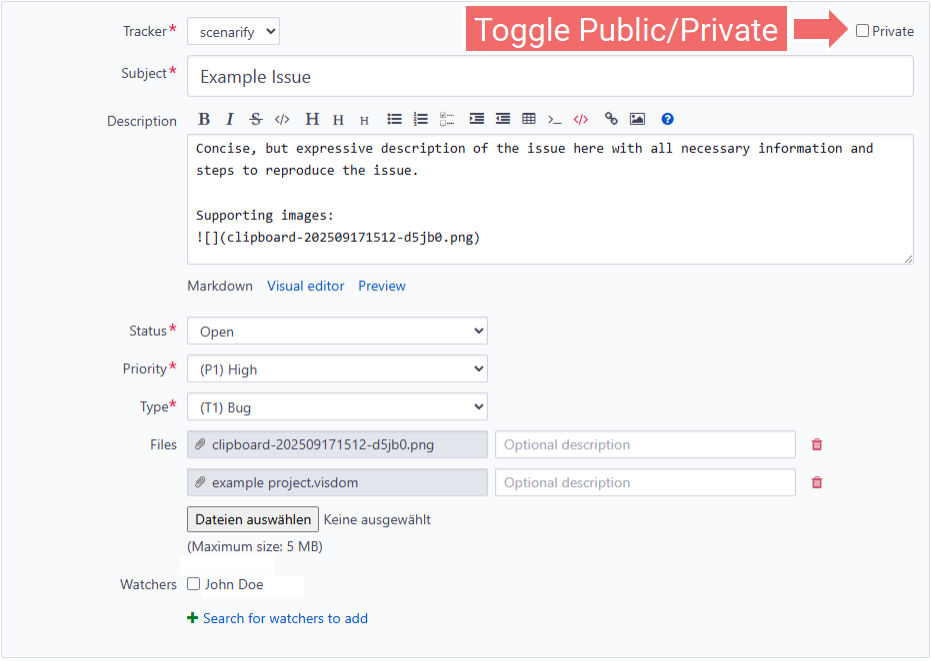
- Private: Makes the issue visible to the scenarify development team only. Please check this box if your issue description contains sensitive or confidential information.
- Subject: A short title that sums up the issue.
- Description: A concise, but expressive description of the issue with all necessary information and steps to reproduce the issue. Please provide images/screenshots supporting your textual description. Screenshots can be added to the text field directly by copy and paste from a snipping tool, images can be added by drag and drop.
- Priority: Classifies the urgency of the issue as follows:
- (P1) High
- (P2) Normal
- (P3) Low
- Type: Issues are categorized in the system as follows:
- (T1) Bug: Software errors, unavailability of the service (in case of cloud license)
- (T2) Feature: Requests regarding missing or new software functionality
- (T3) Support: Questions regarding the usage and handling of the software
- Files: Files supporting the issue description (e.g., screenshots, videos, output data) as well as data necessary to reproduce the described behavior (project file, input data). Use the project download feature to save it locally.
Note: Projects can also be shared directly with other users within scenarify. The assignee of the submitted issue might ask the user to share the project with a support account.
- Watchers: List of everyone (e.g., coworkers) who should be notified when this issue is updated.