Creating Camera Fly-Over Animation for Video Export
When exporting a video in scenarify, you can animate the camera to create dynamic fly-over effects. This is achieved by adding camera settings (representing the camera's position and viewing direction) to specific time steps as anchor points. During scenario playback or video recording, the camera's movement will be automatically interpolated between these points, resulting in smooth transitions.
The camera settings are displayed in the popup menu under the "Export Settings and Camera Animation" button of the Export Bar, in the "Camera Animation and Navigation" section:
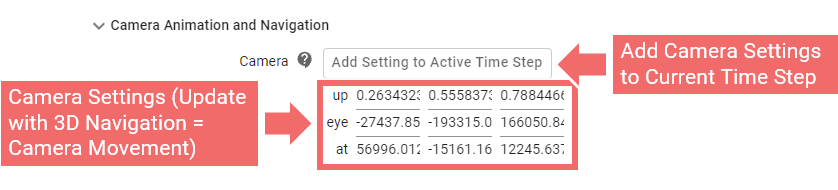
To enable camera animation, camera settings must be added to at least two time steps:
- On your dedicated scenario, navigate to the time step at which the camera animation should start and click the "Add Setting to Active Time Step" button. An indication will appear in the World Lines, confirming that the camera settings have been successfully added:

- Select the desired camera perspective. This is where the camera movement will start.
- Navigate to the time step at which the camera movement should end. Click the "Add Setting to Active Time Step" button. An indication will appear in the World Lines, confirming that the camera settings have been successfully added:

- Select the desired camera perspective with which the camera movement should end. Now, during scenario playback between the two specified time steps, the camera position and viewing direction will be smoothly interpolated, creating a fluid transition.
More camera anchor points can be added to other time steps of the scenario if needed. However, it is essential to always add the camera settings to a time step first, and then adjust the camera perspective to achieve the desired position and viewing direction:

If you want to adjust the time step of a camera anchor point, click and drag the red dot along the scenario timeline to a new position.
Hint: When the camera is in an interpolated state—meaning the active time step has no defined camera settings—any manual 3D navigation (e.g., panning, zooming, or rotating) will switch the camera to a global (non-interpolated) state. This may result in a brief visual jump. From there, standard 3D navigation works as usual. To return to the interpolated camera view, simply move the time cursor.